Dell Control Panel - New Interface
Summary: This article provides information about Dell Control Panel New Interface.
This article applies to
This article does not apply to
This article is not tied to any specific product.
Not all product versions are identified in this article.
Instructions
Note:
- This article applies to Microsoft 365 subscriptions acquired through the Cloud Solution Provider (CSP) program from Dell. This excludes Microsoft 365 consumer products, such as Microsoft 365 Personal, Family, or licenses purchased with a new Dell System.
- This article does not apply to Microsoft 365 subscriptions acquired through a channel partner.
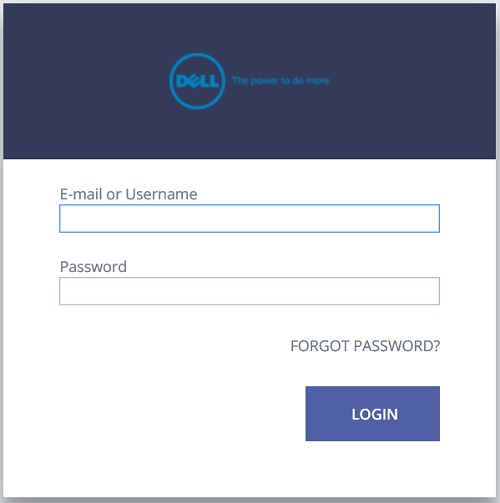
User must log in to https://cp.cloudstore.dell.com/
A link for the site and the username should be available on the Welcome email.
To create a password and login to the Control Panel for the first time, use the "Forgot Password?" link.
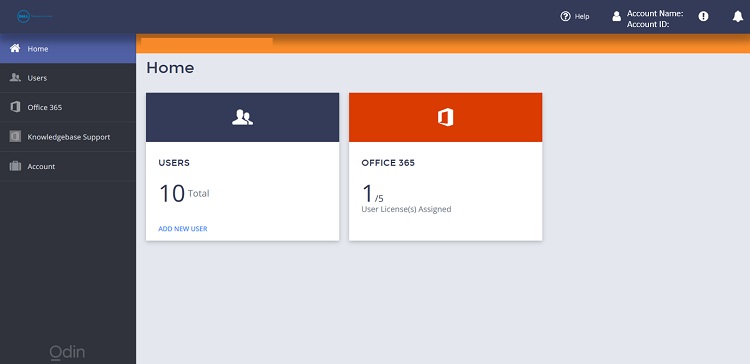
Dashboard
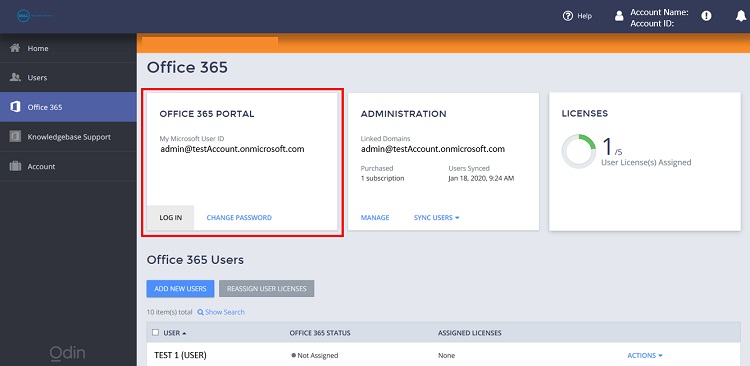
O365 Credentials and Access
The default username to log in to the Microsoft portal is available here. Clicking Change Password provides a temporary password to log in to the account.
Clicking Log in to Office 365 as Administrator takes you directly to the Microsoft portal to log in.
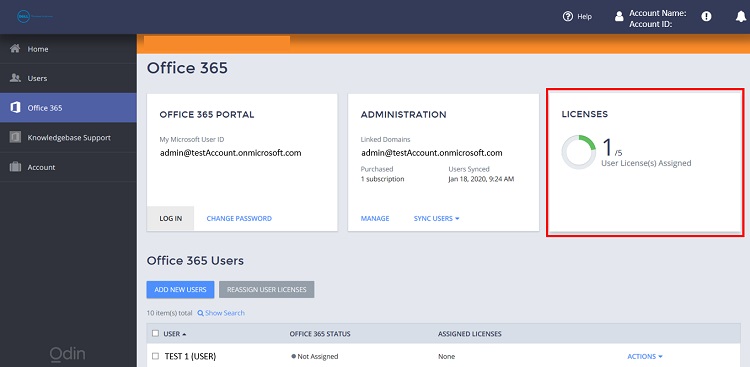
License Summary
In general, follow these steps:
-
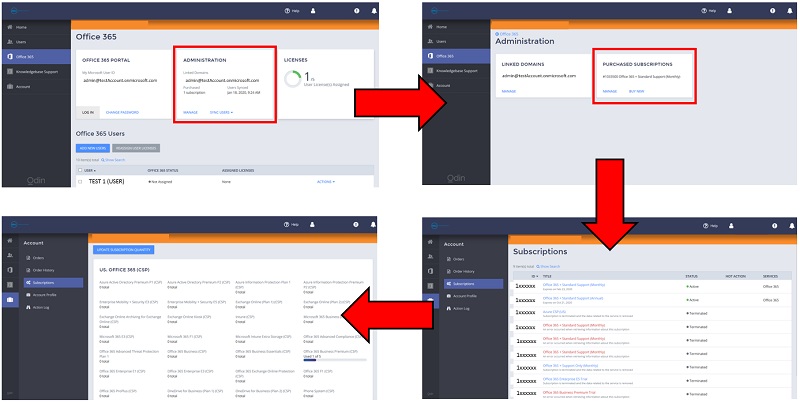
Go to the Office 365 pane.
-
Click the Licenses tile. In this section, it shows the available vs. assigned licenses.
Adding and Reducing Licenses
In general, follow these steps:
-
Go to the Office 365 pane.
-
Click Manage within the Administration tile.
-
Click Manage again within the Purchased Subscriptions tile.
-
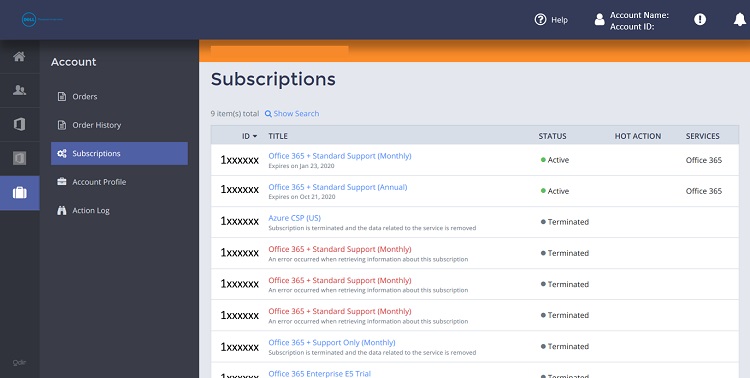
Go to the Subscription ID then proceed to manage the licenses.
-
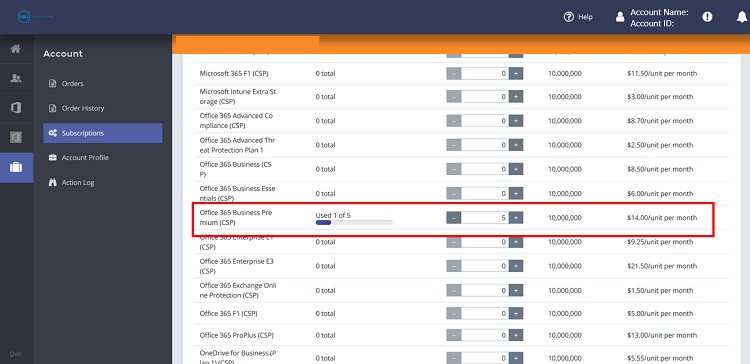
Click Update Subscription Quantity.
-
Increase or decrease the quantity per subscription as needed.
-
Scroll down to the bottom of the page, then click OK.
-
Click Confirm within the Confirm Your Order page.
Note: This functionality is available only for customers who elected to bill monthly.
Users Pane
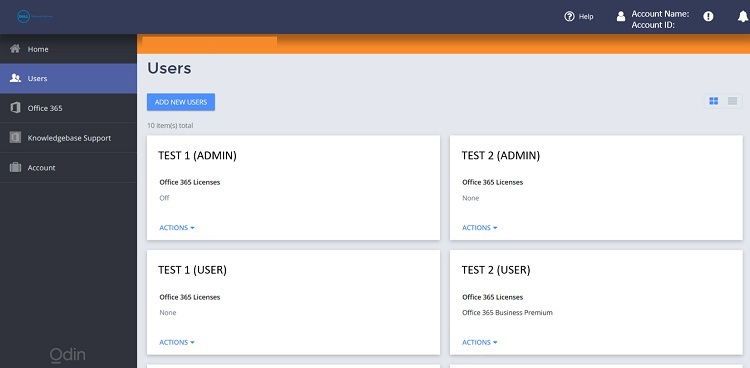
This is where to view the list of users and the licenses that are assigned to each. Creation of users and license assignment are also available here.
Accounts Pane
Affected Products
Microsoft 365 from DellProducts
Microsoft 365 from DellArticle Properties
Article Number: 000184487
Article Type: How To
Last Modified: 09 May 2026
Version: 7
Find answers to your questions from other Dell users
Support Services
Check if your device is covered by Support Services.