Windowsでサイレント インストールを使用してNetWorkerクライアントおよびNetWorker拡張クライアント ソフトウェアをインストールする方法
Summary: このKBでは、Windowsシステムでコマンド ラインからNetWorkerクライアントおよび拡張クライアント パッケージをインストールする手順について説明します。
This article applies to
This article does not apply to
This article is not tied to any specific product.
Not all product versions are identified in this article.
Instructions
- オンライン サポートWebサイト(https://www.dell.com/support/home/product-support/product/networker/drivers)からNetWorkerソフトウェア パッケージをダウンロードします。
- Windowsクライアント システムから、管理コマンド プロンプトを開き、インストール バイナリーが存在するパスに cdを使用して移動します。
ディレクトリー コンテンツの例:
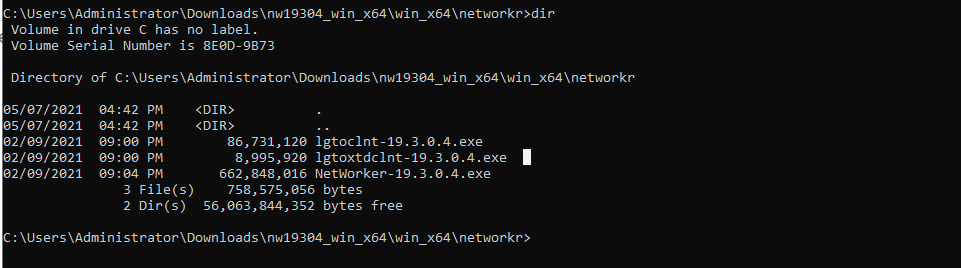
- 次のコマンドを実行します。
lgtoclnt-x.x.x.x.exe /v /s /q ConfigureFirewall=1 StartServices=1 /norestart
- /s /qは、すべてのUI出力を抑制します。
- /vは冗長モードを有効にします。
- /norestartは、インストールが完了した後に再起動を抑制します(インストールで再起動が必要な場合)。
Example:

- [プログラムと機能]に、インストールされたクライアント パッケージが表示されます。

サイレント オプションを使用したNetWorker拡張クライアントのインストール:
- 次のコマンドを実行します。
lgtoxtdclnt-x.x.x.x.exe /v /s /q ConfigureFirewall=1 StartServices=1 /norestart
Example:

- [プログラムと機能]に、インストールされた拡張クライアント パッケージが表示されます。

- NetWorkerクライアント サービスは、インストール後に自動的に再起動するはずです。
net stop nsrexecd /y && net start nsrexecd
Affected Products
NetWorkerArticle Properties
Article Number: 000192023
Article Type: How To
Last Modified: 12 May 2026
Version: 6
Find answers to your questions from other Dell users
Support Services
Check if your device is covered by Support Services.