Raporlama ve Analizler (DPA), IDPA 2.7 veya 2.7.1 e yükselttikten sonra ACM'de Uygulama hizmetini ve Uygulama Sunucusu Yöneticisi kullanıcı arayüzünü kırmızı renkte gösteriyor
Summary: Bu KB, IDPA 2.7 veya 2.7.1 yükseltmesinden sonra başlatılmayan DPA Uygulama hizmetlerine geçici çözüm hakkında bilgi sağlar.
This article applies to
This article does not apply to
This article is not tied to any specific product.
Not all product versions are identified in this article.
Symptoms
IDPA 2.7 veya 2.7.1 e yükselttikten sonra Raporlama ve Analiz (DPA) uygulama hizmetleri başlatılmıyor ve ACM kullanıcı arayüzünde kırmızı işaretler gösteriyor. 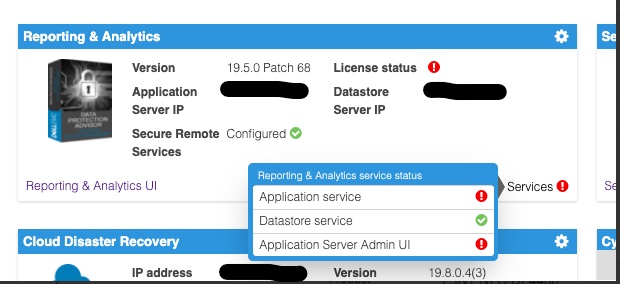
Şu konumda bulunan DPA Uygulama sunucusu günlüğünü inceleme <dpa_install_path>/services/logs/server.log Aşağıdaki mesajlar görülecektir.
2021-12-27 14:14:07,113 INFO  [com.emc.apollo.serverstart.pre.PreApolloStartupBean] (ServerService Thread Pool -- 62) Server starting
2021-12-27 14:14:07,114 INFO  [com.emc.apollo.services.container.ApolloClusterServicesJbossImpl] (ServerService Thread Pool -- 62) initIsMaster set to true
2021-12-27 14:14:07,115 INFO  [com.emc.apollo.serverstart.pre.PreApolloStartupBean] (ServerService Thread Pool -- 62) Apollo Version: 19.5.0.1634796815
2021-12-27 14:14:07,117 WARN  [org.jboss.jca.core.connectionmanager.pool.strategy.PoolBySubject] (ServerService Thread Pool -- 62) IJ000604: Throwable while attempting to get a new connection: null: javax.resource.ResourceException: Could not create connection
...
Caused by: org.postgresql.util.PSQLException: Connection to <ip_address_of_DS>:9003 refused. Check that the hostname and port are correct and that the postmaster is accepting TCP/IP connections.
...
Caused by: java.net.ConnectException: Connection refused (Connection refused)
at java.net.PlainSocketImpl.socketConnect(Native Method) [rt.jar:1.8.0_301]
Ve
2021-12-27 14:14:07,120 ERROR [com.emc.apollo.serverstart.pre.PreApolloStartupBean] (ServerService Thread Pool -- 62) exception trying to obtain a connection to the database: com.emc.apollo.jdbc.ApolloSQLException: Could not obtain connection: javax.resource.ResourceException: IJ000453: Unable to get managed connection for java:jboss/datasources/ApolloDSSon olarak sorunu doğrulamak için kök kullanıcı olarak PUTTY/SSH kullanarak DPA DS sunucusunda oturum açın ve aşağıdaki komutu çalıştırın:
dpa.sh ds con
DPA APP hizmeti başlatılmıyorsa çıktı aşağıdakine benzerdir:
dpa.sh ds con

EMC Data Protection Advisor

[INFO] Service Bind Address(es)    : 127.0.0.1
       Client(s) Address(es)       : 127.0.0.1/32
                                     ::1/128
                                     127.0.0.1/32
                                     ::1/128
                                     <DS_ip_addresss>/32

Command completed successfully.

Where <DS_ip_addresss> is the IP Address of the DPA Datastore, example 10.0.0.20.
Sorunun tanımlanmasında aşağıdaki bileşenlerden biri veya her ikisi birden bulunur:
- Hizmet Bağlama Adresleri bölümünde, DPA Veri Deposunun IP Adresi listelenmez.
- İstemci (ler) Adres (ler) bölümünde, DPA Uygulamasının IP Adresi listelenmez.
Bu örnekte her iki sorun da mevcuttur.
Bu komuttan uygun bir çıktı aşağıdaki gibi olmalıdır:
dpa.sh ds con

EMC Data Protection Advisor

[INFO] Service Bind Address(es)    : <DS_ip_addresss>
       Client(s) Address(es)       : 127.0.0.1/32
                                     ::1/128
                                     127.0.0.1/32
                                     ::1/128
                                     <App_ip_addresss>/32
                                     <DS_ip_addresss>/32

Command completed successfully.

Where <DS_ip_addresss> is the IP Address of the DPA Datastore, example 10.0.0.20.

Where <App_ip_addresss> is the IP Address of the DPA Application, example 10.0.0.21.
Cause
Bu, Data Protection Advisor'da bilinen bir Sorun/Kusurdur.
Resolution
Bu sorunun çözümü yoktur.
Bu sorun için geçici bir çözüm mevcuttur. Aşağıdaki adımları takip et.
NOT: En iyi uygulama, bu komutları çalıştırmadan önce tüm DPA Veri Deposu yapılandırma dosyalarının kopyalarını oluşturmak ve yedeklemektir.
Aşağıdaki öğelerin her ikisinden biri gerçekleştirilmelidir. Bazı durumlarda yalnızca DPA Veri Deposu bağlantı adresinin, bazılarında ise hem DPA Veri Deposu bağlantı adresinin hem de DPA Uygulamasının İstemci Adresinin düzeltilmesi gerekir.
DPA Veri Deposu "bağlama" adresini düzeltme.
1. /opt/emc/epa/services/bin dizininden DPA Veri Deposu sunucusunda aşağıdaki komutu çalıştırın:
dpa.sh ds con -b <ip_address_of_the_datastore>
2. DPA Veri Deposu hizmetlerini yeniden başlatın.
/ adresinden DPA Veri Deposu sunucusunda aşağıdaki komutu çalıştırın:
opt/emc/epa/services/bin dizin:
dpa.sh ds restart3. DPA Uygulama hizmetlerini yeniden başlatın.
DPA APP sunucusunda aşağıdaki komutu
/opt/emc/epa/services/bin dizin:
dpa.sh app restart
DPA Uygulama İstemci Adresini
Düzeltme1. DPA Veri Deposu sunucusunda aşağıdaki komutu /opt/emc/epa/services/bin dizin:
dpa.sh ds con -a <ip_address_of_the_dpa_application>
2. DPA Veri Deposu hizmetlerini yeniden başlatın.
DPA Veri Deposu sunucusunda aşağıdaki komutu
/opt/emc/epa/services/bin dizin:
dpa.sh ds restart
3. DPA Uygulama hizmetlerini yeniden başlatın.
DPA APP sunucusunda aşağıdaki komutu
/opt/emc/epa/services/bin dizin:
dpa.sh app restart
Varsa
yapılandırma IP'sini kaldırmadpa.sh con çıktısında aşağıdaki IP'nin listelendiğini görüyorsanız, kaldırılması gerekir:
10.63.62.242/32
Bu girişi kaldırmak için DPA Veri Deposu sunucusunda aşağıdaki komutu /opt/emc/epa/services/bin dizin:
dpa.sh ds con -d 10.63.62.242
Daha fazla ayrıntı veya bilgi için Dell Teknik Destek ile iletişime geçin.
Article Properties
Article Number: 000195087
Article Type: Solution
Last Modified: 16 Apr 2025
Version: 3
Find answers to your questions from other Dell users
Support Services
Check if your device is covered by Support Services.