CPU and Memory Profiles Are Missing from the Fusion Tab in Alienware Command Center
Summary: The following article provides information about missing options in the Alienware Command Center application.
This article applies to
This article does not apply to
This article is not tied to any specific product.
Not all product versions are identified in this article.
Symptoms
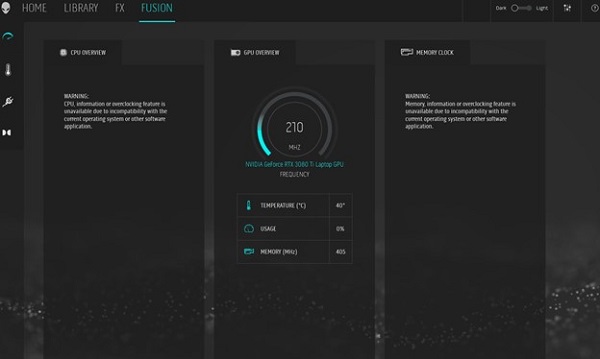
Owners of Dell computers using the Alienware Command Center (AWCC) application may experience an issue. Anyone using AWCC to overclock or adjust the CPU and Memory may find the options missing from the fusion tab.
This is seen on computers running the Windows 11 or Windows 10 operating system.
Cause
Not applicable
Resolution
Dell continues to work with Intel and Microsoft and provides the following workaround:
Note: Configuring your computer may require Administrator Privileges.
-
To get runtime-overclocking working, you must opt out of Microsoft Hypervisor and HVCI:
-
Click the Start Menu and type
Memory Integrity. -
Open the Windows security application that shows in the search list.
-
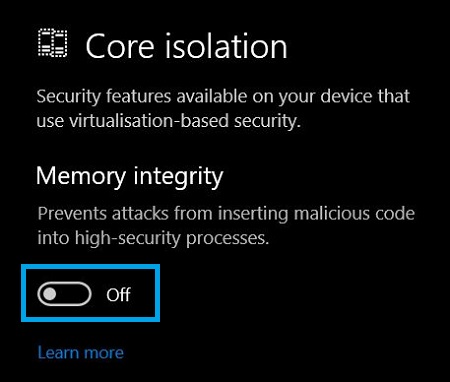
The option to disable Memory Integrity should be below Core Isolation on the page. (See Figure.2)
- Click the toggle switch to Off to opt out.
- Contact us if this does not work or you must keep Memory Integrity enabled.
-
How to opt out of Microsoft Hypervisor and HVCI:
- Open Windows Security → Core Isolation → Memory Integrity.
- Set it to Off.
- Press Windows key and click Search.
- Type turn windows features off then Uncheck the following:
- Hyper-V and all subcomponents
- Virtual Machine Platform
- Windows Hypervisor Platform
- Restart the computer.
Affected Products
Alienware Command CenterArticle Properties
Article Number: 000197357
Article Type: Solution
Last Modified: 17 Jun 2026
Version: 10
Find answers to your questions from other Dell users
Support Services
Check if your device is covered by Support Services.