OpenManage Integration for VMware vCenter for VMware: Version 5.x Registration issue due to Certificate Mismatch (thumbprint mismatch)
Summary: During initial registration, OMIVV 5.x registers a vCenter successfully, but the plug-in might not appear in vCenter or under vCenter > Administration > Client Plugins.
This article applies to
This article does not apply to
This article is not tied to any specific product.
Not all product versions are identified in this article.
Instructions
NOTE: vCenter requests the plug-in download from OMIVV using Fully Qualified Domain Name (FQDN). The primary requirement is that OMIVV is on DNS reverse and forward lookup zones.
Scope:
vCenter might not display the plug-in as available, even if it shows as successfully registered in the OMIVV appliance web interface (https://appliance_name_or_IP/). 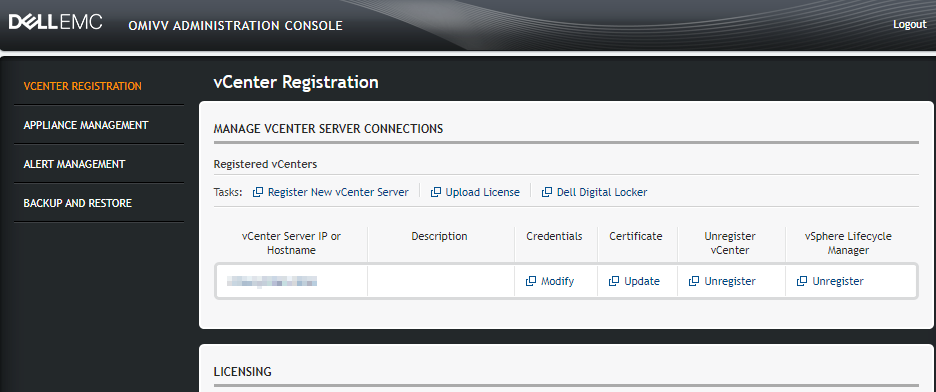
Troubleshooting:
1. Obtain vCenter logs to review or establish an SSH session into the suspect VCenter to view the logs directly.
2. Check the vsphere_client_virgo.log located in the following path:
/var/log/vmware/vsphere-ui/logs
3. Check the log for a message similar to:
[WARN ] http-bio-9090-exec-10820 com.dell.pg.spectre.common.ApplicationInfoService Exception while getting vCenter/appliance information for https://vcenter.domain.com:443/sdk : com.sun.xml.internal.ws.client.ClientTransportException: HTTP transport error: javax.net.ssl.SSLHandshakeException: java.security.cert.CertificateException: Server certificate chain is not trusted and thumbprint doesn't match
4. Run LSDOCTOR on the Vcenter to diagnose possible errors in name, or certificate trust issues. Per VMware's description:
Lookup Service Doctor (lsdoctor) is a tool used to address issues with data stored in the PSC database, as well as data local to a vCenter (regardless of whether the PSC is external or embedded). The tool can be used to detect and correct problems that could cause failures in topology changes (converge, repoint, etc.), upgrades, or failures incurred as a result of maintenance (e.g. incorrectly applying new SSL certificates). This article will outline its functions and use.
5. LSDOCTOR may uncover errors such as the following "SSL Trust Mismatch Detected" message:

Solution:
If the symptoms match, this may be due to one or more of the following reasons: a certificate has expired, the VCenter has a different name than the certificate (name change), there are SSL trust mismatch errors, or the certificate did not synchronize with the Platform Services Controller (PSC).
This issue affects the VCenter end. LSDOCTOR is a tool from VMware that can help scope the issue further and fix any errors. It is recommended that an offline snapshot is taken prior to making any changes. For more information, including download, and usage instructions, reference the following VMware KB link:
Using the 'lsdoctor' Tool (80469)
This issue affects the VCenter end. LSDOCTOR is a tool from VMware that can help scope the issue further and fix any errors. It is recommended that an offline snapshot is taken prior to making any changes. For more information, including download, and usage instructions, reference the following VMware KB link:
Using the 'lsdoctor' Tool (80469)
Affected Products
C Series, HS Series, Modular Infrastructure, Rack Servers, Tower Servers, XE Servers, XR Servers, OpenManage Integration for VMware vCenter, PowerEdge XR2, Poweredge C4140, PowerEdge C6400, PowerEdge C6420, PowerEdge C6520, PowerEdge C6525
, PowerEdge C6600, PowerEdge C6615, PowerEdge C6620, PowerEdge FC640, PowerEdge FX2/FX2s, PowerEdge HS5610, PowerEdge HS5620, PowerEdge M1000E, PowerEdge M640, PowerEdge M640 (for PE VRTX), PowerEdge MX5016s, PowerEdge MX7000, PowerEdge MX740C, PowerEdge MX750c, PowerEdge MX760c, PowerEdge MX840C, PowerEdge R240, PowerEdge R250, PowerEdge R260, PowerEdge R340, PowerEdge R350, PowerEdge R360, PowerEdge R440, PowerEdge R450, PowerEdge R470, PowerEdge R540, PowerEdge R550, PowerEdge R570, PowerEdge R640, PowerEdge R6415, PowerEdge R650, PowerEdge R650xs, PowerEdge R6515, PowerEdge R6525, PowerEdge R660, PowerEdge R660xs, PowerEdge R6615, PowerEdge R6625, PowerEdge R670, PowerEdge R740, PowerEdge R740XD, PowerEdge R740XD2, PowerEdge R7415, PowerEdge R7425, PowerEdge R750, PowerEdge R750XA, PowerEdge R750xs, PowerEdge R7515, PowerEdge R7525, PowerEdge R760, PowerEdge R760XA, PowerEdge R760xd2, PowerEdge R760xs, PowerEdge R7615, PowerEdge R7625, PowerEdge R770, PowerEdge R7715, PowerEdge R7725, PowerEdge R840, PowerEdge R860, PowerEdge R940, PowerEdge R940xa, PowerEdge R960, PowerEdge T140, PowerEdge T150, PowerEdge T160, PowerEdge T340, PowerEdge T350, PowerEdge T360, PowerEdge T40, PowerEdge T440, PowerEdge T550, PowerEdge T560, PowerEdge T640, POWEREDGE VRTX, PowerEdge XE2420, PowerEdge XE7100, PowerEdge XE7420, PowerEdge XE7440, PowerEdge XE7745, PowerEdge XE8545, PowerEdge XE8640, PowerEdge XE9640, PowerEdge XE9680, PowerEdge XR11, PowerEdge XR12, PowerEdge XR4000r, PowerEdge XR4000w, PowerEdge XR4000z, PowerEdge XR4510c, PowerEdge XR4520c, PowerEdge XR5610, PowerEdge XR7620, PowerEdge XR8000r, PowerEdge XR8610t, PowerEdge XR8620t
...
Article Properties
Article Number: 000198890
Article Type: How To
Last Modified: 09 Apr 2025
Version: 10
Find answers to your questions from other Dell users
Support Services
Check if your device is covered by Support Services.