Netskope Private Access Gateway missing from Client Configuration screen
Summary: Netskope Private Access Gateway missing from the client configuration screen? Follow our guide to restore access on Windows 11, 10, and Server editions.
This article applies to
This article does not apply to
This article is not tied to any specific product.
Not all product versions are identified in this article.
Symptoms
Affected Products:
- Netskope
- Netskope Private Access
Affected Operating Systems:
- Windows 11
- Windows 10
- Windows Server 2022
- Windows Server 2019
- Windows Server 2016
A user is unable to access a private application provisioned using Netskope Private Access. When looking at the client configuration screen of the Netskope client, you see the Private Access Gateway IP N/A.

Cause
Not Applicable
Resolution
The steps below helps restore this functionality:
- Log in to Windows with an administrative account.
- Right-click Start -> Run.

- In the Run dialog box, type cmd and click OK to open.

- At an administrative command prompt, enter
net stop stagentsvc
 Note: If the client anti-tampering feature is enabled, you might not be able to stop the service in this step. You can continue the steps below and when finished a full reboot of your machine is needed.
 - Open Windows Explorer and go to
C:\ProgramData\Netskope\stagent\data.

- Locate two files that are named npaccesscert.pem and npaaccesskey.pem.
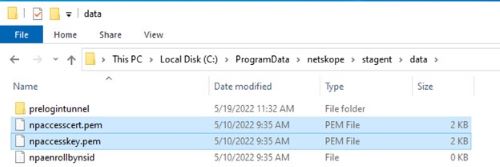
- Delete npaccesscert.pem and npaccesskey.pem from the
C:\ProgramData\netskope\stagent\datadirectory. - In the Command Prompt window from step four, enter
net start stagentsvcto restart the Netskope Steering client service.
 Note: If you were unable to stop the service in step four, you must reboot your computer now for the changes to take effect.
 - In the Windows System Tray, locate the Netskope application and right-click it.

- In the right-click menu, click Configuration.
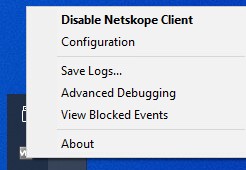
- Private Access should now say Connected, and Private Access Gateway IP displays an IP address.
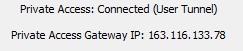
- If you are unable to view the configuration details, or the Private Access items are still incorrect see our How to Get Support for Netskope article for further support assistance.
To contact support, reference Dell Data Security International Support Phone Numbers.
Go to TechDirect to generate a technical support request online.
For additional insights and resources, join the Dell Security Community Forum.
Affected Products
NetskopeArticle Properties
Article Number: 000199986
Article Type: Solution
Last Modified: 01 Jul 2024
Version: 6
Find answers to your questions from other Dell users
Support Services
Check if your device is covered by Support Services.