Windows Server : Gestion des GPO Active Directory à l’aide de PowerShell
Summary: Les instructions ci-dessous donnent des exemples de commandes PowerShell disponibles pour rassembler une liste des GPO trouvés dans un domaine Windows Active Directory spécifique. TSDOMAIN. Local est un exemple dans les commandes ci-dessous et doit être remplacé par le nom de domaine dans lequel nous recueillons les informations GPO. ...
This article applies to
This article does not apply to
This article is not tied to any specific product.
Not all product versions are identified in this article.
Instructions
Les étapes ci-dessous utilisent Windows PowerShell pour gérer les objets de stratégie de groupe Windows Active Directory.
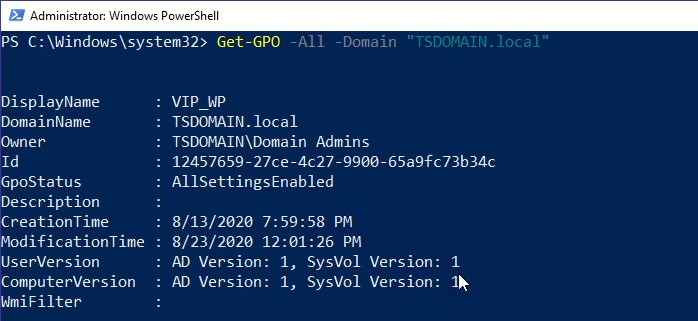


- L’exemple de commande ci-dessous renvoie tous les GPO trouvés dans le domaine spécifié :
Get-GPO -All -Domain “TSDOMAIN.local”
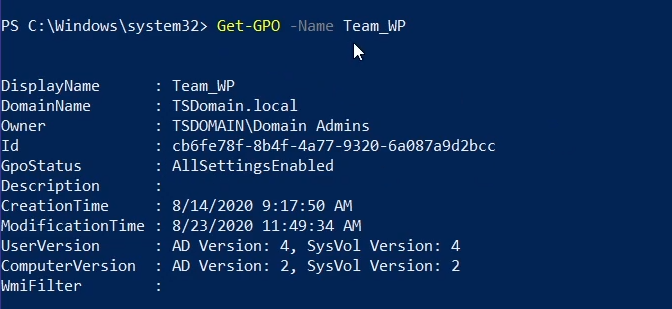
Get-GPOpeut être utilisé pour renvoyer des informations générales pour un GPO spécifique. L’exemple ci-dessous renvoie des informations générales sur le GPO « Team_WP » :
Get-GPO -Name Team_WP
- Les informations GPO peuvent être renvoyées en interrogeant l’ID GUID du GPO ; La commande ci-dessous est un exemple :
Get-GPO -Guid cb6fe78f-8b4f-4a77-9320-6a087a9d2bcc -Domain “TSDOMAIN.local”
Get-GPOReportLa commande ci-dessous renvoie un rapport complet pour tous les GPO de domaine trouvés, compilant les informations au format HTML pour examen.
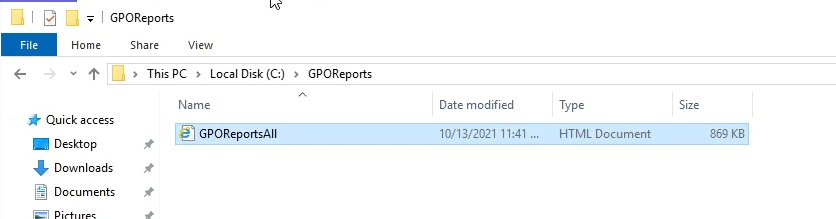
Get-GPOReport -All -Domain “TSDOMAIN.Local” -ReportType HTML -Path “C:\GPOReports\GPOReportsAll.html”
- Après l’exécution de
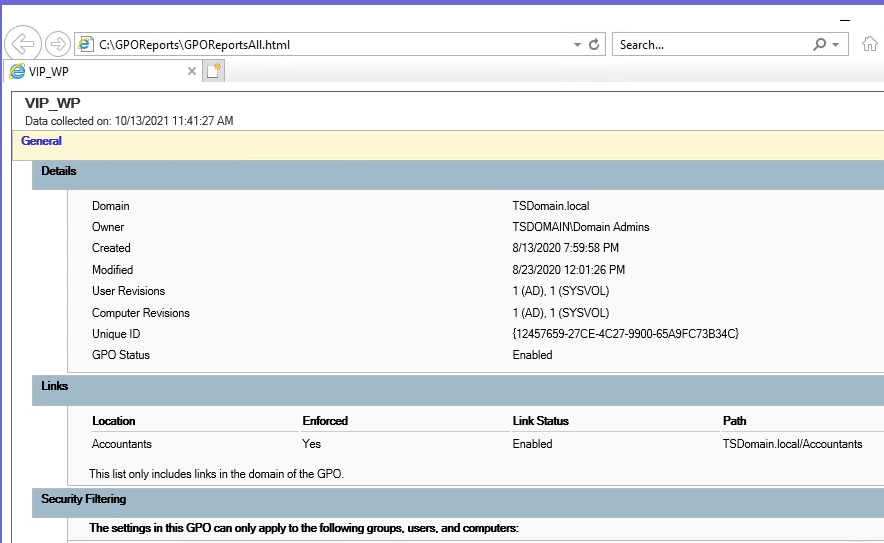
Get-GPOReportun fichier HTML est créé au niveau du chemin d’accès au fichier désigné dans la commande ci-dessus.
- Le fichier, une fois ouvert, s’affiche sous la forme d’une page de navigateur avec des détails détaillés sur tous les GPO de domaine trouvés.
Additional Information
Regardez cette vidéo :
Affected Products
Microsoft Windows Server 2016, Microsoft Windows Server 2019, Microsoft Windows Server 2022Products
PowerEdge XR2, PowerEdge FC640, PowerEdge M640, PowerEdge M640 (for PE VRTX), PowerEdge MX5016s, PowerEdge MX740C, PowerEdge MX750c, PowerEdge MX760c, PowerEdge MX840C, PowerEdge R240, PowerEdge R250, PowerEdge R260, PowerEdge R340, PowerEdge R350
, PowerEdge R360, PowerEdge R440, PowerEdge R450, PowerEdge R540, PowerEdge R550, PowerEdge R640, PowerEdge R6415, PowerEdge R650, PowerEdge R650xs, PowerEdge R6515, PowerEdge R6525, PowerEdge R660, PowerEdge R660xs, PowerEdge R6615, PowerEdge R6625, PowerEdge R740, PowerEdge R740XD, PowerEdge R740XD2, PowerEdge R7415, PowerEdge R7425, PowerEdge R750, PowerEdge R750XA, PowerEdge R750xs, PowerEdge R7515, PowerEdge R7525, PowerEdge R760, PowerEdge R760XA, PowerEdge R760xd2, PowerEdge R760xs, PowerEdge R7615, PowerEdge R7625, PowerEdge R840, PowerEdge R860, PowerEdge R940, PowerEdge R940xa, PowerEdge R960, PowerEdge T140, PowerEdge T150, PowerEdge T160, PowerEdge T340, PowerEdge T350, PowerEdge T360, PowerEdge T440, PowerEdge T550, PowerEdge T560, PowerEdge T640, PowerEdge XR11, PowerEdge XR12
...
Article Properties
Article Number: 000200551
Article Type: How To
Last Modified: 14 May 2026
Version: 10
Find answers to your questions from other Dell users
Support Services
Check if your device is covered by Support Services.