PowerEdge:ハードウェア変更後のWindows Serverのアップグレードおよび変換オプション
Summary: この記事では、ハードウェアの変更後にシステムがプロダクト キーを要求する問題を修正するためのソリューションについて説明します。
This article applies to
This article does not apply to
This article is not tied to any specific product.
Not all product versions are identified in this article.
Symptoms
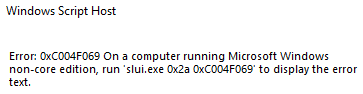
サーバーにハードウェアの変更を行い、Windows Serverを再インストールすると、ライセンス認証エラーが発生します。 run 'slui.exe 0x2a 0xC004F069'の詳細を確認してください。
エラー全体のスクリーンショット:
Cause
サーバーでハードウェアの変更が行われた場合。
Resolution
-
オペレーティング システムのエディションを確認するには、次のコマンドを実行します。
DISM /online /Get-CurrentEdition -
次のコマンドを実行します(汎用ボリューム ライセンス キーに適用されます)
DISM /online /Set-Edition:<edition ID> /ProductKey:XXXXX-XXXXX-XXXXX-XXXXX-XXXXX /AcceptEula注:次のジェネリック キーを使用してください。 https://learn.microsoft.com/en-us/windows-server/get-started/kms-client-activation-keys例:
DISM /online /Set-Edition:ServerDatacenter /ProductKey:XXXXX-XXXXX-XXXXX-XXXXX-XXXXX /AcceptEula -
次のコマンドを実行します。
slmgr.vbs /ipk XXXXX-XXXXX-XXXXX-XXXXX-XXXXX、この段階では、独自のプロダクト キーを使用し、これにより汎用キーが独自のプロダクト キーに置き換えられますが、オペレーティング システムはアクティブ化されません。 - オペレーティング システムをアクティブ化するには、次のコマンドを実行する必要があります
slmgr /atoライセンスをアクティブ化するには

先端
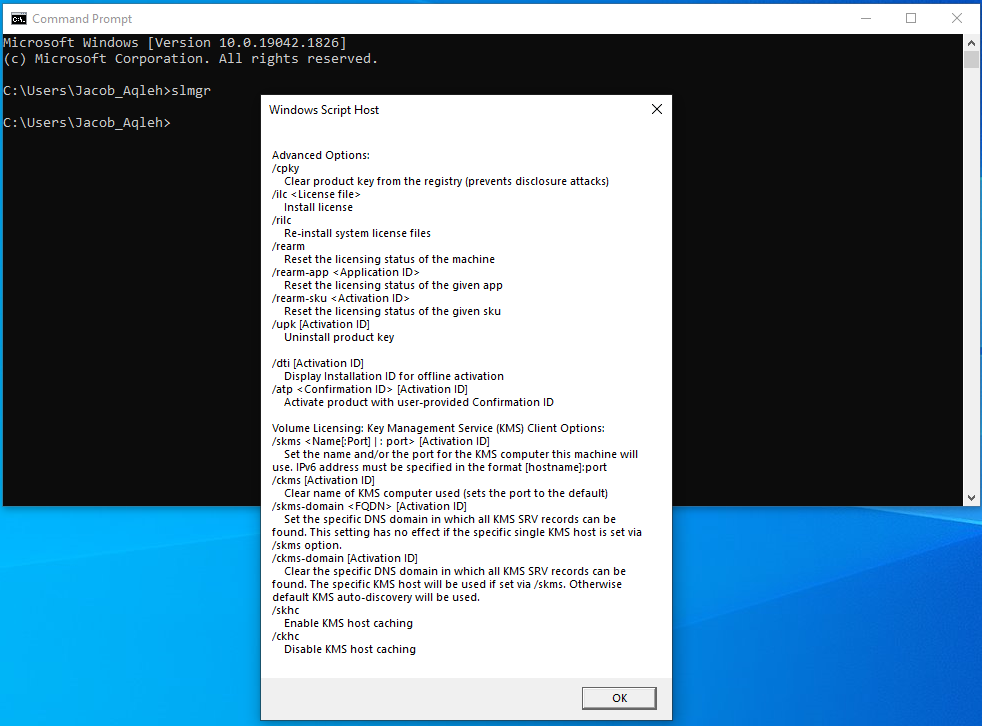
コマンド プロンプトで実行した場合 slmgrを選択すると、「Windows Script Host」ウィンドウが表示されます
下部にある[OK]を押すと、すべての slmgr 使用できるコマンド/スイッチ。
Affected Products
Microsoft Windows Server 2022Products
C Series, HS Series, Modular Infrastructure, Rack Servers, Tower Servers, XE Servers, XR Servers, OEM Server SolutionsArticle Properties
Article Number: 000201865
Article Type: Solution
Last Modified: 13 May 2026
Version: 5
Find answers to your questions from other Dell users
Support Services
Check if your device is covered by Support Services.