PowerEdge: 하드웨어 변경 후 Windows Server에 대한 업그레이드 및 변환 옵션
Summary: 이 문서는 하드웨어를 변경한 후 시스템에서 제품 키를 요청하는 문제를 해결하는 솔루션입니다.
This article applies to
This article does not apply to
This article is not tied to any specific product.
Not all product versions are identified in this article.
Symptoms
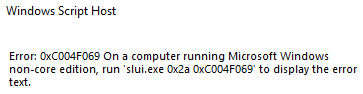
서버의 하드웨어를 변경하고 Windows 서버를 다시 설치하면 정품 인증 오류가 발생합니다. run 'slui.exe 0x2a 0xC004F069'에 관한 자세한 내용을 참조하십시오.
전체 오류의 스크린 샷 :
Cause
서버에서 하드웨어가 변경된 경우
Resolution
-
운영 체제 버전을 확인하려면 다음을 실행하십시오.
DISM /online /Get-CurrentEdition -
다음을 실행합니다. 이는 일반 볼륨 라이선스 키에 적용됩니다.
DISM /online /Set-Edition:<edition ID> /ProductKey:XXXXX-XXXXX-XXXXX-XXXXX-XXXXX /AcceptEula참고: 다음의 일반 키를 사용해야 합니다 https://learn.microsoft.com/en-us/windows-server/get-started/kms-client-activation-keys예:
DISM /online /Set-Edition:ServerDatacenter /ProductKey:XXXXX-XXXXX-XXXXX-XXXXX-XXXXX /AcceptEula -
다음 명령을 실행합니다.
slmgr.vbs /ipk XXXXX-XXXXX-XXXXX-XXXXX-XXXXX, 이 단계에서 사용자 고유의 제품 키를 사용하며 이렇게 하면 일반 키가 사용자 고유의 제품 키로 대체되지만 운영 체제가 활성화되지는 않습니다. - 운영 체제를 활성화하려면 다음 명령을 실행해야 합니다.
slmgr /ato라이선스를 활성화하려면

팁
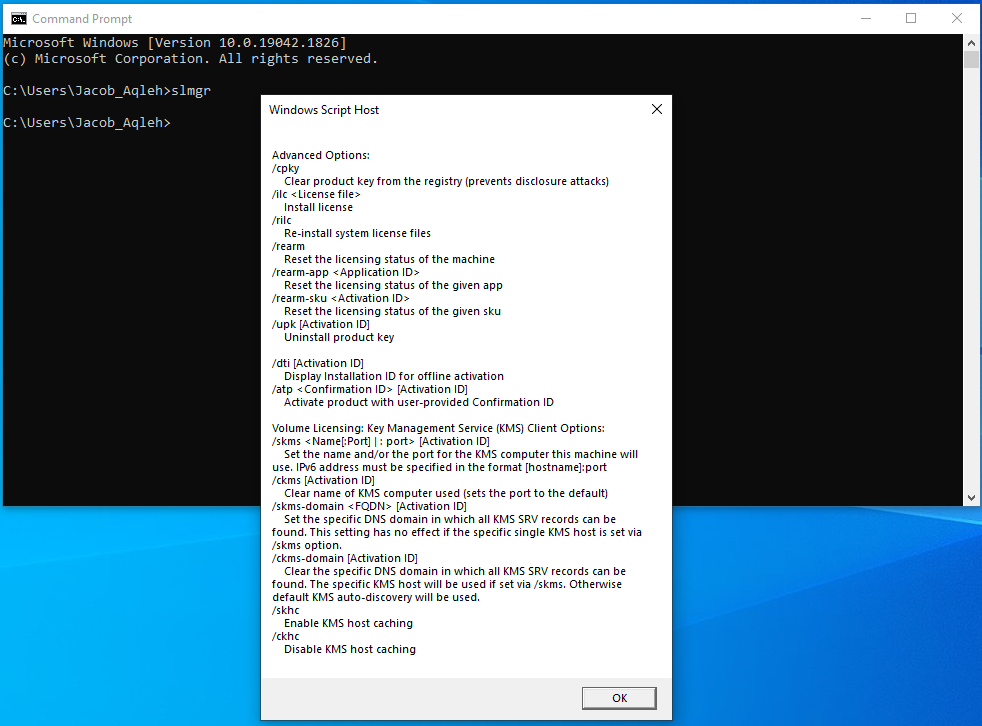
명령 프롬프트에서 실행하는 경우 slmgr에 "Windows 스크립트 호스트" 창이 나타납니다.
하단의 OK를 누르면 모든 slmgr 사용할 수 있는 명령/스위치입니다.
Affected Products
Microsoft Windows Server 2022Products
C Series, HS Series, Modular Infrastructure, Rack Servers, Tower Servers, XE Servers, XR Servers, OEM Server SolutionsArticle Properties
Article Number: 000201865
Article Type: Solution
Last Modified: 13 May 2026
Version: 5
Find answers to your questions from other Dell users
Support Services
Check if your device is covered by Support Services.