VxRail: LCM Precheck Failure or Warning on 14G Nodes with Active TPM 1.2 When Upgrading to 8.x
Summary: When attempting to upgrade to VxRail 8.0.x, VxRail Clusters that have nodes with an active Trusted Platform Module (TPM) 1.2 module will either fail the LCM precheck or give a warning.
This article applies to
This article does not apply to
This article is not tied to any specific product.
Not all product versions are identified in this article.
Symptoms
Scenarios:
- Scenario 1: For VxRail Clusters where the LCM target version is 8.0.000 to 8.0.020 and the upgrade source is any version
- Scenario 2: For VxRail Clusters where the LCM target version is 8.0.100 and above and the upgrade source versions is earlier than 4.7.510 and 7.0.100
- Scenario 3: For VxRail Clusters where the LCM target version is 8.0.100 and above and the upgrade source versions is equal to or after 4.7.510 and 7.0.100
For Scenarios 1 and 2:
14G nodes that have an active TPM 1.2 module, fail the VxRail 8.0 LCM precheck with the error message "VxRail Update ran into a problem…"
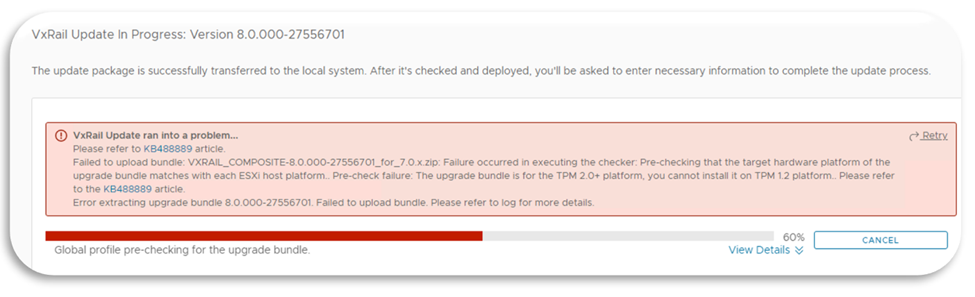
For Scenario 3:
14G nodes that have an active TPM 1.2 module, give the following warning when running the VxRail 8.0.100 and above LCM prechecks:
Your node <FQDN> contains a TPM 1.2 module that is set to Active in the BIOS. VMware and VxRail Manager allow you to upgrade the node to 8.0.100 and above using the LCM tool. However, please note the TPM 1.2 module will not function after the upgrade. VxRail Manager sets the 'TPM Security' setting to 'Off' in the BIOS as part of the upgrade. If you still require TPM functionality and want to upgrade to a TPM 2.0 module or if you prefer to manually disable the TPM 1.2 module yourself, then please see KB000204703 for instructions on how to do this.
Cause
vSphere 8.0 does not support TPM 1.2 modules.
The following steps help determine whether you have TPM 1.2 modules in your node and whether they are active:
1. Go to https://<vcenter_ip>/mob and browse to your VMware vCenter’s Managed Object Browser (MOB).
2. When prompted for a username and password, enter the same credentials you would use to access your vCenter Web Client. Ensure that this account has administrator access.
3. Select the active link in the value column for each of the following items: content > rootFolder > childEntity > hostFolder > childEntity.
This page displays a host value. The Managed Object ID (MOID) for each host displays next to host. In the example below they are highlighted in yellow.

4. Complete the following steps for each host in the cluster:
a. Browse to https://<vcenter_ip>/mob/?moid=<Node_MOID>&doPath=capability
b. Check the tpmVersion on this page.
- If the value is Unset, the TPM Module is disabled on the host, and you could upgrade the host without issue. This KB is not required.
- If the value is 2.0, the TPM Module is active and at a supported version for vSphere 8.0. This KB is not required.
- If the value is 1.2, the TPM Module is active. Continue onto the Resolution part of this KB.
Resolution
For Scenario 3:
You can run the standard LCM process, and it will automatically disable the TPM 1.2 module in the BIOS and upgrade your nodes to your defined 8.0.x version.
Before continuing with the LCM, ensure that none of your VMs or hosts have third party applications that are using the TPM 1.2 functionality.
If you would instead prefer to either disable the TPM modules manually or upgrade to TPM 2.0 modules before upgrading to 8.0.x, please see the below options for scenarios 1 and 2.
For Scenarios 1 and 2:
1. Click Cancel on the LCM error message to cancel the failed upgrade.
2. Select one of the following options, and complete the associated KB:
- You can disable the TPM 1.2 module permanently in the server BIOS, and then LCM can proceed.
- You still require TPM functionality in vSphere 8.0, so you can disable the module temporarily and then replace it with a TPM 2.0 module. After doing this, the LCM will also be able to proceed.
- You still require TPM functionality in vSphere 8.0, but you cannot disable the TPM 1.2 module temporarily. In this scenario, you must reimage your node as part of the TPM replacement process (involves Dell Professional Services or a Dell Partner). After replacing the TPM module and reimaging the node, the LCM can proceed.
- For detailed steps, see article: Dell VxRail 14G Nodes: Disable an Active TPM 1.2 Module Permanently or Upgrade to a TPM 2.0 Module by Temporarily Disabling the TPM 1.2
3. After you complete one of the above options for each node in the cluster, rerun your LCM on the cluster to upgrade all the nodes to vSphere 8.0. If you upgraded to a TPM 2.0 module, you can also reenable TPM and configure other security settings if you have not done it already.
Affected Products
VxRail G Series Nodes, VxRail D Series Nodes, VxRail D560, VxRail D560F, VxRail E Series Nodes, VxRail E560, VxRail E560F, VxRail E560N, VxRail G560, VxRail G560F, VxRail P Series Nodes, VxRail P570, VxRail P570F, VxRail P580N, VxRail S Series Nodes
, VxRail S570, VxRail V Series Nodes, VxRail V570, VxRail V570F
...
Article Properties
Article Number: 000204703
Article Type: Solution
Last Modified: 09 Jul 2026
Version: 12
Find answers to your questions from other Dell users
Support Services
Check if your device is covered by Support Services.