How To Use Multimedia and Function Keys on Dell External Keyboards
Summary: Learn how to use multimedia and function keys on Dell external keyboards, including primary and secondary key functions, swapping modes, BIOS access, and Windows shortcuts.
This article applies to
This article does not apply to
This article is not tied to any specific product.
Not all product versions are identified in this article.
Instructions
Affected Products:
- Dell Pro Keyboard KB500
- Dell Pro Plus Keyboard KB700
- Dell Pro Plus Compact Keyboard KB740
- Dell Pro Keyboard and Mouse KM5221W
- Dell Pro Plus Compact Keyboard and Mouse KM7120W
- Dell Pro Plus Keyboard and Mouse KM7321W
- Dell Pro 3 Wired Keyboard KB216
- Dell Wireless Keyboard and Mouse - KM117
- Dell Keyboard and Mouse KM3322W
Dell offers two types of external multimedia keyboards which typically combine the F1.F12 with a multimedia function such as mute, increase volume, lower volume, and so on.
- Type 1: Dell Multimedia Keyboard with media functions as primary and F1 F12 as secondary.
- Wireless keyboards:
- Dell Pro Keyboard KB500
- Dell Pro Plus Keyboard KB700
- Dell Pro Plus Compact Keyboard KB740
- Dell Pro Keyboard and Mouse KM5221W
- Dell Pro Plus Compact Keyboard and Mouse KM7120W
- Dell Pro Plus Keyboard and Mouse KM7321W
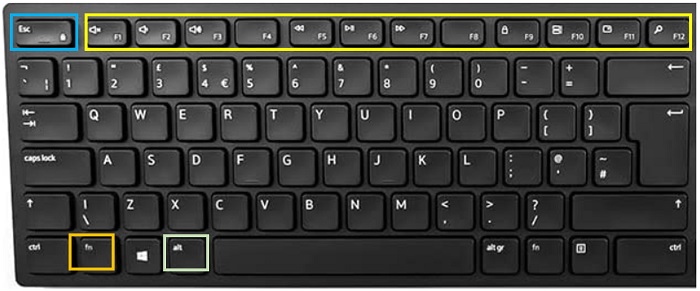
- Type 2: Dell Multimedia Keyboard with F1 F12F12 as primary and media functions as secondary
- Wired keyboard: KB216
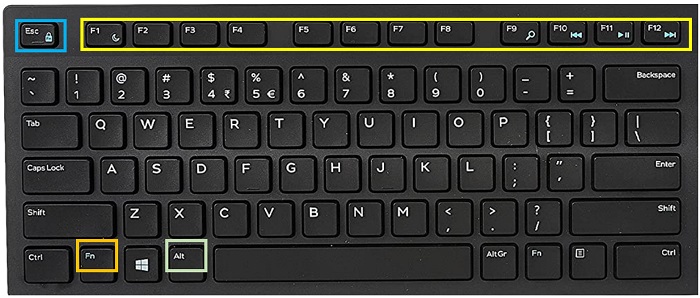
- Wireless keyboards: KM117, KM3322W
- Wired keyboard: KB216
Type 1 Keyboard Usage
Function Keys:
- Primary:
- Pressing F1.F12 activates the multimedia function (Pressing the F1 key, enables Mute).
- Secondary:
- Pressing FN + F1.F12 keys activates the traditional F# function (when pressing FN + F1 activates Help).
- Exception:
- Any F# keys without media icons (for example on the KM5221W the F4 key behaves as traditional function keys regardless of the primary or secondary mode).
To Swap:
- To swap the Primary and Secondary functions, press FN + Esc.
- To swap it back, press FN+Esc once again.
For Dell Computers That Need To Enter BIOS Mode:
Note: Applicable for keyboards using the RF mode only Bluetooth is not supported during the initial bootup.- Default Method:
- When the Dell logo appears, press-and-hold FN + F2 until the BIOS screen appears.
- Optional Method:
- At the operating system ready screen, press FN + Esc, reboot, and press-and-hold F2 when the Dell logo appears.
Alt Functions For Windows:
Note: We use Close the Application for this example.- Default: Press FN + Alt + F4.
- Optional method: Press FN + Esc to switch between primary and secondary, then press Alt. + F4..
Type 2 Keyboard Usage:
Function Keys:
- Primary:
- Pressing F1.F12 activates the traditional F# function (KB216: Pressing F1 activates Help).
- Secondary:
- Pressing Alt + F1.F12 activates the multimedia function (KB216: Pressing Alt + F1 activates Sleep mode).
- Exception:
- Any F# keys with no media icons (that is KB216 F2 key) behave as traditional function keys regardless of the primary or secondary mode.
To swap:
- To swap Primary and Secondary functions, press FN + Esc.
- To swap it back, press FN + Esc again.
- Exception:
- On KB216, when pressing FN + Esc multimedia keys (that is F1 for sleep) both primary and secondary modes are enabled.
For Dell Computers That Need To Enter BIOS Mode:
- Default method:
- Press and hold F2.
Alt Functions For Windows:
- Default:
- Press Alt + F4.
Affected Products
Dell Pro 3 Wired Keyboard KB216, Dell Pro Plus Compact Keyboard KB740, Dell Pro Plus Keyboard KB700, Dell Pro Plus Compact Keyboard and Mouse KM7120W, Dell Pro Plus Keyboard and Mouse KM7321W, Dell Pro Keyboard and Mouse KM5221W
, Dell Keyboard and Mouse KM3322W, Dell Pro Keyboard KB500
...
Article Properties
Article Number: 000205137
Article Type: How To
Last Modified: 12 Aug 2026
Version: 12
Find answers to your questions from other Dell users
Support Services
Check if your device is covered by Support Services.