PowerFlex 2.X How to place PowerFlex node in maintenance mode and power down
Summary: If more than one SDS/SVM goes offline, the entire PowerFlex cluster is unavailable. It is important to understand and closely follow procedures when performing maintenance or an upgrade involving PowerFlex. It is acceptable to power down a single SVM AFTER the SDS is in PowerFlex MM with no impact. If another SDS/SVM is rebooted or powered down simultaneously however, a DU event occurs. You must validate that the SDS/SVM is back online and healthy and SDS is removed from PowerFlex Maintenance mode in PowerFlex UI prior to working on the next SDS/SVM. ...
This article applies to
This article does not apply to
This article is not tied to any specific product.
Not all product versions are identified in this article.
Instructions
GOALS:
Utilizing a manual method or PFxM:
FACTS:
SOLUTION:
IDENTIFY CORRECT SVM/SDS:
HCI Node (ESXi) - manual method
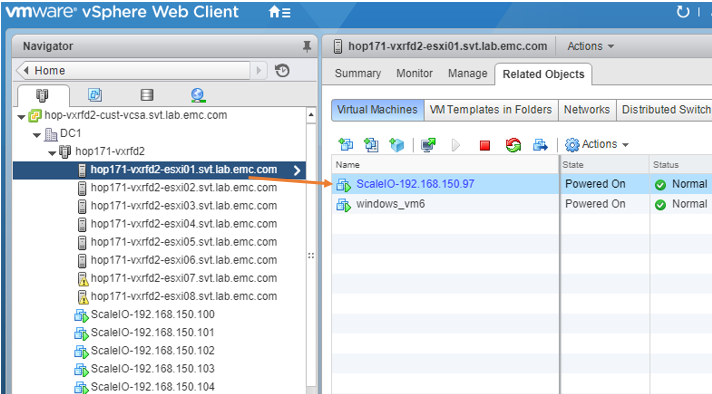
1) Identify the SVM that lives on the ESXi host that needs maintenance:
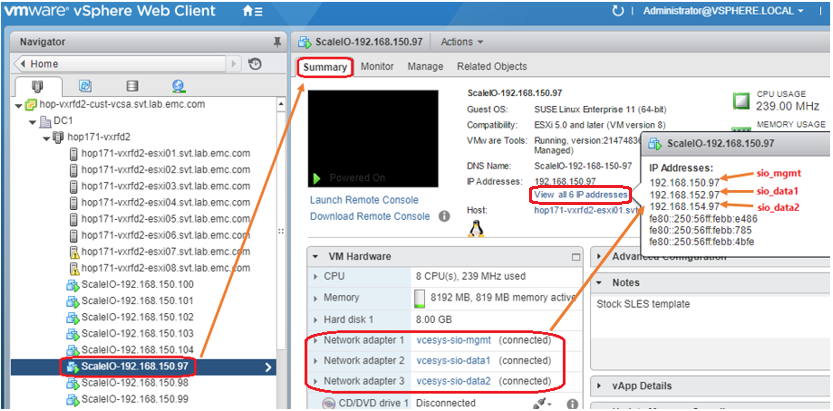
2) Click the Summary tab of the SVM, then "view all IP addresses" to identify the ip’s of the SVM:
Note: Also take note of the hostname.
3) Within the PowerFlex UI, identify the SDS for that same SVM. (Backend > sort by SDSs)
Typically, but not always, the name has the mgmt vmk of the ESXi host in the SDS name.
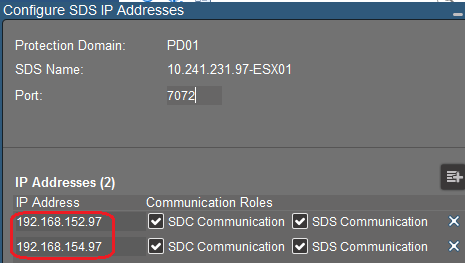
To ensure you are dealing with the correct one, right-click the SDS > Configure IP address:

4) Ensure that the IP addresses are the same as its IPs identified on the SVM in step 2 (these are the sio_data IPs):
SO Node (RHEL/CentOS) - manual method
1) log in to SO node and do ifconfig to identify IP addresses for sio_mgmt, sio_data1 & sio_data2.
2) Follow steps 3-4 above to identify correct SDS in PowerFlex UI.
PUT SDS INTO PowerFlex MAINTENANCE MODE:
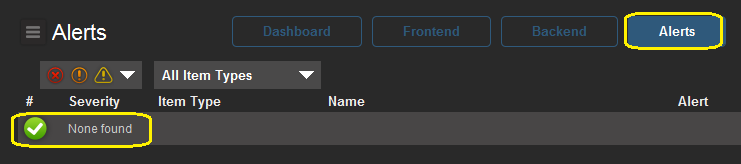
1) Ensure that there are no Alerts present on the Alerts tab and Backend tab:
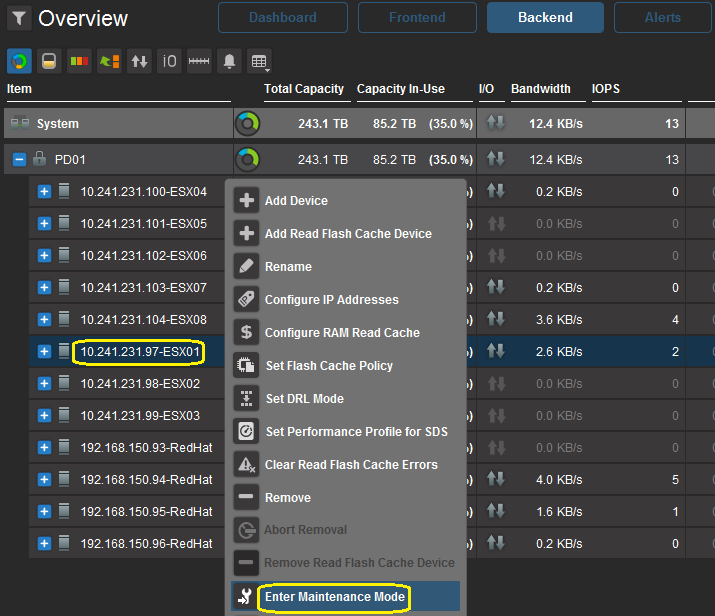
2) On the Backend tab, right-click the identified SDS, Enter Maintenance Mode, then click OK:
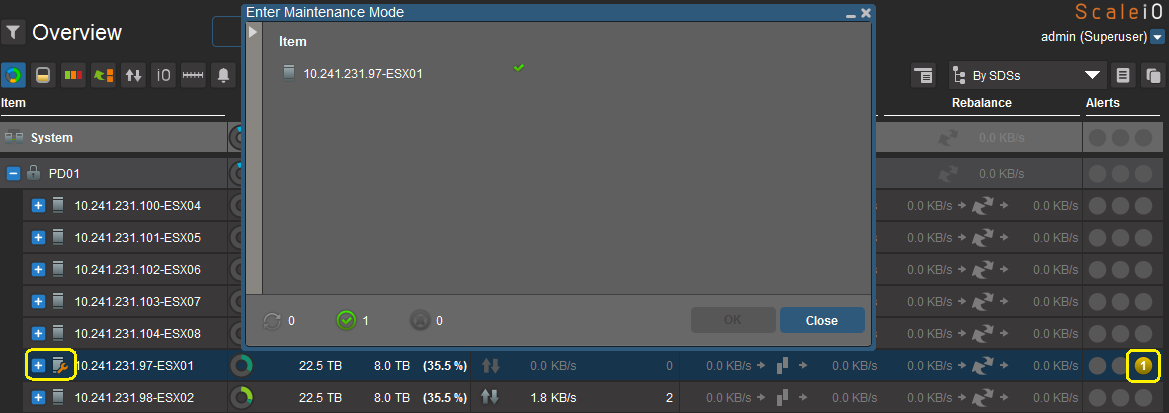
3) When SDS is successfully in PowerFlex maintenance mode, there will be a wrench icon and yellow "1" to the right under Alerts:
4) It is now safe to power down the SDS: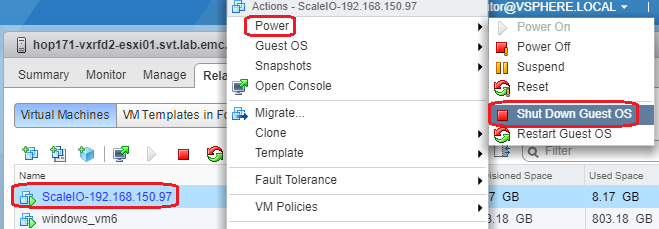
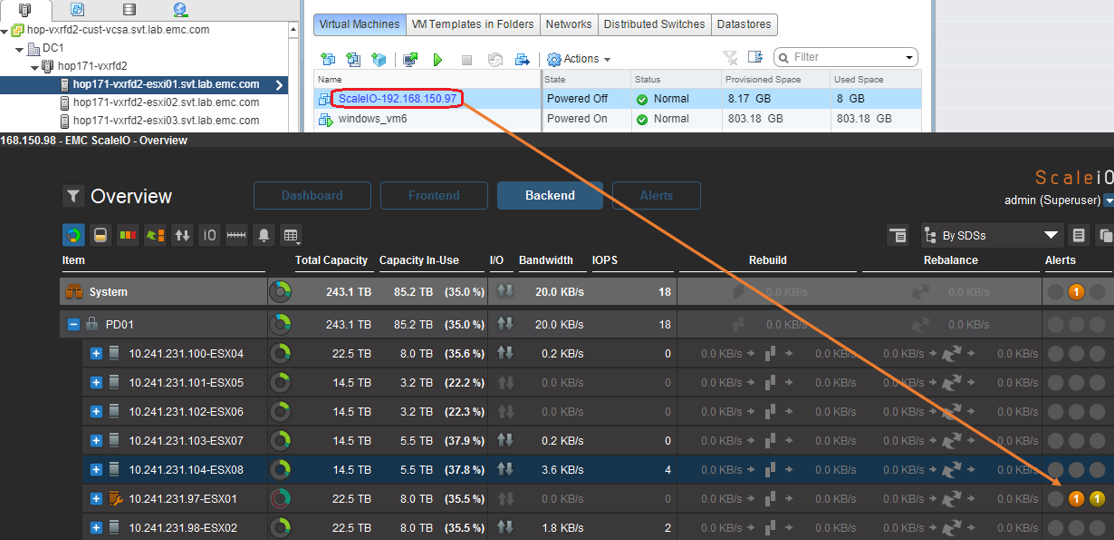
5) After powering down the node, there will be an additional orange "1" next to the SDS under Alerts in the PowerFlex UI (this can serve as a double-check to ensure that the correct SVM was powered down):
6) Power Down
AFTER POWER UP OF ESXI or RHEL/CentOS node:
1) If HCI, remove ESXi host from vSphere Maintenance Mode.
2) Power on SDS:
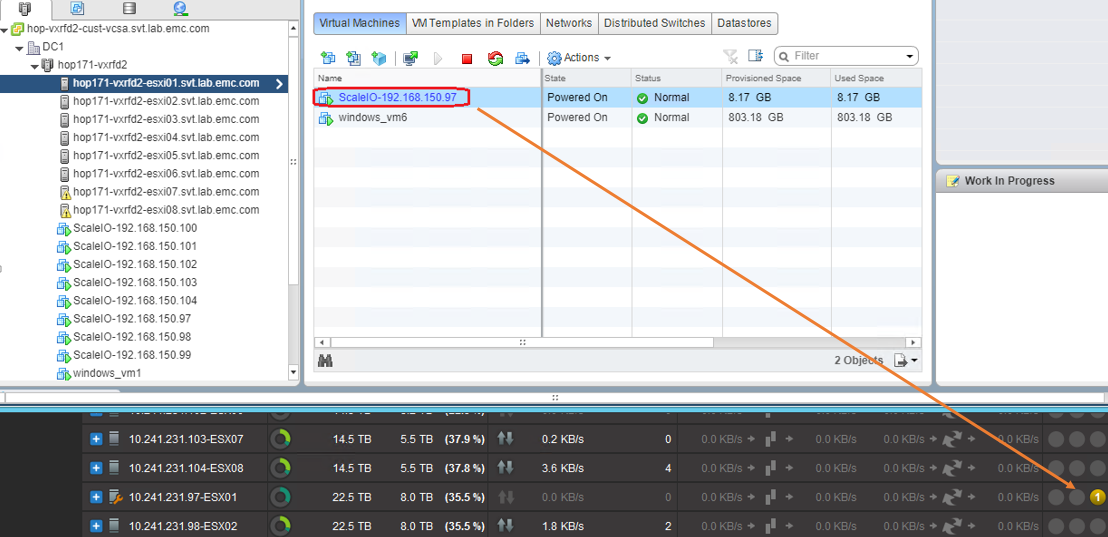
3) BUT, the yellow "1" is still present and the wrench icon, which means the SDS is STILL in PowerFlex Maintenance Mode. At this point, you should exit the SDS from PowerFlex Maintenance Mode:
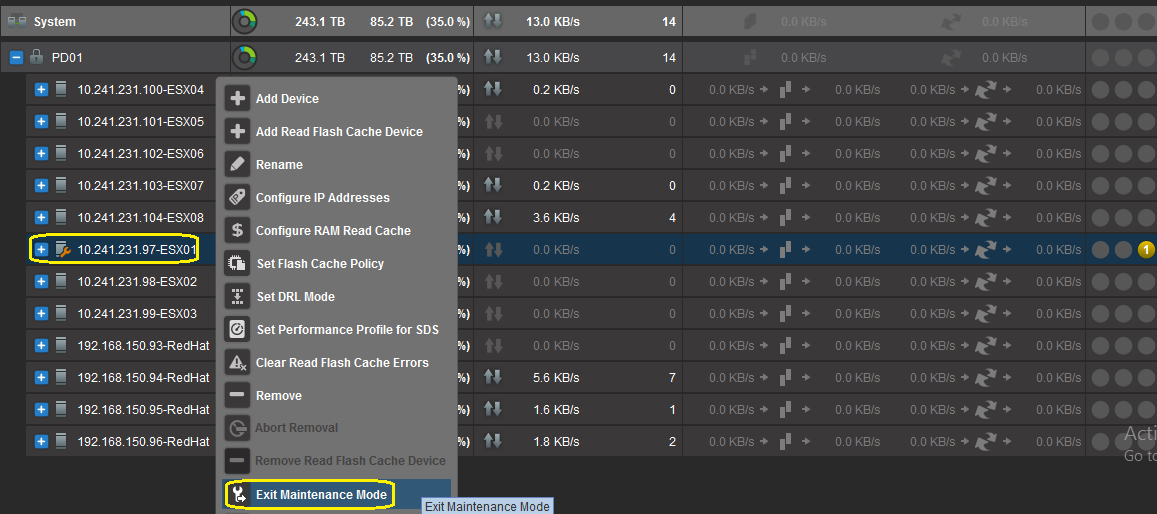
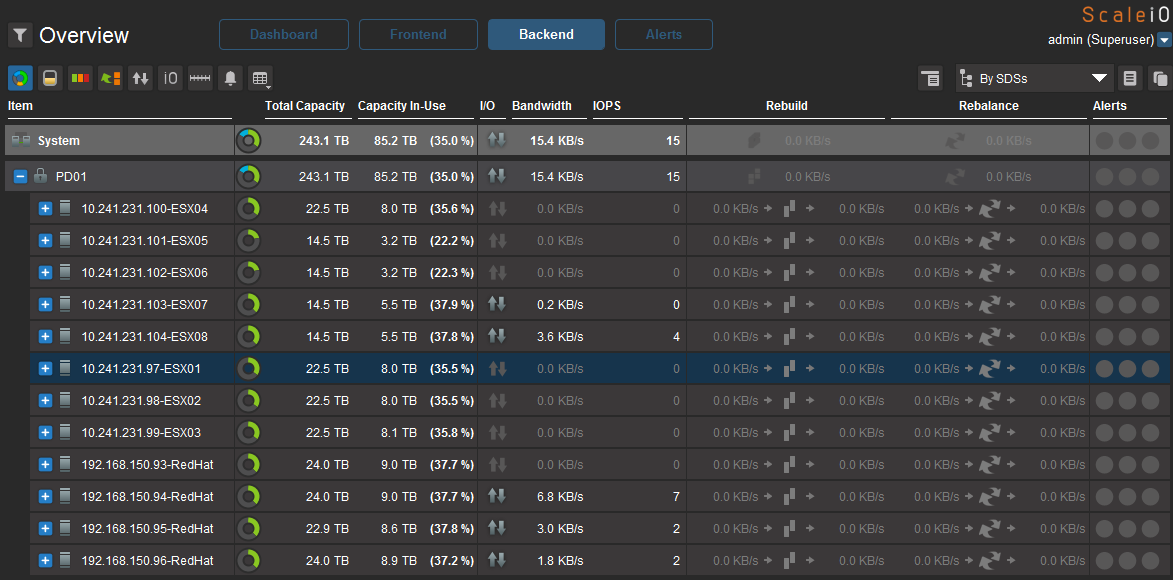
* Only after the wrench is gone, yellow "1" is gone, and there are no Alerts present in the PowerFlex UI, are you safe to go to the next node.
Repeat the steps above, one SVM/SDS/Node at a time
SERVICE MODE IN PFxM:
1) If using PFxM, navigate to the service and click the node you would like to do maintenance on.
2) Click Node Actions > Enter Service Mode.

3) Choose Instant Maintenance Mode or Evacuate Node from PowerFlex.
After, you will see a wrench icon on the node:

Also, you see the following: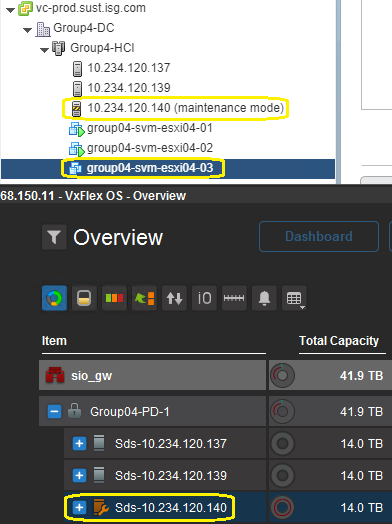
4) It is now safe to power down or reboots the ESXi node.
Note: If this is an SO node (RHEL/CentOS) after it is in service mode, it is safe to power down.
5) After maintenance on the node, simply go into the service and exit service mode:
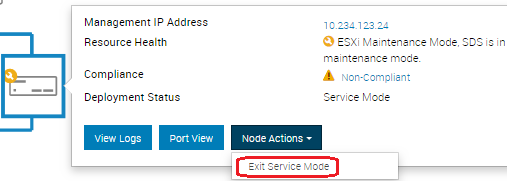
Wait until the node is out-of-service mode before moving to the next node.
Utilizing a manual method or PFxM:
- Power down and up a node on PowerFlex rack (HCI [SVM] or Storage Only).
- Proper steps to take in order to perform host maintenance on a PowerFlex rack.
FACTS:
- PowerFlex Virtual Machine (SVM) runs on ESXi and contains the SDS component of PowerFlex, while the SDC is a driver in ESXi.
- RHEL storage only node contains only the SDS component of PowerFlex.
- The SDS owns local storage that contributes to the PowerFlex storage pools. (Storage provider)
- The SDC is a block device driver that exposes PowerFlex shared block volumes to applications. (Storage consumer)
SOLUTION:
IDENTIFY CORRECT SVM/SDS:
HCI Node (ESXi) - manual method
1) Identify the SVM that lives on the ESXi host that needs maintenance:
2) Click the Summary tab of the SVM, then "view all IP addresses" to identify the ip’s of the SVM:
Note: Also take note of the hostname.
3) Within the PowerFlex UI, identify the SDS for that same SVM. (Backend > sort by SDSs)
Typically, but not always, the name has the mgmt vmk of the ESXi host in the SDS name.
To ensure you are dealing with the correct one, right-click the SDS > Configure IP address:
4) Ensure that the IP addresses are the same as its IPs identified on the SVM in step 2 (these are the sio_data IPs):
SO Node (RHEL/CentOS) - manual method
1) log in to SO node and do ifconfig to identify IP addresses for sio_mgmt, sio_data1 & sio_data2.
2) Follow steps 3-4 above to identify correct SDS in PowerFlex UI.
PUT SDS INTO PowerFlex MAINTENANCE MODE:
1) Ensure that there are no Alerts present on the Alerts tab and Backend tab:
2) On the Backend tab, right-click the identified SDS, Enter Maintenance Mode, then click OK:
3) When SDS is successfully in PowerFlex maintenance mode, there will be a wrench icon and yellow "1" to the right under Alerts:
4) It is now safe to power down the SDS:
- SVM if VxFlex hyperconverged node
- Rhel/CentOS if SO node
5) After powering down the node, there will be an additional orange "1" next to the SDS under Alerts in the PowerFlex UI (this can serve as a double-check to ensure that the correct SVM was powered down):
6) Power Down
- If HCI, go to put the ESXi host in vSphere Maintenance Mode and reboot ESXi node.
- If Storage Only, go to power down the RHEL/CentOS node.
AFTER POWER UP OF ESXI or RHEL/CentOS node:
1) If HCI, remove ESXi host from vSphere Maintenance Mode.
2) Power on SDS:
- If HCI, Power on SVM immediately
- If SO, Power on RHEL/CentOS node
3) BUT, the yellow "1" is still present and the wrench icon, which means the SDS is STILL in PowerFlex Maintenance Mode. At this point, you should exit the SDS from PowerFlex Maintenance Mode:
* Only after the wrench is gone, yellow "1" is gone, and there are no Alerts present in the PowerFlex UI, are you safe to go to the next node.
Repeat the steps above, one SVM/SDS/Node at a time
SERVICE MODE IN PFxM:
1) If using PFxM, navigate to the service and click the node you would like to do maintenance on.
2) Click Node Actions > Enter Service Mode.
3) Choose Instant Maintenance Mode or Evacuate Node from PowerFlex.
After, you will see a wrench icon on the node:
Also, you see the following:
- PowerFlex SDS is in Maint. mode
- SVM is powered down
- ESXi is in Maint. mode
4) It is now safe to power down or reboots the ESXi node.
Note: If this is an SO node (RHEL/CentOS) after it is in service mode, it is safe to power down.
5) After maintenance on the node, simply go into the service and exit service mode:
Wait until the node is out-of-service mode before moving to the next node.
Affected Products
PowerFlex ApplianceArticle Properties
Article Number: 000207160
Article Type: How To
Last Modified: 13 Feb 2025
Version: 3
Find answers to your questions from other Dell users
Support Services
Check if your device is covered by Support Services.