Dell APEX Cloud Platform For Microsoft Azure: Failures during cluster update
Summary: This article is used to instruct user how to handle for different kinds of failures they may meet during cluster update.
This article applies to
This article does not apply to
This article is not tied to any specific product.
Not all product versions are identified in this article.
Symptoms
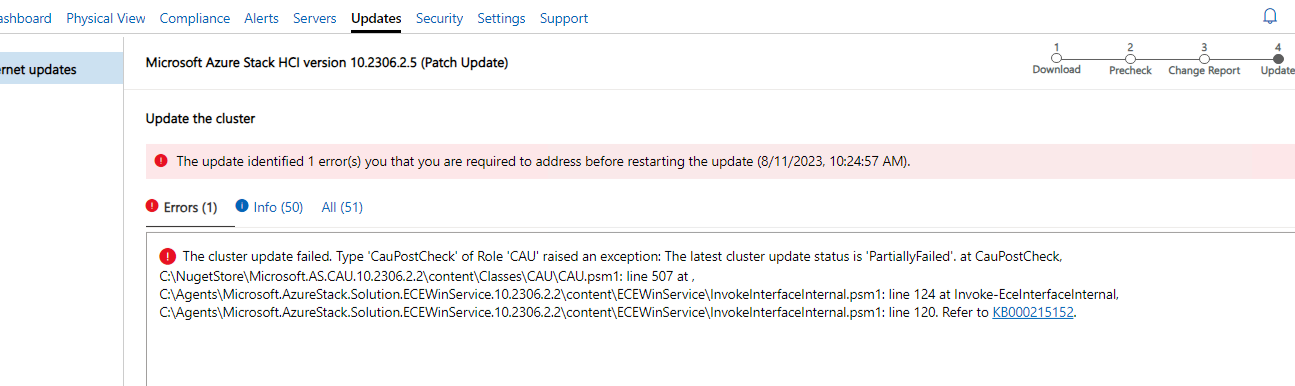
User sees error prompt on update web page during cluster update, with detailed error message. A sample screen is as below.
Cause
Possible failures
- Problem encounters to download the update packages
- Message: Failed to download APEX Cloud Platform Hardware Update package since this error:...
Suggestion: Check network connectivity and retry. - Message: Failed to deploy scripts. Check the APEX Cloud Platform Hardware Update package and retry. Detail: {0}....
Suggestion: Check all nodes are connected in health state and retry. - Message: The previous update:/updateLocations/redmond/updates/Solution10.2306.2.6 preparation was terminated unexpectedly.
Suggestion: Check network connectivity and retry.
- Message: Failed to download APEX Cloud Platform Hardware Update package since this error:...
- Update precheck failure
- Message: Check Failed: Host power status error on host '{0}'.Check host power status on iDRAC and retry later.
Suggestion: Check the node power state and retry. - Message: Check Failed: iDrac pending jobs found on host '{0}'.Complete or cancel pending jobs on host and retry.
Suggestion: Complete or cancel pending jobs through host iDRAC and retry. - Message:[Compatibility Check for LCM][NodeXXXXXX] Component {0} of node {1} is incompatible. Current version {2}. Expected version {3}.
Suggestion: Check the binary version and fix it to the compliant version, then retry. - Message: Check Failed: ECE running jobs found on cluster.Complete or cancel ECE running jobs on cluster and retry later.
Suggestion: Make sure there's no other cluster operation in progress, then retry. - Message: Check Failed: ECE Precheck failed on cluster.Check cluster status and retry later.
Suggestion: Use Microsoft Azure Stack HCI Environment Checker to validate system health.Solution Only: $SolutionVerion = <Azure HCI Solution Version> $update = Get-SolutionUpdate | Where-Object { $_.Version -eq $SolutionVersion } SBE Only: $SolutionVerion = <Azure HCI Solution Version> $SBEVersion = <Hardware Update Package Version> $update = Get-SolutionUpdate | Where-Object {($_.OemVersion -eq $SBEVersion -or $_.SbeVersion -eq $SBEVersion) -and $_.PackageType -eq "SBE"} Solution + SBE: $SolutionVerion = <Azure HCI Solution Version> $SBEVersion = <Hardware Update Package Version> $update = Get-SolutionUpdate |Where-Object {($_.Version -eq $SolutionVersion) -and($_.ComponentVersions | ForEach-Object {if (($_.PackageType -eq "SBE") -and ($_.Version -eq $SBEVersion)){return $true}}) Get Health Check Result: $update.HealthCheckResult
- Message: Check Failed: Host power status error on host '{0}'.Check host power status on iDRAC and retry later.
- APEX Cloud Platform Manager installation failure
- Message: Failed to upgrade APEX Cloud Platform Manager. Check detail error to fix and retry. Detail: ....
- Suggestion: Contact Dell support directly.
- Azure HCI Solution update failure
- Example: General Microsoft side update runtime failures

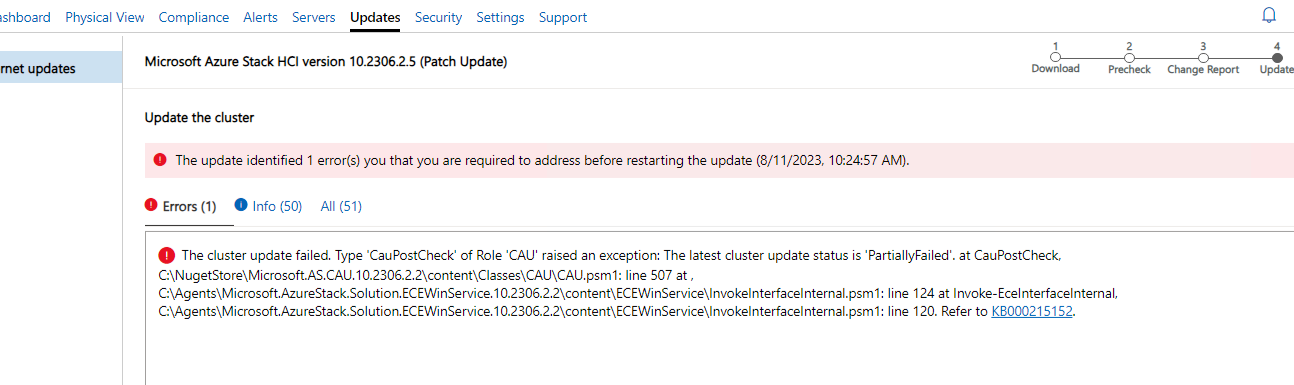
Message: The cluster update failed.........
Suggestion: Run below command on one of the node, using Azure HCI LCM user, confirm the Azure HCI Solution update has begun and failed. Once confirmed, contact Microsoft service team for further support.Solution Only:
$SolutionVerion = <Azure HCI Solution Version>$update = Get-SolutionUpdate | Where-Object { $_.Version -eq $SolutionVersion }$update.StateSBE Only:
$SolutionVerion = <Azure HCI Solution Version>
$SBEVersion = <Hardware Update Package Version>
$update = Get-SolutionUpdate | Where-Object {($_.OemVersion -eq $SBEVersion -or $_.SbeVersion -eq $SBEVersion) -and $_.PackageType -eq "SBE"}
$update.State
Solution + SBE:
$SolutionVerion = <Azure HCI Solution Version>
$SBEVersion = <Hardware Update Package Version>
$update = Get-SolutionUpdate |Where-Object {($_.Version -eq $SolutionVersion) -and($_.ComponentVersions | ForEach-Object {if (($_.PackageType -eq "SBE") -and ($_.Version -eq $SBEVersion)){return $true}})
$update.State - Example: Timeout when getting solution update progress
- Example: General Microsoft side update runtime failures
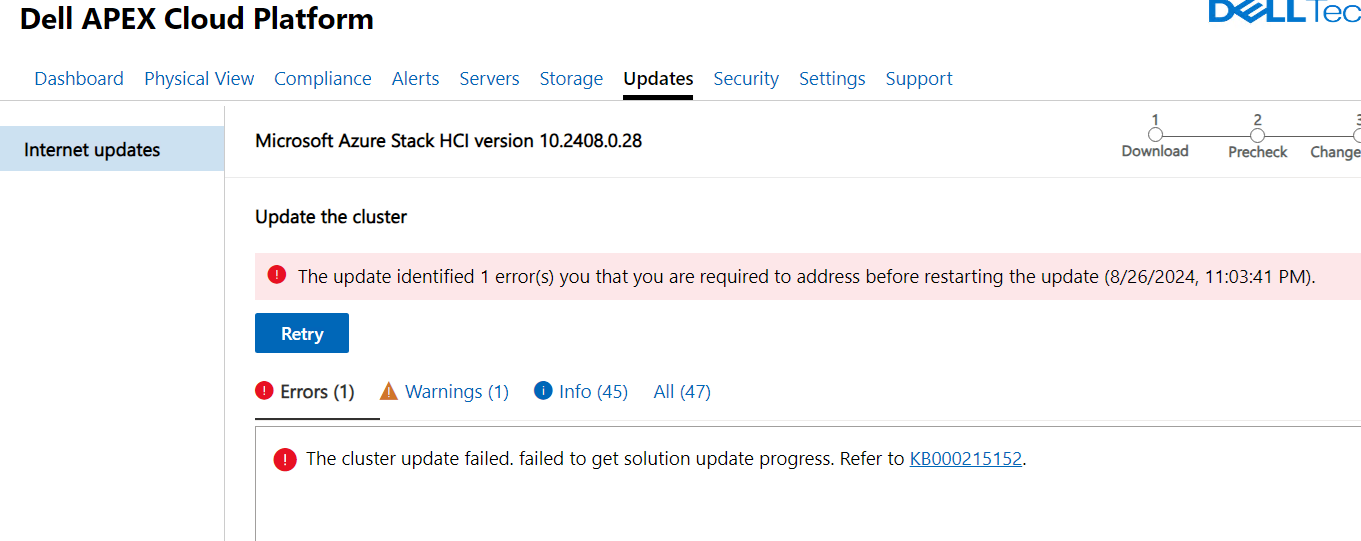
Message: The cluster update failed. failed to get solution update progress.
Suggestion:
- If the cluster node number > 5, follow below steps to enlarge the upgrade engine memory to 512M:
a. Logon ACPM using root account.
b. Execute the following commands:
kubectl patch deployment azlcm-upgrade-manager -p '{"spec":{"template":{"spec":{"containers":[{"name":"azlcm-upgrade-manager","resources":{"limits":{"memory":"512M"}}}]}}}}'

kubectl get pod <pod-name> -o jsonpath='{.spec.containers[*].resources.limits.memory}'

#Replace the <pod-name> as yours, for example:  kubectl get pod azlcm-upgrade-manager-f77c8b69-rktbh -o jsonpath='{.spec.containers[*].resources.limits.memory}'
- If the cluster node number < 3, it could be a temporary break, retry from the update page.
Resolution
- Refer to the known root cause listed above and fix cluster environment, then click ‘Retry' on update page
- If still seeing problem, please contact Dell Technical Support or your Authorized Service Representative.
Additional Information
To debug Azure HCI Solution update failure, refer to https://learn.microsoft.com/en-us/azure-stack/hci/update/update-troubleshooting
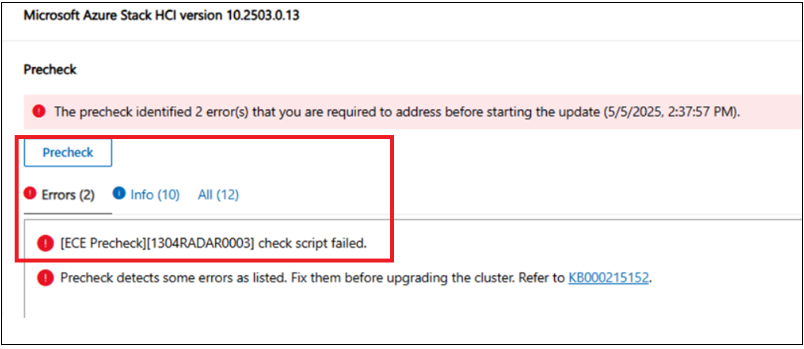
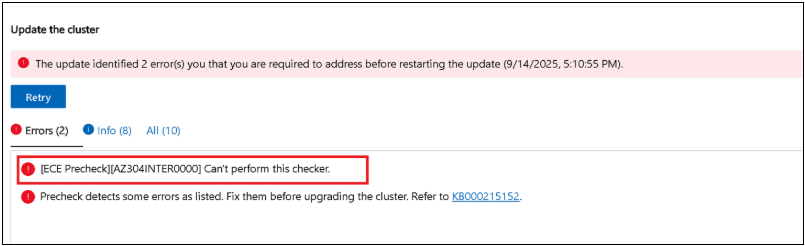
- ECE Precheck would fail if ECE does update the result after 15 minutes timeout threshold.
For example, you can see a precheck failure like this:
Or you can see an update failure like this:
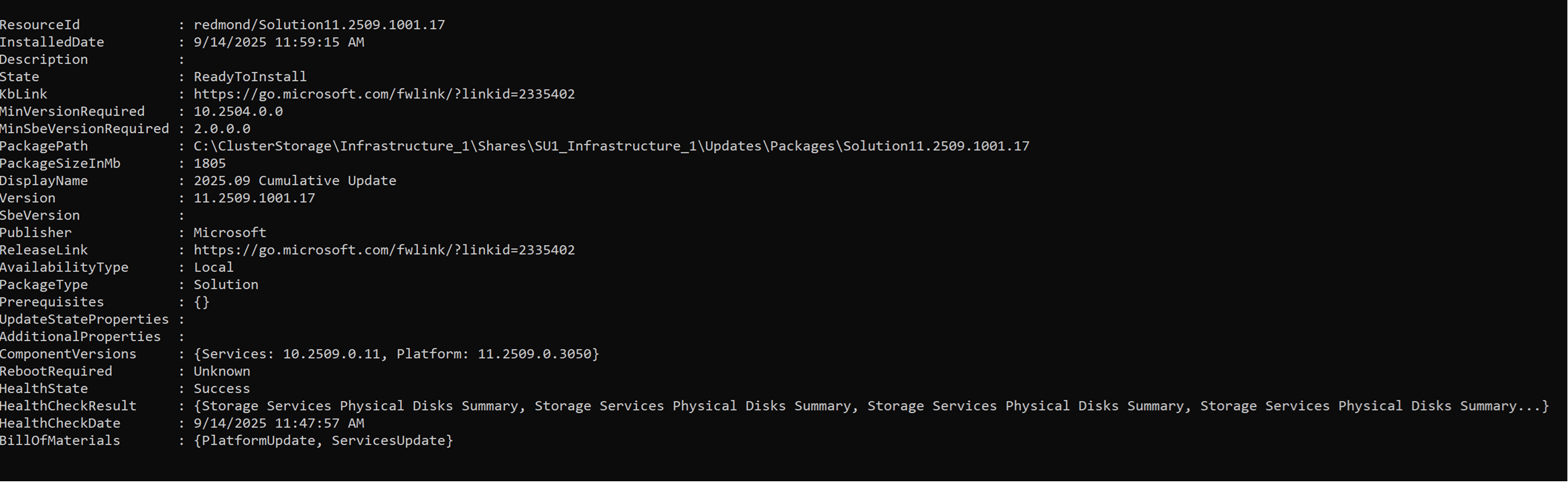
Go to the node and run Get-SolutionUpdate, you can see that HealthState is Success.
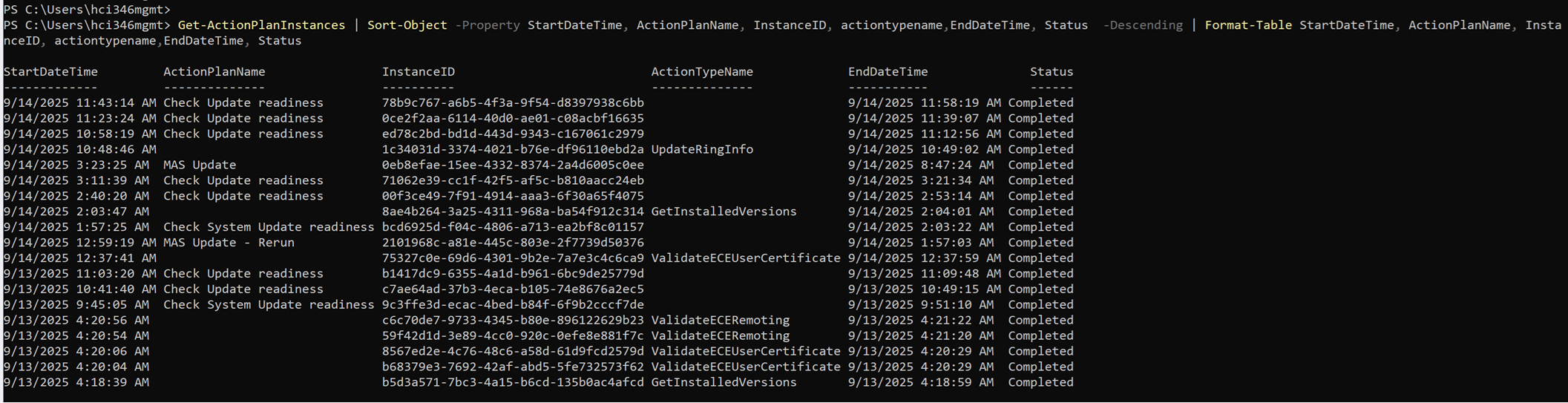
Go to the node and run Get-ActionPlanInstances, you can see "Check Update readiness" is completed.
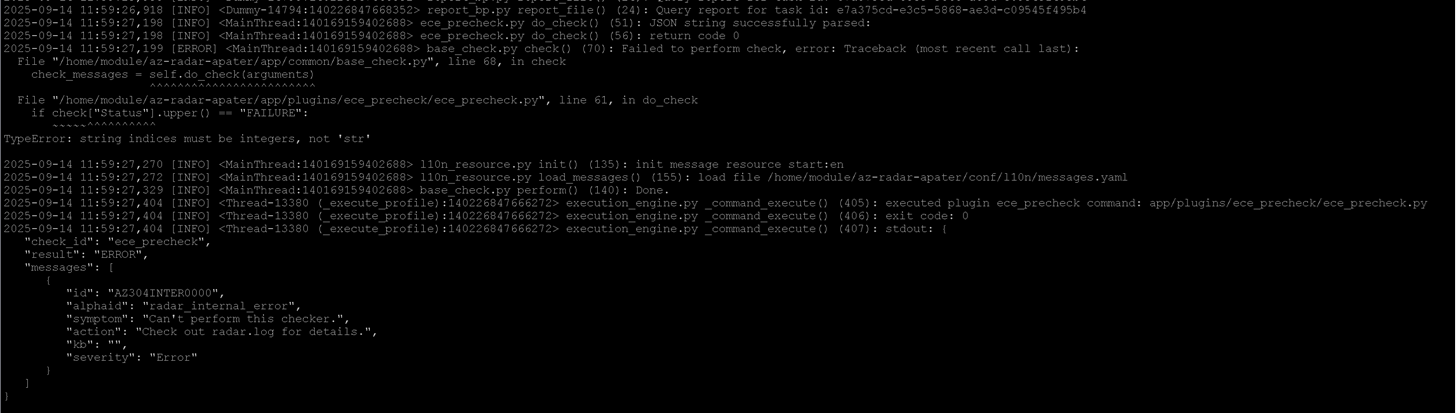
Go to ACP manager and check the lcm related logs and you can find such error log: TypeError: string indices must be integers, not 'str'
Take the following action to bypass warning precheck failures:
- Use root account to run the following command on ACP Manager to turn off ECE precheck.
curl -X PUT --unix-socket /var/lib/apexcp/nginx/socket/nginx.sock -H "accept:application/json" -H "Content-Type:application/json" http://127.0.0.1/rest/apex-cp/internal/configservice/v1/configuration/keys/lcm.upgrade.suppress_ece_precheck -d '{"value":"true"}' - Retry precheck and/or update from UI.
- After cluster update completed, use root account to run the following command on ACP Manager to turn on ECE precheck.
curl -X PUT --unix-socket /var/lib/apexcp/nginx/socket/nginx.sock -H "accept:application/json" -H "Content-Type:application/json" http://127.0.0.1/rest/apex-cp/internal/configservice/v1/configuration/keys/lcm.upgrade.suppress_ece_precheck -d '{"value":"false"}'
- Per some old version design, ECE warning message would fail the precheck and block testing. This behavior is changed since SBE 4.0.2401.*. For formal releases, following action could be taken to bypass warning precheck failures.
- Once confirmed all the healthcheck are warnings/info only, user can choose to turn off ECE precheck by running the command in Anacortes Manager, using root account.
curl -X PUT --unix-socket /var/lib/apexcp/nginx/socket/nginx.sock -H "accept:application/json" -H "Content-Type:application/json" http://127.0.0.1/rest/apex-cp/internal/configservice/v1/configuration/keys/lcm.upgrade.suppress_ece_precheck -d '{"value":"true"}' - Retry update from UI
- After precheck passed and completed, user should turn on ECE precheck by running in Anacortes Manager, using root account.
curl -X PUT --unix-socket /var/lib/apexcp/nginx/socket/nginx.sock -H "accept:application/json" -H "Content-Type:application/json" http://127.0.0.1/rest/apex-cp/internal/configservice/v1/configuration/keys/lcm.upgrade.suppress_ece_precheck -d '{"value":"false"}'
- Once confirmed all the healthcheck are warnings/info only, user can choose to turn off ECE precheck by running the command in Anacortes Manager, using root account.
- Upgrade would occasionally failed to update some firmware/drivers on some node, however over status would be success. After update, compliance report would report the cluster as non-compliant state. Use this document to recover.
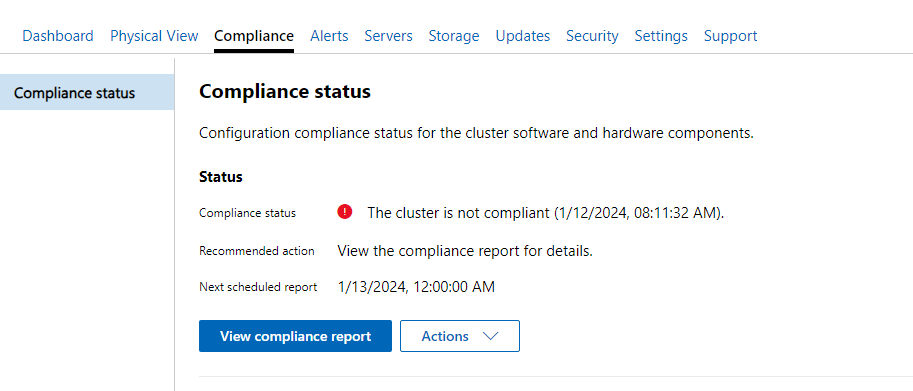
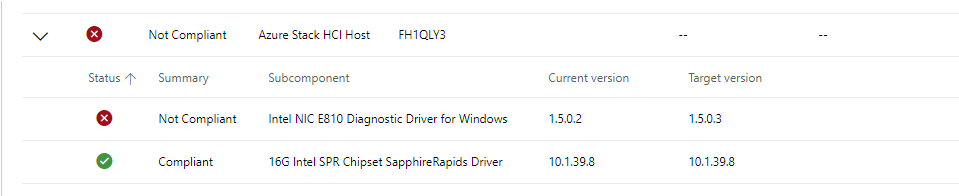
- View compliance report detail to get failed firmware/drivers. Use the component name to find install package files on node in next step, e.g. 'Intel NIC E810 Diagnostic Driver for Windows'
- Open lcm manifest file on the failed node 'C:\ClusterStorage\Infrastructure_1\Shares\SU1_Infrastructure_1\CloudMedia\SBE\Installed\Content\Software\lcm-manifest.xml', search component name 'Intel NIC E810 Diagnostic Driver for Windows'. Check <ComponentType> and <File> in lcm manifest xml.
- For firmware update failure:
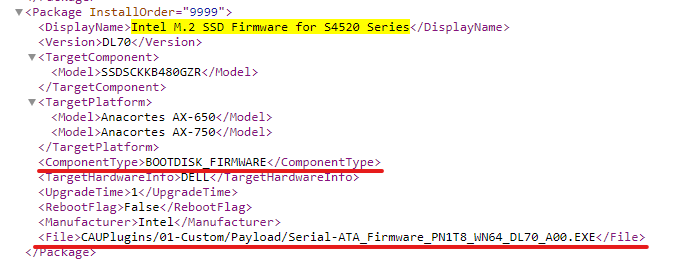
- If component type is FIRMWARE, go to the installed SBE content folder 'C:\ClusterStorage\Infrastructure_1\Shares\SU1_Infrastructure_1\CloudMedia\SBE\Installed\Content'.
- Download firmware installer file 'CAUPlugins/01-Custom/Payload/Serial-ATA_Firmware_PN1T8_WN64_DL70_A00.EXE'.
- Open IDRAC of the failed node.
- Go to Maintenance -> System Update. Upload firmware installer, then install.
- For driver update failure:
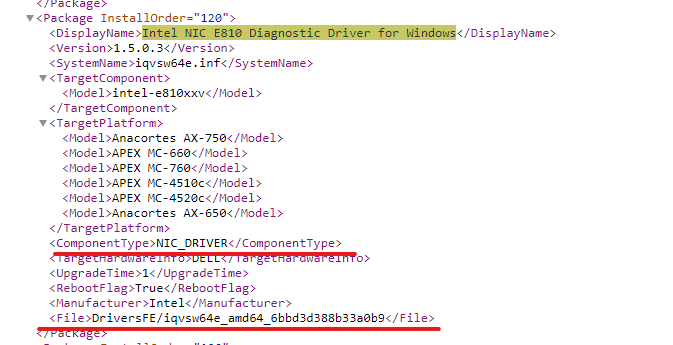
- If component type is DRIVER, go to the installed SBE content folder 'C:\ClusterStorage\Infrastructure_1\Shares\SU1_Infrastructure_1\CloudMedia\SBE\Installed\Content'
- Go to driver package folder described in xml 'DriversFE/iqvsw64e_amd64_6bbd3d388b33a0b9'.
- Install driver inf by pnputil 'PNPUTIL /add-driver iqvsw64e.inf /install /reboot'.
- Re-generate compliance report, the driver has been installed successfully.
- Re-generate compliance report. Reboot node if all firmware/drivers are successfully installed.
Affected Products
APEX Cloud Platform for Microsoft AzureArticle Properties
Article Number: 000215152
Article Type: Solution
Last Modified: 18 Feb 2026
Version: 6
Find answers to your questions from other Dell users
Support Services
Check if your device is covered by Support Services.