How Dell Wireless Keyboard Functions in macOS Devices
Summary: Learn how Dell wireless keyboards like KB900, KB740, KB700, and KB500 function with macOS. Covers key behavior, layout, shortcuts, and setup tips for Apple users.
This article applies to
This article does not apply to
This article is not tied to any specific product.
Not all product versions are identified in this article.
Instructions
Table of Contents:
Overview
Note: The following information was only tested on macOS Version 13.4.1 but should be similar in all future versions of macOS.
Dell wireless keyboards can be used with Apple desktops and laptops that use macOS if they have a Bluetooth or USB (Wireless Receiver) connection.
Note: Bluetooth keyboards are recommended for MacBooks as they have limited USB ports.
The following Dell wireless keyboard models are discussed in this article:
- Dell Pro Premium Collaboration Keyboard KB900 (Bluetooth and Dell Secure Link WR3 USB-A Wireless Receiver)
- Dell Pro Plus Compact Keyboard KB740 (Bluetooth and Dell Universal Pairing USB-A Wireless Receiver WR221)
- Dell Pro Plus Keyboard KB700 (Bluetooth and Dell Universal Pairing USB-A Wireless Receiver WR221)
- Dell Pro Keyboard KB500 (Dell Universal Pairing USB-A Wireless Receiver WR221)
How Keys Are Organized
The following image shows how groups of keys on the Dell wireless keyboard can be organized by general functionality.
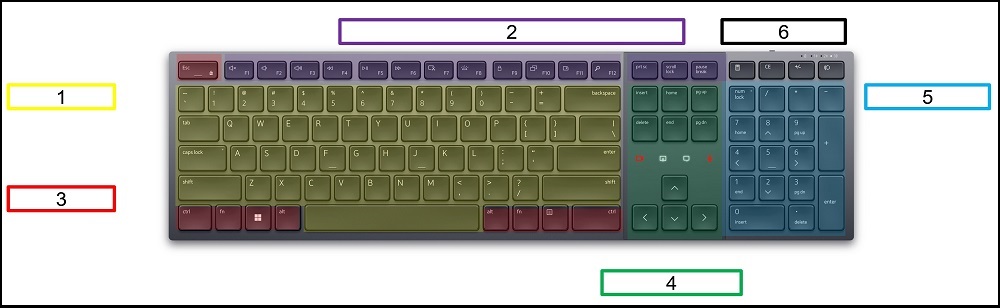
Figure 1: Dell Pro Premium Collaboration Keyboard KB900 with Labeled Groups
- General Typing Keys
- Function Keys
- Control Keys
- Navigation Keys
- Numeric Keypad
- D1-D4 Keys
Note: The categories above are a general example and do not represent all keyboards.
Key Behavior in macOS
1. General Typing Key Behavior
These are alphabetical, numerical, and punctuation keys used for general typing.
| Key Name | KB900/KB740/KB700/KB500 Keys | macOS Key | KB900/KB740/KB700/KB500
Behavior in macOS |
|---|---|---|---|
| Caps Lock | Capital Letter Lock
 |

|
Same as macOS Caps Lock key
Long Press: Capital Letter Lock Short Press: Switch Input Method |
2. Function Key Behavior
Full-Size Keyboard Models:
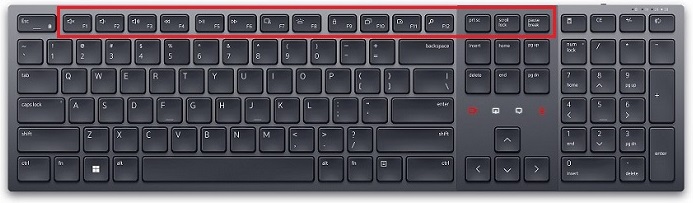
Figure 2: Dell Pro Premium Collaboration Keyboard KB900 Function Bar View |
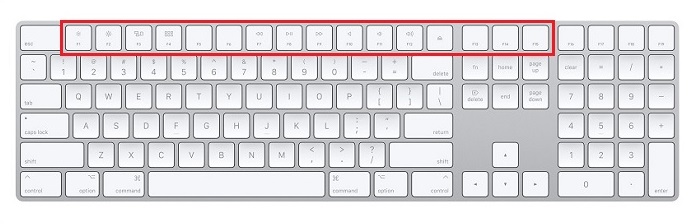
Figure 3: Apple Magic Keyboard with Numeric Keypad Function Bar View |
||||||||||||||||||||||||||||||||||||||||||||||||
|
|||||||||||||||||||||||||||||||||||||||||||||||||
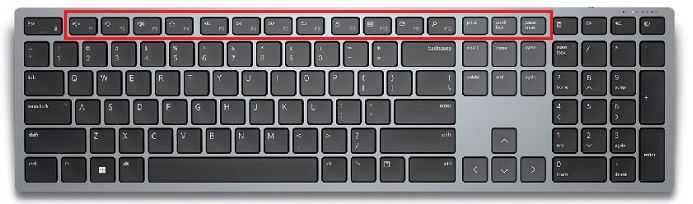
Figure 4: Dell Pro Plus Keyboard KB700 Function Bar View |
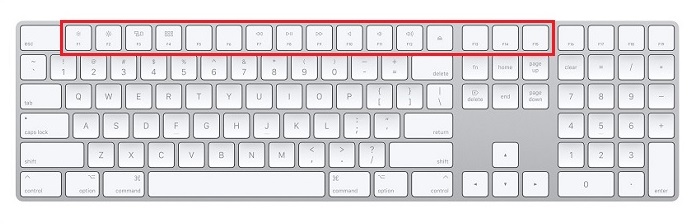
Figure 5: Apple Magic Keyboard with Numeric Keypad Function Bar View |
||||||||||||||||||||||||||||||||||||||||||||||||
|
|||||||||||||||||||||||||||||||||||||||||||||||||
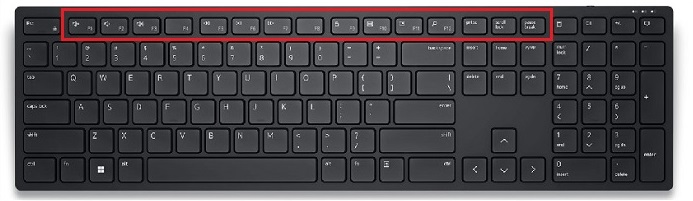
Figure 6: Dell Pro Keyboard KB500 Function Bar View |
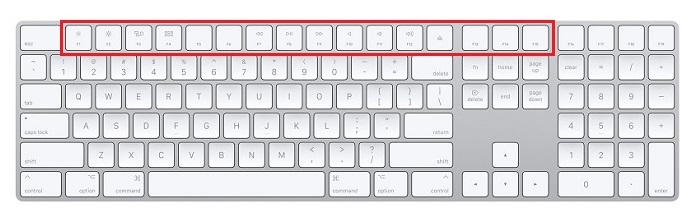
Figure 7: Apple Magic Keyboard with Numeric Keypad Function Bar View |
||||||||||||||||||||||||||||||||||||||||||||||||
|
|||||||||||||||||||||||||||||||||||||||||||||||||
Compact Keyboard Models:
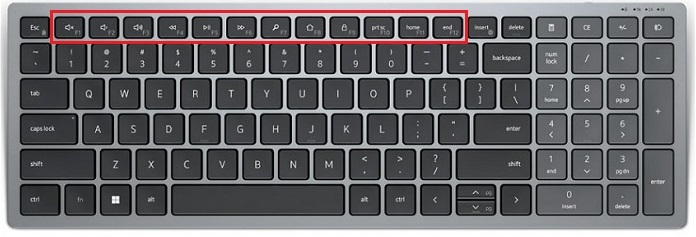
Figure 8: Dell Pro Plus Compact Keyboard KB740 Function Bar View |
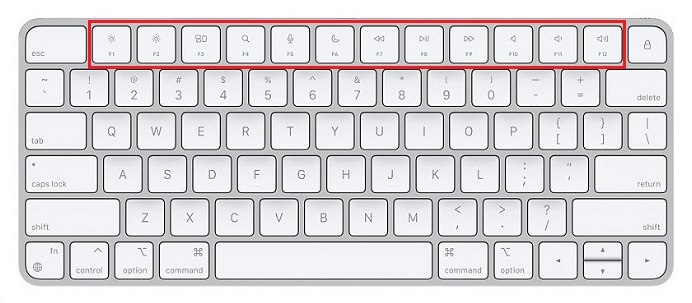
Figure 9: Apple Magic Keyboard Function Bar View |
|||||||||||||||||||||||||||||||||||||||
|
||||||||||||||||||||||||||||||||||||||||
You can Configure Dell keyboards in macOS:
Open System Settings > Keyboard > Keyboard Shortcuts
3. Control Key Behavior
| Control Keys | KB900/KB740/KB700/KB500 Keys | Equivalent macOS Keys | KB900/KB740/KB700/KB500
Behavior in macOS |
|---|---|---|---|
| Ctrl/Control | Ctrl
 |
Control
 |
Same as Control in Magic Keyboard |
| Fn | Fn
 |
Fn
 |
Same as Fn in Magic Keyboard |
| Win/Command | Win
 |
Command/CMD
 |
Same as Command/CMD in Magic Keyboard |
| Alt/Option | Alt
 |
Option
 |
Same as Option in Magic Keyboard |
| Right Task | Right Task
 |
No such key | No Response
KB740 does not have the Right Task key. |
4. Navigation Key Behavior
These are arrow keys, insert, delete, home, end, page up, and page down keys used for general cursor navigation.
| Key Name | KB900/KB740/KB700/KB500 Keys | macOS Key | KB900/KB740/KB700/KB500
Behavior in macOS |
|---|---|---|---|
| Insert | Typing Without Overwriting
 |
No Such Key | No Response |
5. Numeric Key Behavior
These are the number lock, numerical, and mathematical key symbols for typing general math formulas or calculator app input use.
| Key Name | KB900/KB740/KB700/KB500 Keys | macOS Key | KB900/KB740/KB700/KB500
Behavior in macOS |
|---|---|---|---|
| Num Lock | Lock Numeric Keypad
 |
No Such Key | Same as Mac Clear key.
All Clear (AC) when calculator is used. |
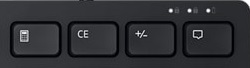
6. D1-D4 Key Behavior
| Dell | D1
Calculator |
D2
CE |
D3
+/- |
D4
Toggle Wifi |
|---|---|---|---|---|
KB900:
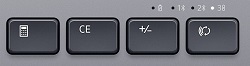 |
No Response | Delete on macOS.

Windows: Clear numbers in the Calculator app. macOS: Erase the characters right to the cursor. Apple full-size keyboard has two delete keys. |
F9 on macOS, configuration is required, otherwise no specific function. | Toggle |
KB740:
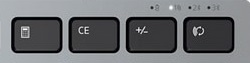 |
||||
KB700:
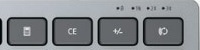 |
||||
Dell Pro Keyboard KB500:
 |
Select All | |||
Magic with Numeric Keypad
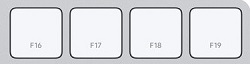 |
F16 | F17 | F18 | F19 |
| Magic | N/A | |||
Commonly Used Keyboard Shortcuts
The following list has the most commonly used keyboard shortcuts for Windows and macOS.
| Function | Windows Keyboard
In Windows |
Mac Keyboard
In macOS |
KB900/KB740/KB700/KB500
In macOS |
|---|---|---|---|
| Copy | Ctrl + C | CMD + C | Win + C |
| Paste | Ctrl + V | CMD + V | Win + V |
| Cut | Ctrl + X | CMD + X | Win + X |
| Select All Items | Ctrl + A | CMD + A | Win + A |
| Create a New Folder | Ctrl + Shift + N | Shift + CMD + N | Shift + Win + N (macOS) |
| Open the Computer Window | (No Function) | Shift + CMD + C | Shift + Win + C (macOS) |
| Open the Desktop Folder | (No Function) | Shift + CMD + D | Shift + Win + D (macOS) |
| Open the Recent Window | (No Function) | Shift + CMD + F | Shift + Win + F (macOS) |
| Open Sound Preferences | (No Function) | Option + Volume Up | Alt + Volume Up (macOS) |
| Task Manager | Ctrl + Shift + Esc | Option + CMD + ESC | Alt + Win + ESC (macOS) |
| Delete the Character to the Left of the Insertion Point | (No Function) | Ctrl + H | Ctrl + H (macOS) |
| Delete the Character to the Right of the Insertion Point | (No Function) | Ctrl + D | Ctrl + D (macOS) |

Affected Products
Dell Pro Plus Compact Keyboard KB740, Dell Pro Premium Collaboration Keyboard KB900, Dell Pro Plus Keyboard KB700, Dell Pro Keyboard KB500Article Properties
Article Number: 000218170
Article Type: How To
Last Modified: 19 May 2026
Version: 6
Find answers to your questions from other Dell users
Support Services
Check if your device is covered by Support Services.