Dell Unity: How to Prepare Unity OE Code for Upgrade After Staging it From CloudIQ
Summary: This article explains the procedure that must be followed in the Unity system after staging OE code from CloudIQ.
This article applies to
This article does not apply to
This article is not tied to any specific product.
Not all product versions are identified in this article.
Instructions
In CloudIQ, go to Manage > System Updates > select relevant Unity System > select Stage to Array.
You see:

Once the staging of the OE code is complete, follow the below steps on the Unity system:
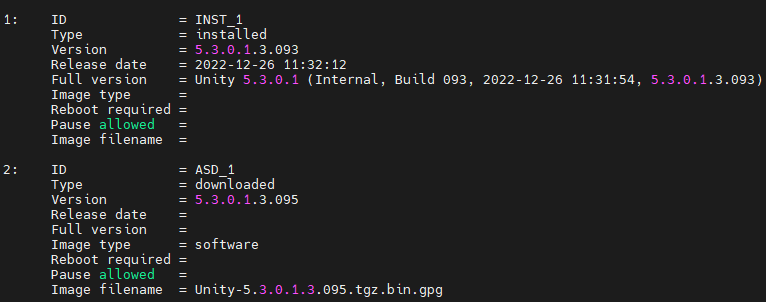

You see:
Once the staging of the OE code is complete, follow the below steps on the Unity system:
- Run the following command. It lists the downloaded OE details with its ID. Pick up the ID.
uemcli -d <Unity_IP_address> -u <admin_username> -p <password> /sys/soft/ver show -detail
- Run the following command:
uemcli -d <Unity_IP_address> -u <admin_username> -p <password> /sys/soft/ver -id <ID of downloaded OE> prepare
- Run the following command again. OE type should also show up as a candidate as below:
uemcli -d <Unity_IP_address> -u <admin_username> -p <password> /sys/soft/ver show -detail

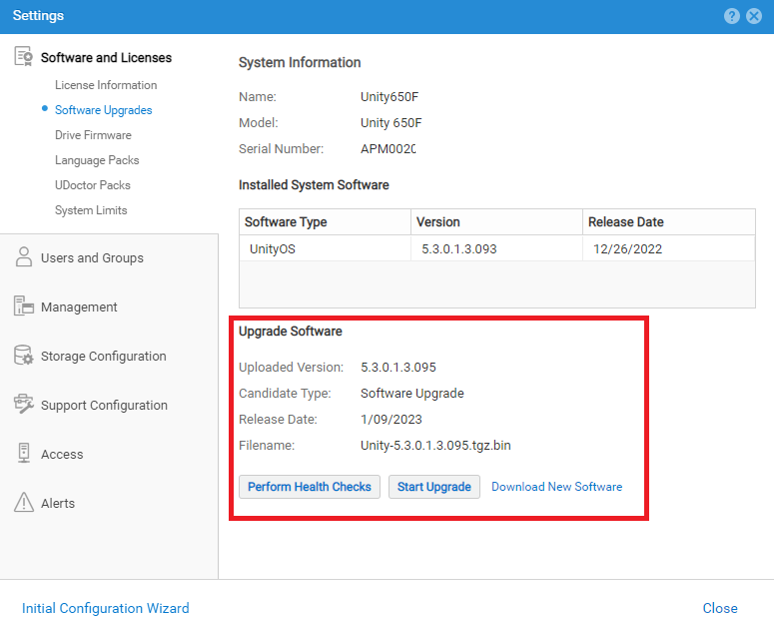
- Unisphere also picks up the candidate OE details once the Prepared operation is completed successfully.
Affected Products
Dell EMC Unity, Dell EMC Unity FamilyArticle Properties
Article Number: 000219935
Article Type: How To
Last Modified: 06 Mar 2024
Version: 3
Find answers to your questions from other Dell users
Support Services
Check if your device is covered by Support Services.