How to Upgrade Intel Unison when Automatic Updates are Disabled for Microsoft Store
Summary: The following article provides information about upgrading the Intel Unison application when turn off the automatic updates in the Microsoft Store. You may encounter an error when using the Unison application if they are not using the latest version of the software. ...
This article applies to
This article does not apply to
This article is not tied to any specific product.
Not all product versions are identified in this article.
Instructions
Intel Unison does not upgrade because automatic updates are not enabled in the Microsoft Store
Microsoft Store periodically checks to see if it must update any installed applications. If it does, it updates the software according to the Microsoft Store update policy. Automatic updates only occur when you enable the Microsoft Store setting for updating applications.
If you disable automatic updates in the Microsoft Store settings: You must manually check the store library to see if there are any updates available for the Intel Unison Application. You can go directly to the Microsoft Store library, or you can search the Microsoft Store for the Intel Unison application.
Option One: Through the Microsoft Store Library
-
Open the Microsoft Store.
-
Click the library icon at the lower left corner of the Store screen.
-
Locate the Intel Unison application in the list.
-
You should click the Update button if it is available on-screen. Follow the upgrade prompts to update the application.
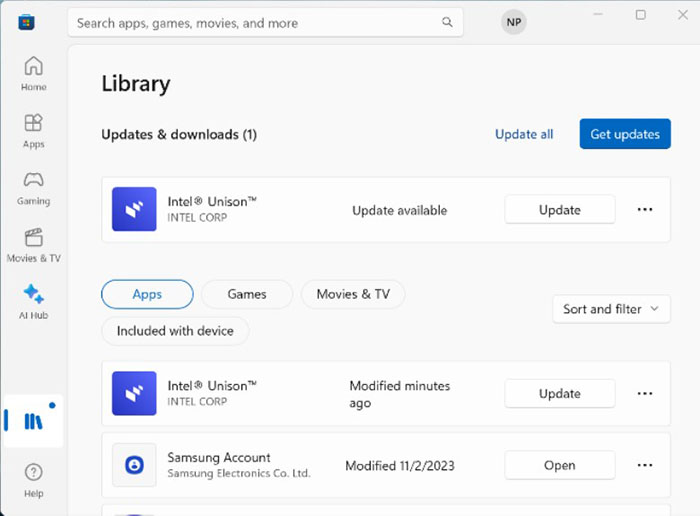
(Figure.1 Microsoft Store Library Page Screenshot)
Option Two: Through the Microsoft Store Search
-
Open the Microsoft Store.
-
Click the search box at the top of the Store screen.
-
Type in
Intel Unisonand press the Enter key to run a search. -
Locate the Intel Unison application in the list of search returns.
-
Open the Intel Unison application page in the Microsoft Store.
-
You should click the Update button if it is available on-screen. Follow the upgrade prompts to update the application.
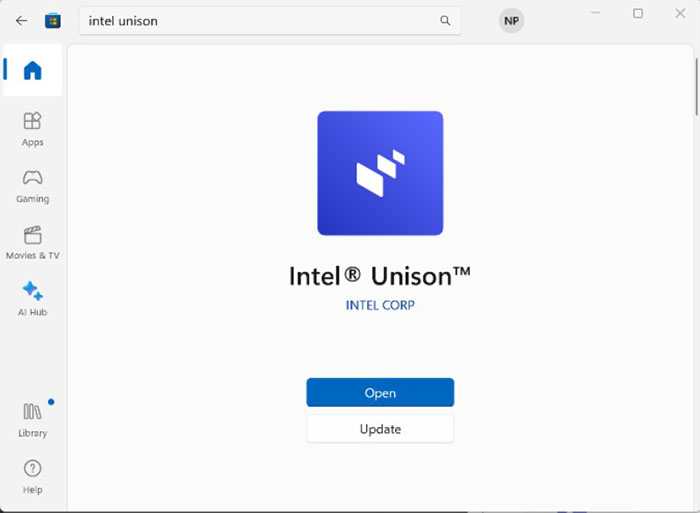
(Figure.2 Microsoft Store Intel Unison Screenshot)
Note: For further information or any other support questions check out the Intel support site below:
- Browse to: Support for the Intel Unison application

Affected Products
Inspiron 13 5330, Inspiron 14 5430, Inspiron 14 7430 2-in-1, Inspiron 14 Plus 7430, Inspiron 16 5630, Inspiron 16 7630 2-in-1, Inspiron 16 Plus 7630, Latitude 7340, Latitude 7440, Latitude 9440 2-in-1, Precision 5480, XPS 13 Plus 9320, XPS 15 9530Article Properties
Article Number: 000220113
Article Type: How To
Last Modified: 19 May 2026
Version: 3
Find answers to your questions from other Dell users
Support Services
Check if your device is covered by Support Services.