How to Set the Windows Event Log Size
Summary: To set the maximum event log size, access Event Viewer properties and adjust the Maximum Log Size value in Windows.
This article applies to
This article does not apply to
This article is not tied to any specific product.
Not all product versions are identified in this article.
Instructions
Affected Operating Systems:
- Windows
What is the Windows Event Viewer
The Windows Event Viewer is an integrated utility in the Windows operating system that allows the ability to view and manage system and application logs. These logs are used to troubleshoot issues with the computer.
Description of the Issue
The Windows event log can reach its configured maximum size which would cause the oldest event log entries to be deleted or overwritten (for example, Dell Trusted Device event long entries such as Indicator of Attack logs).
Steps to Set the Windows Event log size:
- Start the Event Viewer
Note: The Windows Event Viewer must be started using an administrative user account, to allow changes to be made.
- Ways to start the Event Viewer
There are several ways to start the Windows Event Viewer. Below are a couple of examples.
- In an elevated cmd window, use the command eventvwr.msc.
- In the Windows desktop, click on the Windows Key, they type Event Viewer in the search box.
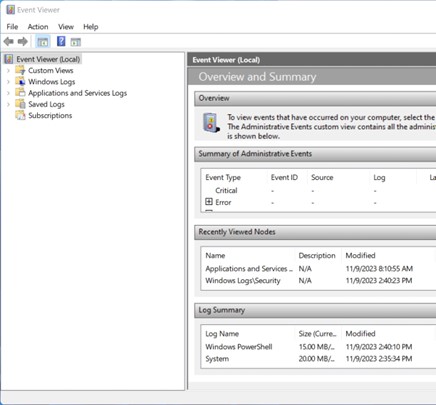
Figure 1: (English Only) Windows Event Viewer
- Select the log to re-size.
Note: For this example, the Dell logs, in Applications and Services Logs is selected.
- Go to Event Viewer (Local) > Applications and Services Logs > Dell.
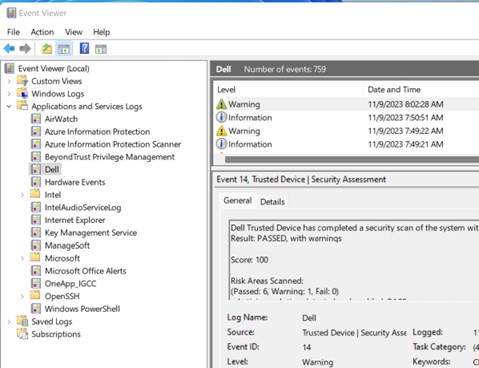
Figure 2: (English Only) Dell Applications and Services logs
- Right Click on the log (for example, Dell), then select Properties.
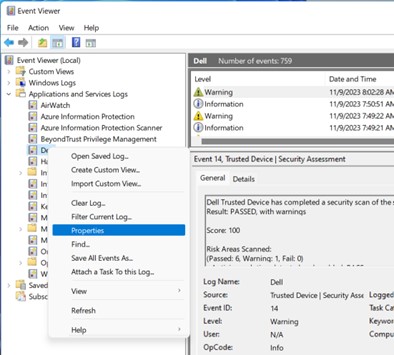
Figure 3: (English Only) Select Properties
- Set the maximum size of the log file.
Note: The Maximum Log Size(KB): is by default set to 1MB (1028KB).
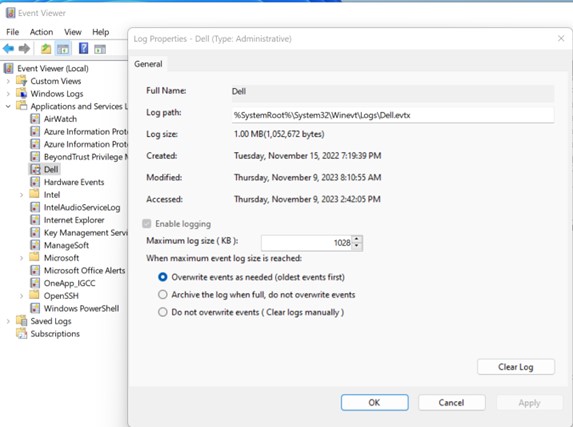
Figure 4: (English Only) Maximum Log File(KB) is set to 1028KB
- Select the Maximum Log Size value, and type in the desired new value, in KB.
Note: In the example below, the new value is 2048KB.
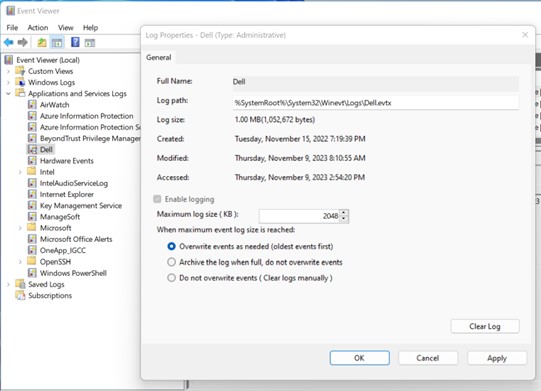
Figure 5: (English Only) Maximum Log File(KB) is set to 2048KB
- Select OK.
Article Properties
Article Number: 000220869
Article Type: How To
Last Modified: 19 May 2026
Version: 2
Find answers to your questions from other Dell users
Support Services
Check if your device is covered by Support Services.