PowerStore: I/O timeouts observed in a single PowerStore node unavailability in vSphere environment with NVMe/TCP
Summary: I/O timeouts may be observed in single PowerStore node unavailability scenarios when using vSphere 8.0U2 and NVMe/TCP. (User correctable)
This article applies to
This article does not apply to
This article is not tied to any specific product.
Not all product versions are identified in this article.
Symptoms
I/O timeouts may be observed in a single PowerStore node unavailability scenario when using vSphere 8.0U2 and NVMe/TCP as a storage protocol.
Examples of such scenarios:
- PowerStore NDU
- Shutdown of a PowerStore node
- Unexpected situations like node panic or network interruption
The issue could be observed under the following circumstances:
- ESXi version 8.0U2 is used
- NVMe/TCP protocol is used
- One PowerStore node became unavailable for some reason, another node stays available
- I/O timeout is observed by an application running in a VM hosted by the ESXi or by operating system installed on a VM
- PowerStore I/O metrics do not show long-running I/Os
Only NVMe/TCP is affected by the issue. NVMe/FC, iSCSI, and FC protocols are not affected. The issue affects only ESXi hosts, host of other types are not affected by the issue.
The issue may manifest itself as application errors or as application service impact running inside VMs hosted by ESXi hosts. It may also cause errors in Guest Operating systems (Operating system installed on a VM running on the ESXi host). The level of impact is attributed to the way that the application software handles I/O timeouts.
The issue is intermittent. If multiple hosts are connected, only some of them may experience the issue.
The issue affects both vVol and non-vVol datastores.
Cause
This is due to an issue in ESXi 8.0U2. When NVMe/TCP controllers of one PowerStore node become unavailable due to some reason while another node is available and able to serve I/O, there is a delay in the path's failover process. The delay may lead to I/O timeouts.
Resolution
We recommend to not use ESXi 8.0U2 for customers who use NVMe/TCP.
Notes:
- ESXi 8.0U1 older than patch 2 have another issue in the same scenario and should also be avoided. Link VMware KB article https://kb.vmware.com/s/article/94106
- Only the ESXi version matters. It is OK to use vCenter 8.0U2 with ESXi 8.0Uone patch 2 or any other configuration as long as the versions are compatible.

The fix is planned to be included into the upcoming ESXi 8.0U3.
Workaround for VMFS and NFS datastores
A workaround is available for customers who use classic (non-vVol) datastores. The workaround is to apply a lower keep-alive timeout when creating NVMe/TCP I/O controllers.
It is not possible to change the timeout for controllers which already exist. If the controllers were already created, it is possible to remove them and re-create with the reduced timeout value.
The default timeout value is 30 seconds. If the wanted I/O failover time is N seconds, then the reduced timeout value should be no more than N/2 - 10 seconds. For example, if the wanted failover time is 60 seconds then 20 seconds should be used (60/2 - 10 = 20)
Step 1: Remove NVMe/TCP controllers (if they are already there)
vSphere UI
- Select the host in the vSphere UI
- Go to Configure → Storage Adapters
- Select NVMe/TCP adapter
- Go to the Controllers tab below the adapter list
- Select a controller and click 'Remove'
Make sure that controllers are not used for I/O before removing them. Otherwise I/O going through the controllers could be interrupted.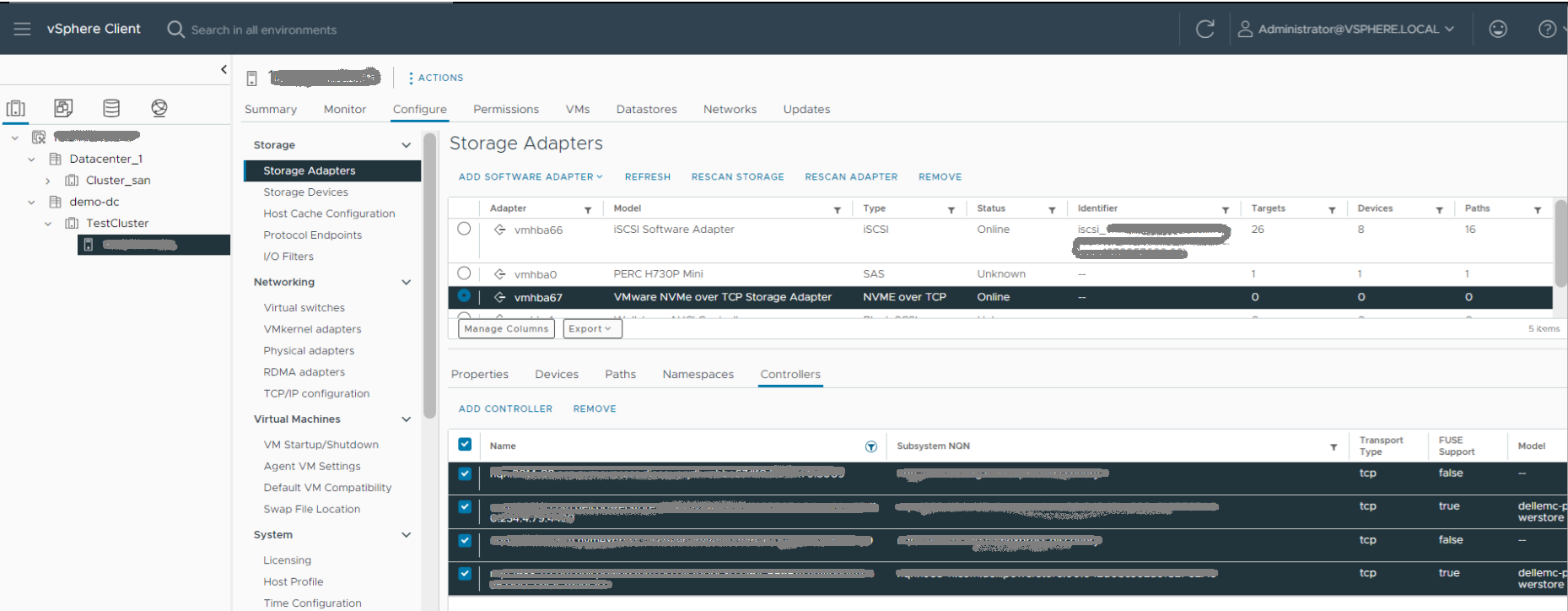
CLI
List the controllers using 'esxcli nvme controller list' and disconnect them using 'esxcli nvme fabrics disconnect'.
[root@hoABCDEF:~] esxcli nvme controller list
Name                                                                                   Controller Number  Adapter  Transport Type  Is Online  Is VVOL
-------------------------------------------------------------------------------------  -----------------  -------  --------------  ---------  -------
nqn.xxx-11.com.xxxx:powerstore:00:042d0bc302a61CBF6EA0#vmhba67#xx.xxx.x.xxx:4420                    4435  vmhba67  TCP                  true    false
nqn.xxx-11.com.xxxx:powerstore:00:042d0bc302a61CBF6EA0#vmhba67#xx.xxx.x.xxx:4420                    4436  vmhba67  TCP                  true    false
nqn.xxx-08.org.xxxxyyy.discovery#vvol#vmhba67#xx.xxx.x.xxx:8009                                  4488  vmhba67  TCP                  true     true
nqn.xxx-11.com.xxxx:powerstore:00:042d0bc302a61CBF6EA0#vvol#vmhba67#xx.xxx.x.xxx               4490  vmhba67  TCP                  true     true
nqn.xxx-11.com.xxxx:powerstore:00:042d0bc302a61CBF6EA0#vvol#vmhba67#xx.xxx.x.xxx               4489  vmhba67  TCP                  true     true
nqn.xxx-08.org.xxxxyyy.discovery#vvol#xx.xxx.x.xxx:8009                                  4491  vmhba67  TCP                  true     true

[root@hop051108:~] esxcli nvme fabrics disconnect -a vmhba67 -n 4435
Step 2: Re-create the controller with a reduced timeout value.
The following parameters are required to create a controller:
- PowerStore cluster NQN
- PowerStore storage IP address
These values can be copied from the vSphere UI or esxcli nvme controller list output before deleting the controllers or they could be obtained from PowerStore Manager.
The NQN could be obtained by navigating to Settings → Properties and copying the value of 'NVMe Qualified Name'.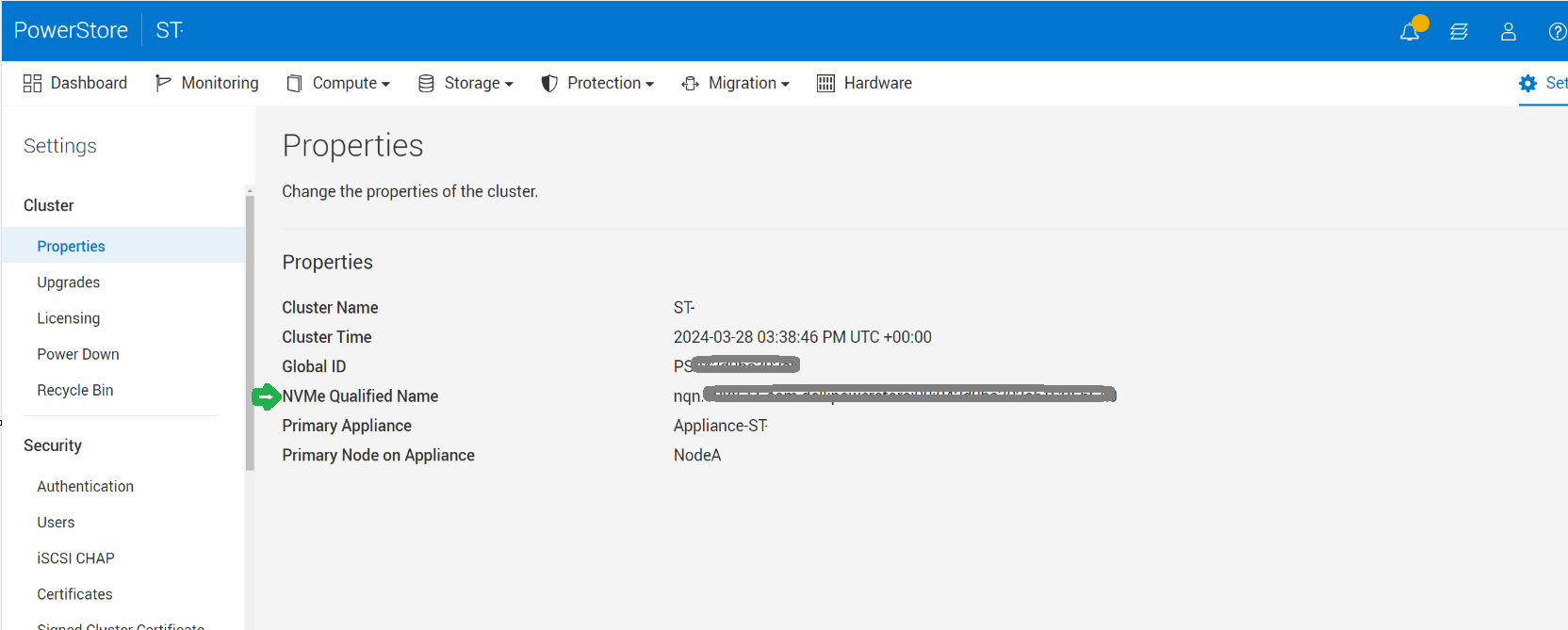
The storage IPs are available on Settings → Network IPs → Select storage network → Modify.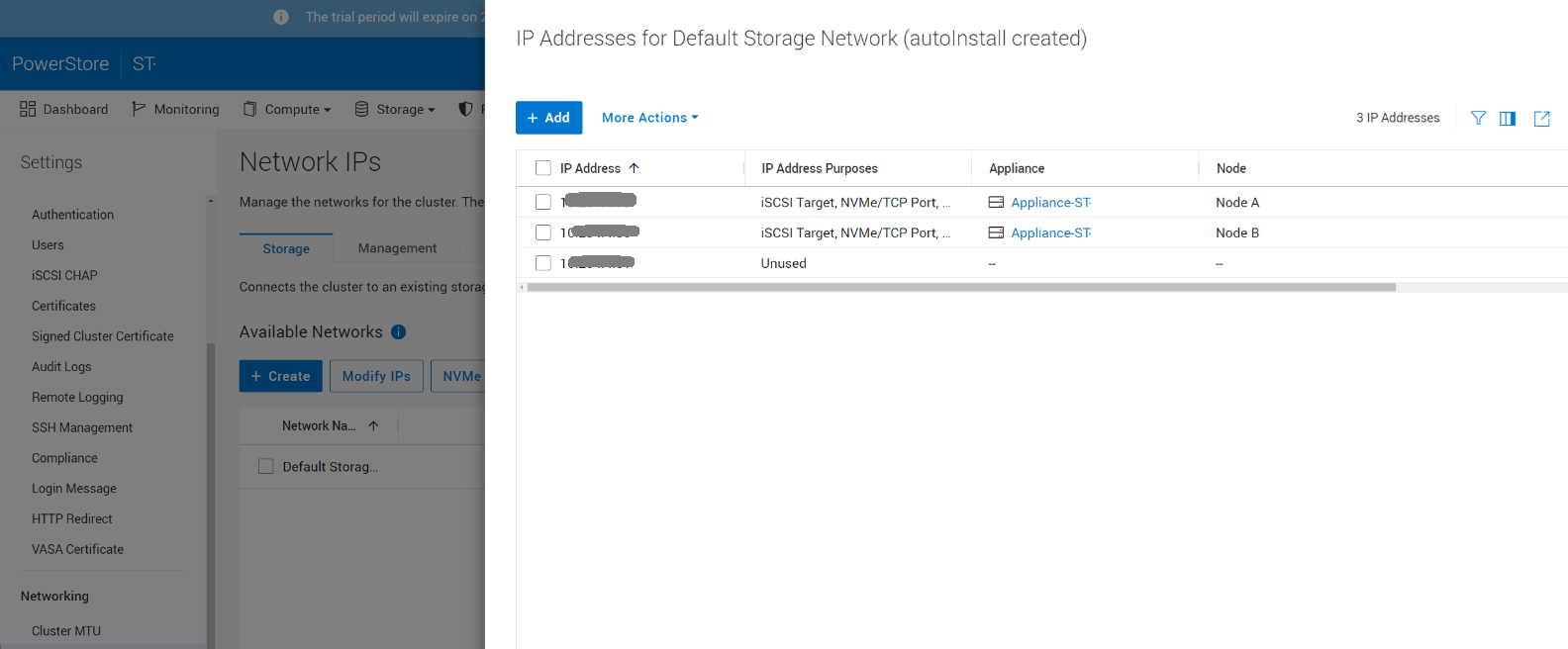
Once these values are obtained, the controllers can be created as follows:
vSphere UI
Select Host → Configure → Storage Adapters → Select the adapter → Add controller → Manually.
The timeout value should be copied to the 'Keepalive Timeout' field.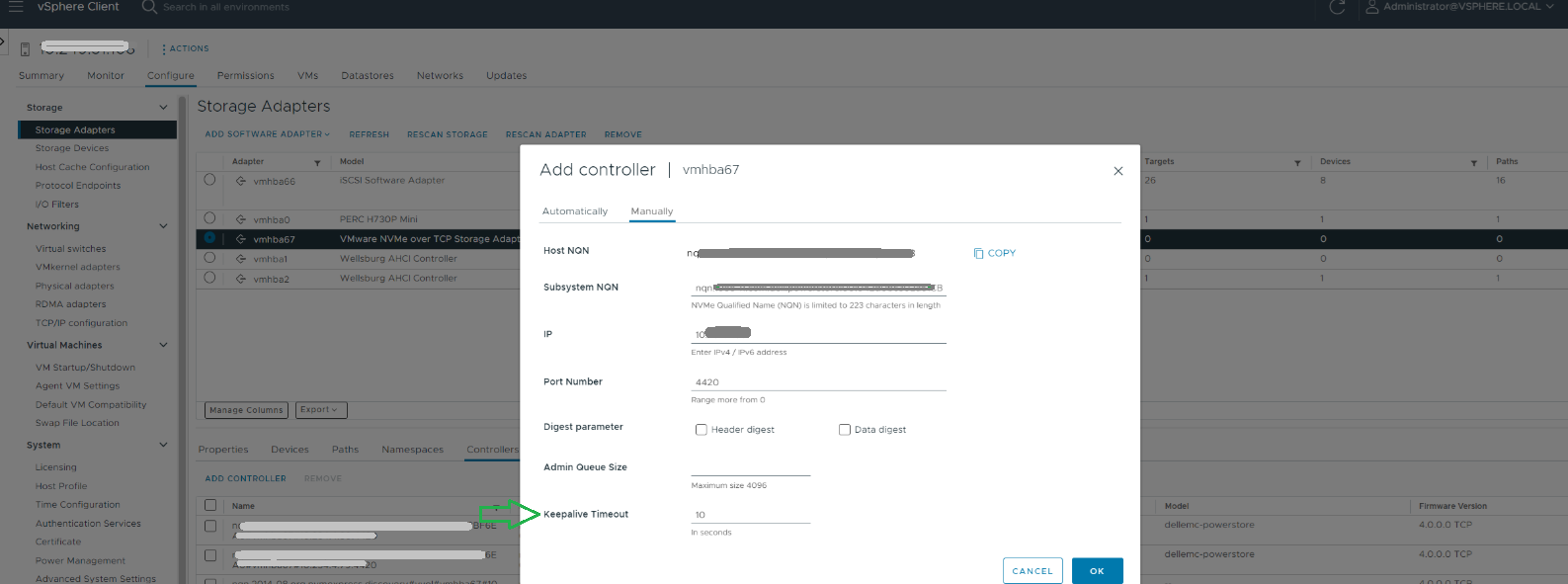
CLI
Use esxcli nvme fabrics connect -i <storage ip> -p 4420 -a <adapter id> -s <powerstore's NQN> -t <timeout>
[root@hoABCDEF:~] esxcli nvme fabrics connect -i 10.xxx.x.xx -p 4420 -a vmhba67 -s
Affected Products
PowerStoreArticle Properties
Article Number: 000223711
Article Type: Solution
Last Modified: 14 Jun 2025
Version: 4
Find answers to your questions from other Dell users
Support Services
Check if your device is covered by Support Services.