Connectrix: Brocade: B-series: SANnav: How to edit Multiple MAPS Rules in Bulk for a Customized Blockset starting from SANNAv v2.3.0
Summary: Use cases for searching for MAPS rules, edit them in bulk and, add them in a New or Existing SANnav Custom MAPS Policy.
This article applies to
This article does not apply to
This article is not tied to any specific product.
Not all product versions are identified in this article.
Instructions
Use Case 1:
Change the rule names for certain rules from the default name (such as: defALL_100G_QSFPCURRENT_10) to a customized name (such as CompanyName_100G_QSFPCURRENT_10)
Use Case 2:
Change the Action list for multiple rules in one shot (Such as: All MAPS rules must have the following action specified: RAS Log, SNMP Trap, Email)
To address these two use cases, two new features are introduced in SANnav v2.3:
- MAPS Block global search: Search for a specific string in all MAPS rules
- Bulk edit of MAPS rules: Edit rule names in bulk.
For these two new features, the User Interface for managing MAPS blocks had to be redesigned. Therefore in SANnav v2.3.0, the UI to manage MAPS rules has been redesigned and enhanced for better usability to search and replace both rule names and action lists.
To edit either rule names or actions in a bulk for a customized blockset, perform the following steps:
-
Click SANnav in the navigation bar, and then select SAN Monitoring > Configuration Policies Management > Blocks
The Blocks window displays. -
Click View for the customized blockset for which you want to edit rules.
The selected blockset appears. -
Select the rules that you must edit.
-
Click the hamburger ( ) icon to the upper right of the table and click Edit.
NOTE: The Edit option is disabled for the Backend Port category.The Edit Rule window displays. You can edit either rule names or actions in bulk.
-
Edit the rule names. By default, the Edit Rule Name option is selected when the Edit Rule page appears.
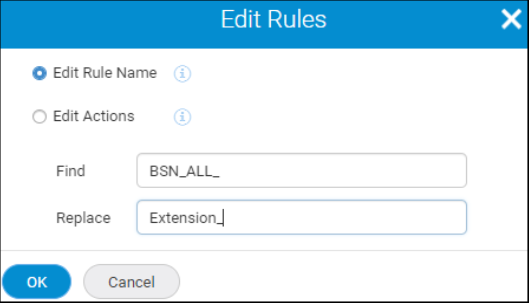
- Find the rule name by entering it in the Find text field. Replace the old name with a new name by entering the new name in the Replace text field. Find and replace supports partial string or text search.
- Click OK.
The Edit Rules Validation window appears.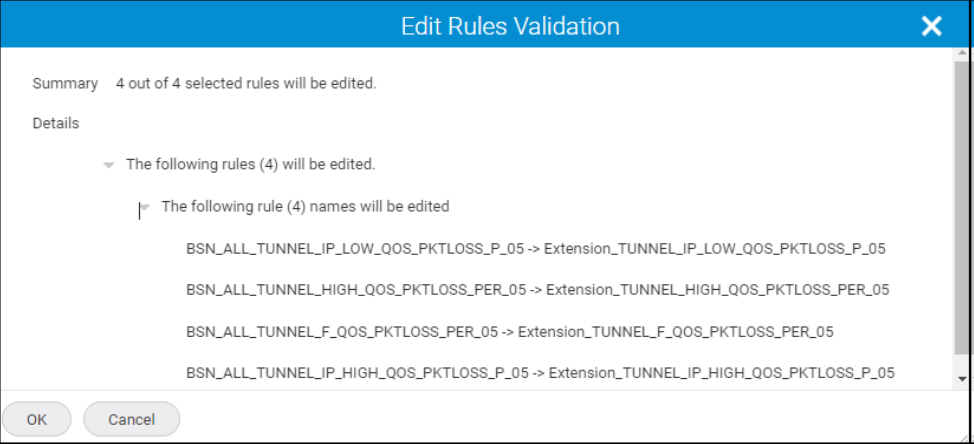
You can view the summary of the updated rule names. - Click OK to continue.
The Edit Rules summary confirmation message appears.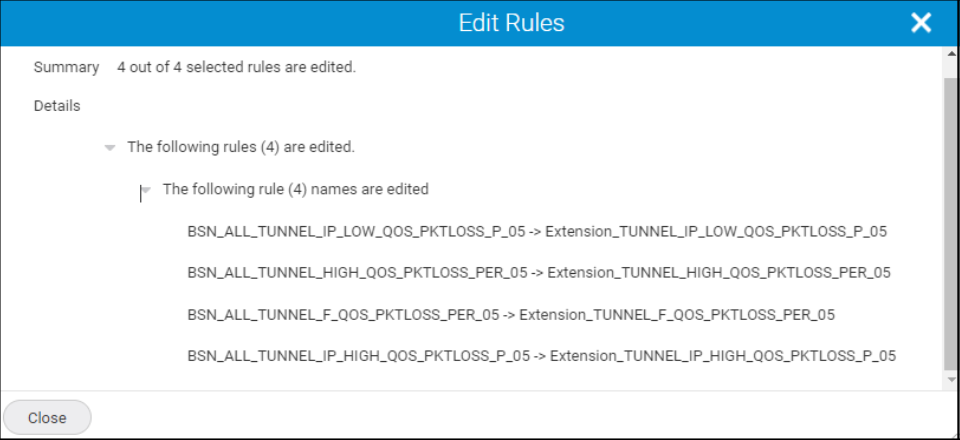
The rule names are replaced for all MAPS rules or selected MAPS rules across categories or in a single category.
-
Edit the rules actions.
- Select the Edit Actions option. Ensure to edit the default rule name before editing the rule actions.
The list of actions under the selected rules is displayed.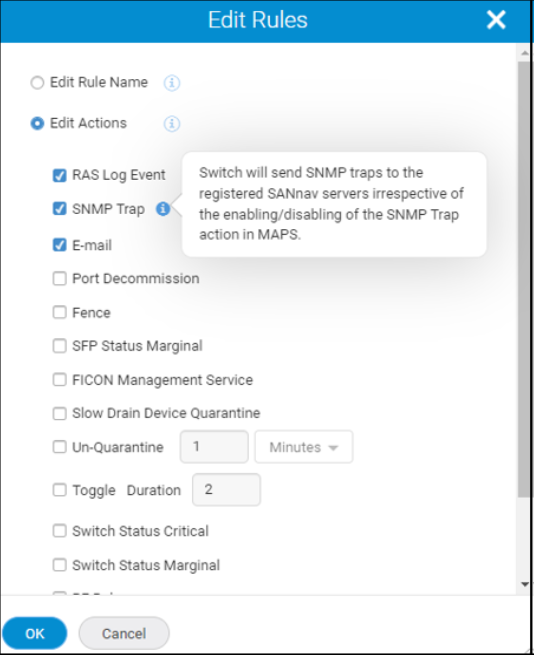
- Select the actions that you want to enable for the customized selected rules and click OK.
The Edit Rules Validation window appears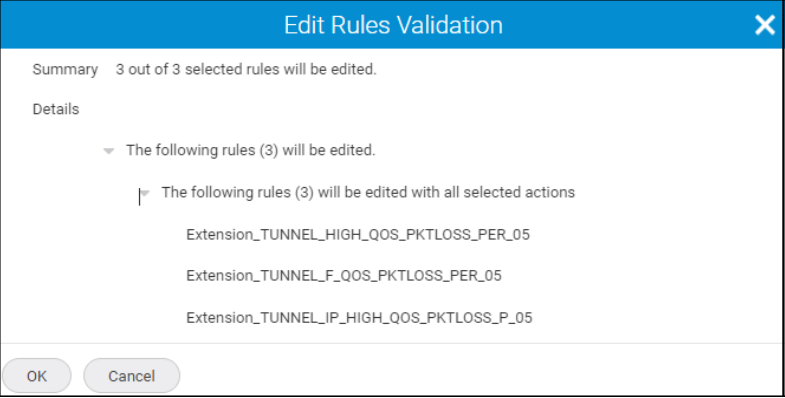
You can view the summary of the rules that is updated or skipped. - Click OK.
The Edit Rule summary confirmation message appears. If you cannot edit any of the selected rules, the Edit Rule summary confirmation message does not appear. The actions are applicable for all MAPS rules or selected MAPS rules across categories or in a single category.
- Select the Edit Actions option. Ensure to edit the default rule name before editing the rule actions.
Additional Information
NOTE
- You cannot edit a default blockset from the Blocks page. However, you can clone a default blockset.
- You cannot edit a default rule action. You must customize the default rule name (by renaming the default rule to clone it) to edit the rule actions.
Article Properties
Article Number: 000224079
Article Type: How To
Last Modified: 21 Nov 2025
Version: 4
Find answers to your questions from other Dell users
Support Services
Check if your device is covered by Support Services.