PowerStore: How to renew internal certificates of a PowerStore cluster
Summary: This article describes the process for upgrading the internal certificates of a PowerStore cluster by certificate renewal upgrade thin packages with PowerStoreOS versions 2.0.x through 4.0.x. ...
This article applies to
This article does not apply to
This article is not tied to any specific product.
Not all product versions are identified in this article.
Instructions
Note: Uploading the certificate renewal thin packages is a non-disruptive action. Nodes do not reboot to complete uploading the needed internal certificate updates.
Note: Always check the Drivers & Downloads page on the Dell Technologies Support site to see if a newer version of PowerStoreOS is available. It is recommended to also consider upgrading the cluster to the PowerStoreOS target code version (or later). For the latest information about supported PowerStoreOS upgrade paths and current target code version, see KB# 000175213 PowerStore: PowerStoreOS Matrix
| IMPORTANT |
|---|
|
Certificate renewal for a cluster installed with PowerStoreOS versions 1.x is not covered in this article. Customers with such clusters are encouraged to consider to NDU the cluster to the PowerStoreOS target version (or later). They would then be able to perform certificate renewal using the appropriate certificate renewal thin package. For details on supported PowerStoreOS upgrade paths for this case, see KB# 000175213 PowerStore: PowerStoreOS Matrix If a cluster upgrade from version 1.x is not possible, contact your service provider for assistance with this case. Mention KB# 000228220 to expediate processing of your case. A certificate renewal package is not available for PowerStoreOS 4.1.x (or later) as this version supports automatic certificate renewal. |
Table of Contents
- Background
- How to download a certificate renewal package
- How to upload a certification renewal package
- Compatibility matrix for the certification renewal packages
- Customer expectations
- How to confirm
Background
PowerStore CA first-party certificates and other third-party certificates are used for secure communications among various components of a PowerStore system.
The certificates installed on a PowerStore system are:
- Replication HTTP, Management HTTP (Internal and External), VASA HTTP, and Encrypt HTTP - All listed in the PowerStore Managers Certificates report.
- SDNAS Internal CA Cert, SDNAS Cluster Cert, SDNAS Node-A Cert, SDNAS Node-B Cert, SDNAS Trident Signed Client Cert - All not listed in PowerStore Manager; Can only be found in cluster log files.
There is no alerting to the user when a PowerStore certificate is signed, or when certificates are nearing expiration. This may result in certificate expiration and subsequent failures in PowerStore cluster functionality. This may also lead to a Data Unavailability (DU) condition on the affected cluster. Also, there is no auto-renewal mechanism for PowerStore CA first-party certificates that adds further risk. Some examples of the impact of expired certificates are:
- Inability to manage the array
- Inability to add remote clusters for replication
- Failure of inter-appliance connections
Certificate renewal is critical because the PowerStore CA first-party certificates expire in May 2025 (for systems installed in 2020). Customers must renew the certificates before this date. If certificate renewal is not done, critical PowerStore functionality may be affected, rendering the PowerStore non-operational and unable to be managed, configured, or serviced.
The certificate renewal thin packages allow the renewal of PowerStore CA first-party certificates that have either not yet expired, or expired.
Note: The certificate renewal thin-packages do not renew third-party certificates. The administrator is responsible for renewing these certificates using the PowerStore Manager user interface, PSTCLI, or REST.
Note: The certificate renewal thin packages do not provide monitoring, alerting of certificates expiration. In addition, even though the thin packages provide a method to renew certificates, they do not install new logic to continually auto-renew certificates.
How to download a certificate renewal package
The PowerStore certificate renewal packages are available for download from the Dell Technologies Support site alongside PowerStoreOS, drive firmware, language packs, and Health Check packages. The certificate renewal packages can only be accessed when logged into Support using an account that is associated with the PowerStore cluster.
Note: The procedure in this section only applies to clusters without automatic downloads enabled. If your cluster has Support Connectivity and automatic download enabled, the applicable certificate renewal package is automatically downloaded to the system based on telemetry data. For details on customizing automatic download preferences for update packages with Support Connectivity enabled, see the PowerStore Upgrade Guide document.
To download a certificate renewal package:
- Open a browser and go to the Dell Technologies Support site.
- Sign into your support account that is associated with the PowerStore cluster.
- Go to the product page for your system, and then go to Drivers & Downloads.
- Identify the applicable PowerStore certificate renewal package to download by carefully reading the package description. For further details, see the Compatibility Matrix for the certification renewal packages section in this article.
- Click Download to download the PowerStore certificate renewal package.
How to upload a certification renewal package
Use PowerStore Manager to upgrade the internal certificates on the cluster.
Note: This procedure is performed once for the whole cluster from the primary appliance.
Known Issues
This sub-section lists the known issues with the steps to upload a certificate renewal package. Review this section before performing the steps listed in this section.
Multiple Appliance cluster configuration with expired certificates
Attempting to upload a certificate renewal package to a multiple appliance cluster fails if one or more of the internal certificates has expired. To check if certificates on the cluster have expired, see the How to Confirm section in this article.
Note: This known issue applies to all PowerStoreOS versions through 4.0.x.
To avoid this issue, run this curl command to manually renew the Encrypt_HTTP certificate before attempting to upload the certificate renewal package:
curl -s -k -u "<user account>:<user account password> " -X 'POST' "https://<IP address of PowerStore cluster>/api/rest/x509_certificate/reset" \
        -H 'Accept: application/json' \
        -H 'Content-Type: application/json' \
        -H 'Dell-Visibility: Internal' \
        -d "{ \"service\": \"Encrypt_HTTP\" }"
In the above curl command, change <user account>, <user account password>, and <IP address of PowerStore cluster> with the corresponding settings of the affected PowerStore cluster.
Note: For user account, the admin user account can be used.
Pre-requisites
Before starting the certificate upgrade, run the System Health Check under the Monitoring tab to ensure the health of the array.
Note: As a best practice, always install the latest available Health Check packages for your current PowerStoreOS version before starting the certificate renewal procedure. See PowerStore: How to Check the Health of the Cluster Before Software Upgrade Using Pre-Upgrade Health Check and System Check for more information about the latest available Health Check packages.
Steps
- Follow the below instructions to upload the certificate renewal package to PowerStore Manager:
- Open PowerStore Manager.
- In PowerStore Manager, go to Settings > Upgrades.
- Under Software Packages, select More Actions > Upload Package.
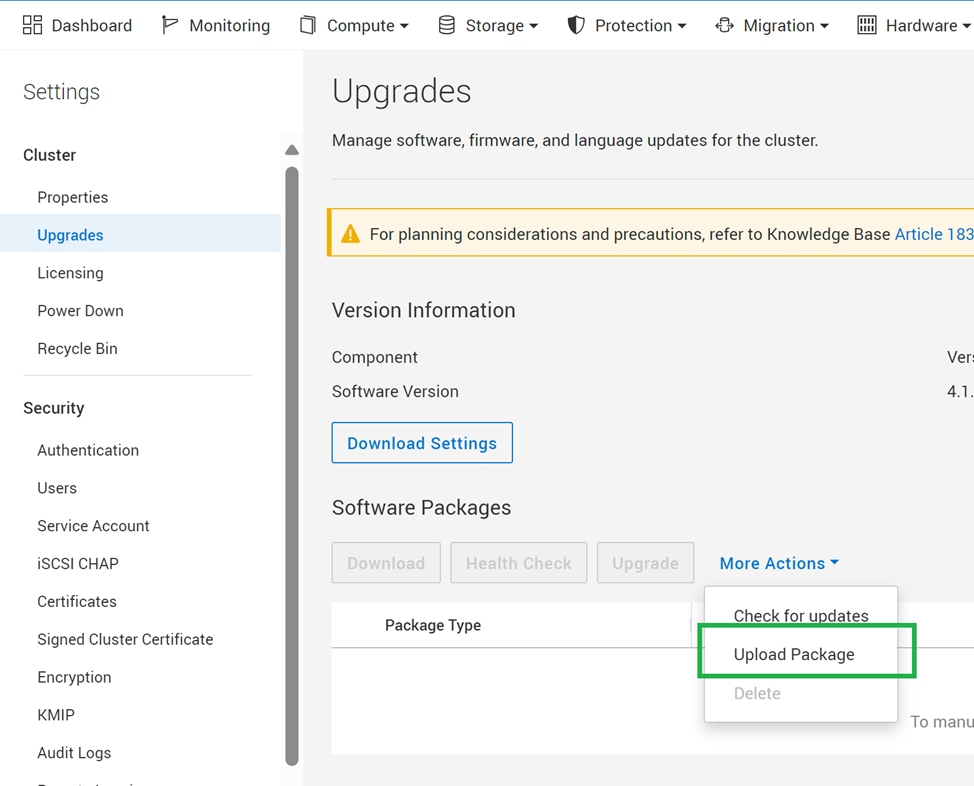
- In the file explorer, select the certificate renewal package to upload and select Open
Note: Do not close or refresh the browser while the certificate package is uploaded to PowerStore Manager. When the certificate upgrade package finishes uploading, it is displayed in the Software Packages table.
- Follow the below instructions to upgrade the certificate on the cluster using the certificate renewal package that was uploaded to PowerStore Manager in step 1 of this procedure:
- Open PowerStore Manager
- Select the Settings icon, and then select Upgrades in the Cluster section.
- Select the certificate renewal package in the Software Packages table, and select Upgrade.
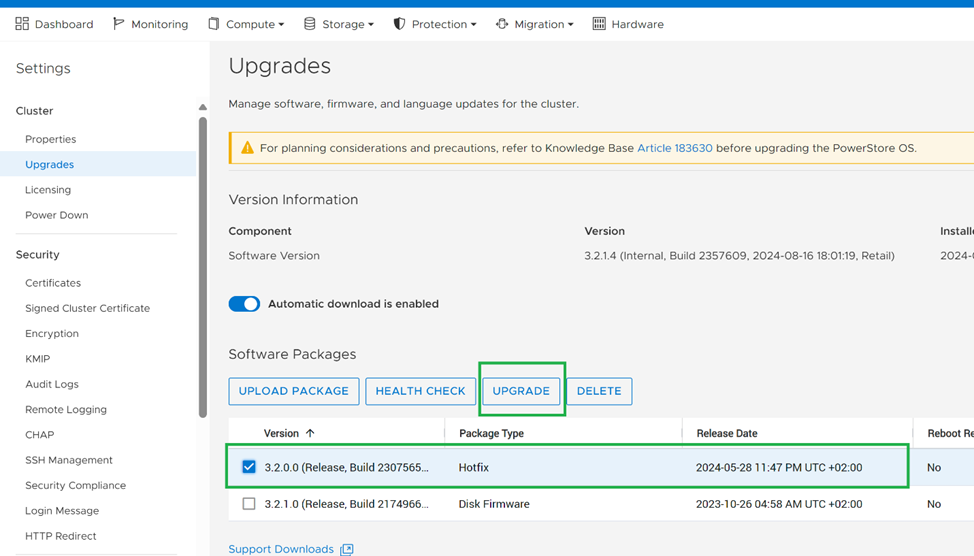
- Refresh the PowerStore Manager tab to see changes after completion of the certificate upgrade.
Concluding steps
After completing the certificate upgrade, run the System Health Check under the Monitoring tab to ensure the health of the array.
Compatibility Matrix for the certification renewal packages
| Package Name | Package File Name | Supported PowerStoreOS versions | Size | Package File Signatures |
|---|---|---|---|---|
| PowerStore Certificate Renewal for 4.0.x | PowerStore_hotfix_cert_renewal-4.0.0.0-2426956-retail.tgz.bin | 4.0.x | 155.0 MB |
MD5: 78f55770a40acaa5e8fda512d0c2f4b9 SHA256: 444dd59a877f8284e47a343e9b22f03659ba3cc86d6ec2d671bb3f5d55743f56 |
| PowerStore Certificate Renewal for 3.6.x | PowerStore_hotfix_cert_renewal-3.6.0.0-2427535-retail.tgz.bin | 3.6.x | 160.0 MB |
MD5: 6636d9c6ff14c6f2b6464fbbbc2096ca SHA256: 122770a67b3b65034d6af076d18e4d853b9ad5f38525750b767fa75812ce26fd |
| PowerStore Certificate Renewal for 3.5.x | PowerStore_hotfix_cert_renewal-3.5.0.0-2427517-retail.tgz.bin | 3.5.x |
159.0 MB |
MD5: 30d43f42eb78727fec02d008c58579e6 SHA256: eb2486f94e9b81e62a6b718470a726e9d5ff6291c998af3ee4000d2be533c3ae |
| PowerStore Certificate Renewal for 3.2.x | PowerStore_hotfix_cert_renewal-3.2.0.0-2427497-retail.tgz.bin | 3.2.x | 153.0 MB |
MD5: 55dedb009133803455c0528378f3f6e3 SHA256: 9ea5fcd1cab6cc6bedb717fa9725d5c84f2a419d50f143f5bc527462dbf67893 |
| PowerStore Certificate Renewal for 3.0.x | PowerStore_hotfix_cert_renewal-3.0.0.0-2426965-retail.tgz.bin | 3.0.x | 153.0 MB |
MD5: ce83192a6b8cc1e996b0acfd9c7f1f8c SHA256: 14dff9f5f4c520dda5bfa0c81062957c0c4ef3f6ef51f94298b6cd14a8296b62 |
| PowerStore Certificate Renewal for 2.1.x | PowerStore_hotfix_cert_renewal-2.1.0.0-2308171-retail.tgz.bin | 2.1.x | 138.2 MB |
MD5: 8467c16e6e09a6051328134743099ea7 SHA256: 5858985b9abeebbfe69e4f45493a17ef04dcb37523a7bb2f06018d9caee57bf4 |
| PowerStore Certificate Renewal for 2.0.x | PowerStore_hotfix_cert_renewal-2.0.0.0-2308635-retail.tgz.bin | 2.0.x | 138.8 MB |
MD5: 446d2ebe97747f2382fb30c776d3f0de SHA256: b6ded98563006d94d5a60c2e3c2ecf176b7272bffdc4ac6fb1fcf7c2ed1d50c4 |
Customer Expectations
How long does the certificate renewal package take to upload?
It takes about 4-7 minutes per appliance to upload a certificate renewal package.
How are the expiration dates of first-party certificates expected to change after uploading the certificate renewal package?
| Certificate Name | Expiration extension |
| >Replication_HTTP | 5 years |
| >Management_HTTP (internal) | 5 years |
| >Management_HTTP (external) | 5 years |
| >VASA_HTTP * | 1 year |
| >Encrypt_HTTP | 5 years |
| >SDNAS Internal CA Cert | 10 years |
| >SDNAS Cluster Cert | 5 years |
| >SDNAS Node-A Cert | 5 years |
| >SDNAS Node-B Cert | 5 years |
Notes regarding the VASA_HTTP certificate:
- Unlike all other first-party certificates, the VASA_HTTP first-party certificate is only extended by one year when uploading the certificate renewal package.
- The VASA_HTTP certificate is special because it can also be a third-party certificate (signed by VMware) for vSphere. In such a case, the certificate renewal package skips the VASA_HTTP certificate renewal. Customers are responsible for the renewal of such third-part certificate.
- In addition, with PowerStoreOS version 3.5 or later, a “vasa_retain” user configurable flag was introduced for the customer to indicate that this third-party certificate is used. If this flag is set, the certificate renewal package also skips the VASA_HTTP certificate renewal
Is the package applied non-disruptively to a cluster?
Yes, a certificate renewal package can be applied non-disruptively to a cluster.
Must Support Notifications be disabled/enabled?
No, Support Notifications do not require to be disabled during a certificate upgrade.
Are any alerts or events raised following a certificate upgrade?
No alerts are raised following a certificate upgrade.
Several events are raised during this upgrade: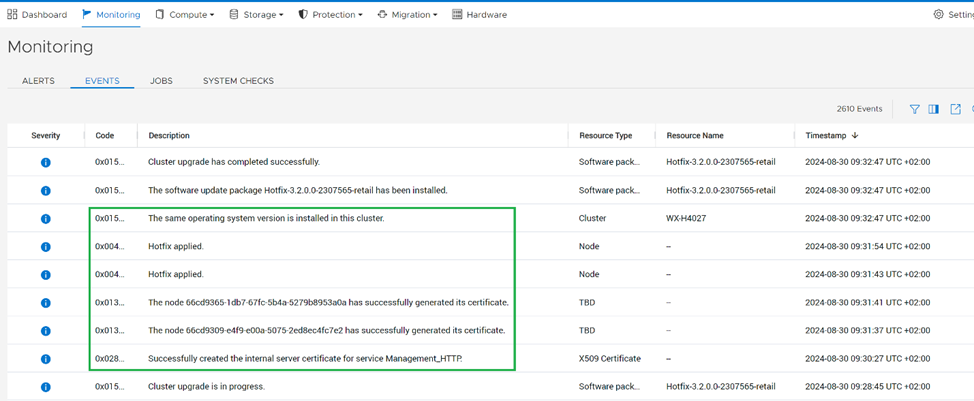
How to confirm
Follow the below instructions to confirm that the certificate renewal package was successfully applied to the PowerStore cluster:
- Open PowerStore Manager
- In PowerStore Manager, go to Settings > Security > Certificates.
- From the displayed list of certificates installed on the cluster, check the expiration date for the Replication HTTP, Management HTTP (Internal and External), VASA HTTP, and Encrypt HTTP certificates:
- For each certificate, click the certificate name to display a View Certificate Chain panel on the right with the expiration date of the certificate.
NOTICE:
The following certificates are also installed on the cluster yet that are not visible in the PowerStore Manager Certificates section:
- SDNAS Internal CA Cert, SDNAS Cluster Cert, SDNAS Node-A Cert, SDNAS Node-B Cert, SDNAS Trident Signed Client Cert, and Encrypt HTTP.
Information on these certificates can only be seen on the cluster log files.
Affected Products
PowerStoreArticle Properties
Article Number: 000228220
Article Type: How To
Last Modified: 14 Jun 2025
Version: 14
Find answers to your questions from other Dell users
Support Services
Check if your device is covered by Support Services.