PowerEdge: How To Gather TSR with Debug logs using Rocky Linux Based SLI Image
Summary: This article is a guide to How to collect the Dell SupportAssist Log/TSR report from the Rocky Linux based Live Environment Support Live Image (SLI)
This article applies to
This article does not apply to
This article is not tied to any specific product.
Not all product versions are identified in this article.
Instructions
This version of the SLI Media is not available for download by the public.
This guide aims to aid in any steps advised by Dell technical support.
Below options while booting the server from Rocky Linux based Live OS Environment
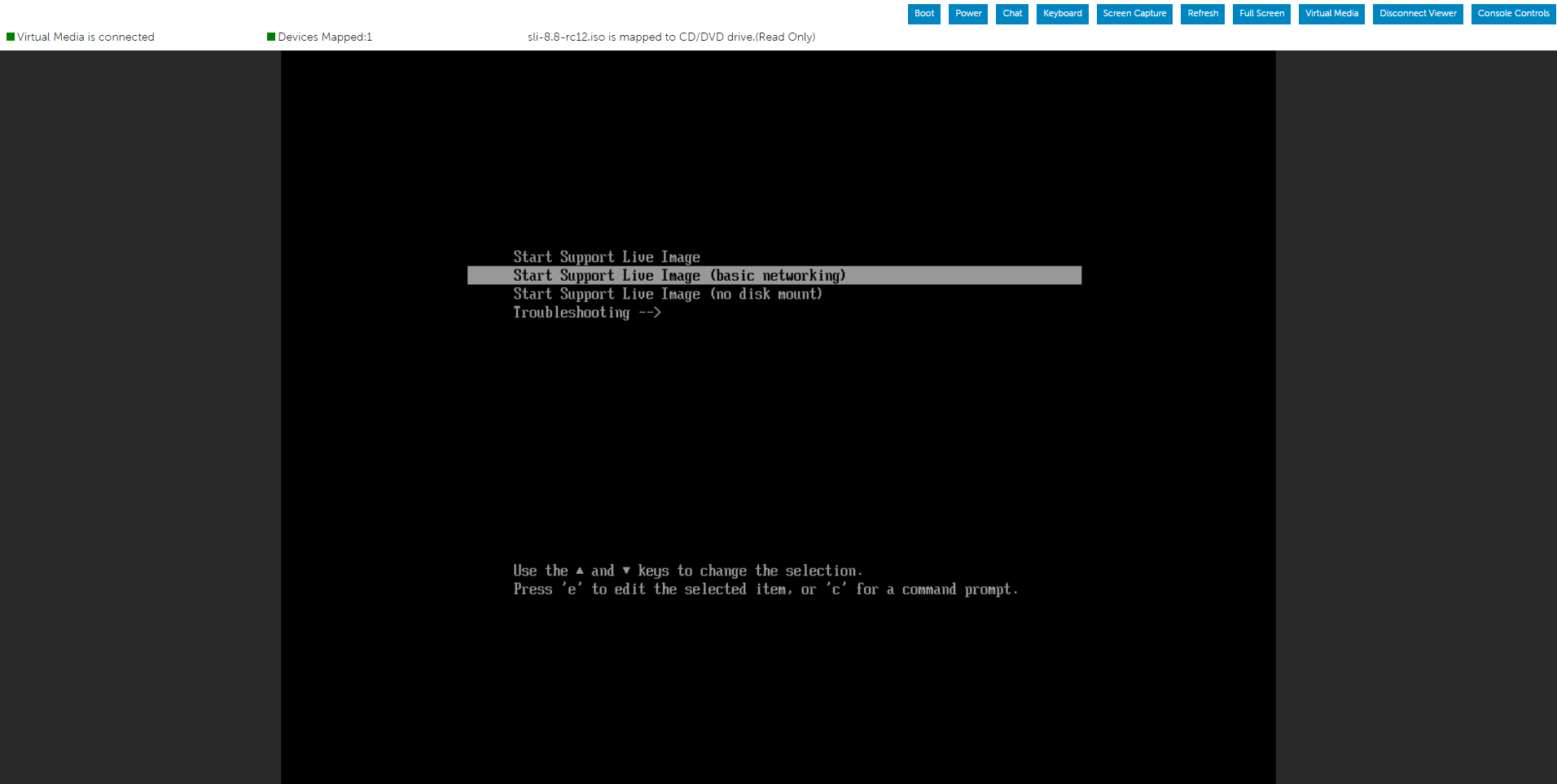
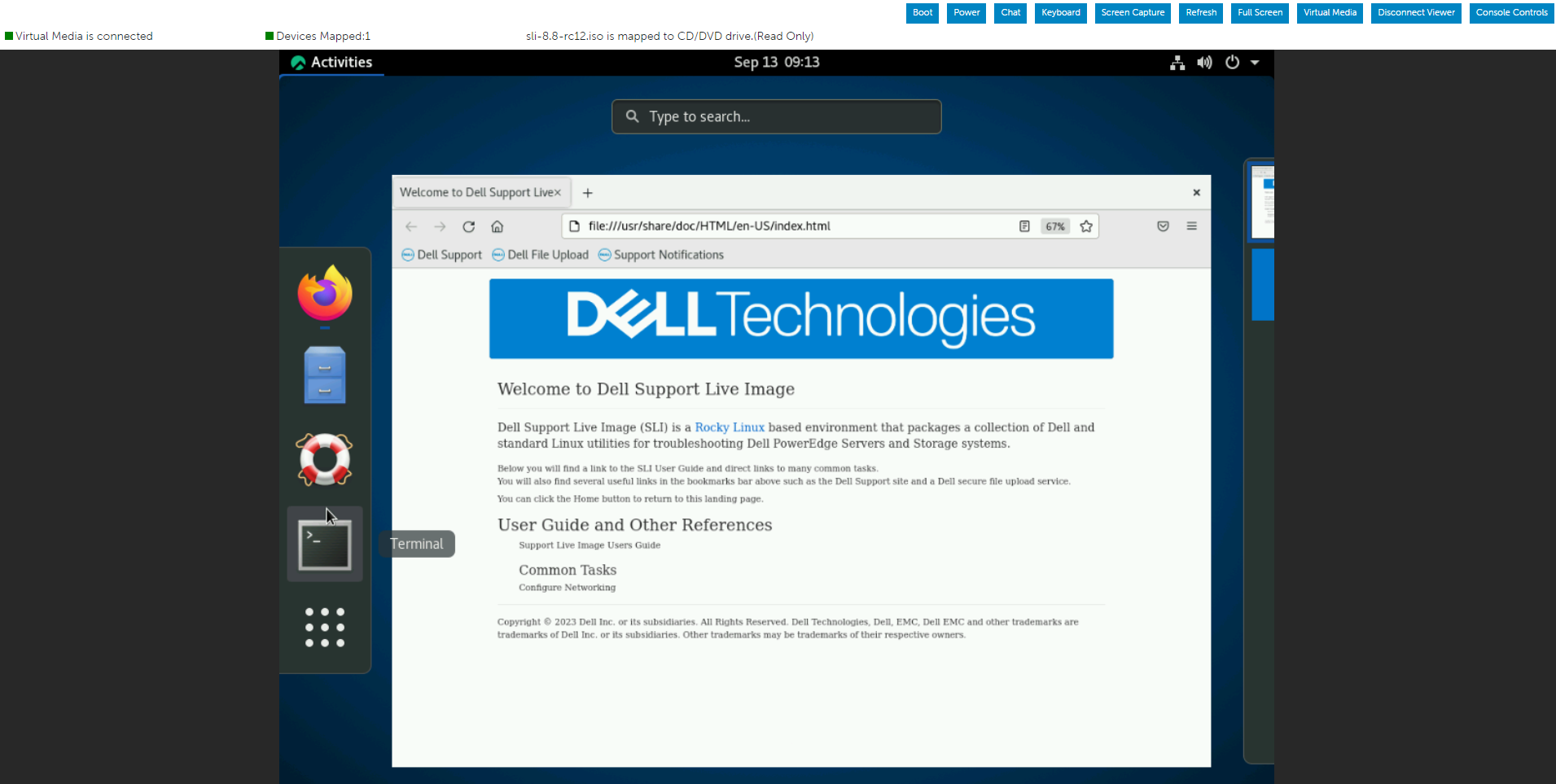
Run the below command to initiate a Dell SupportAssist log/TSR report with debug log enabled.
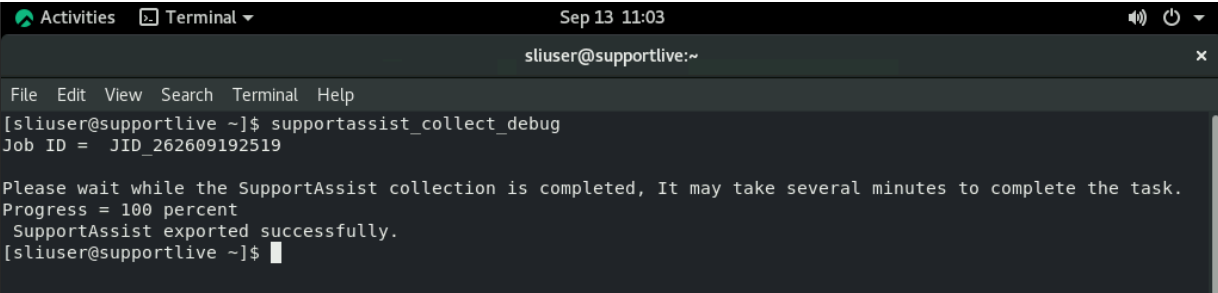
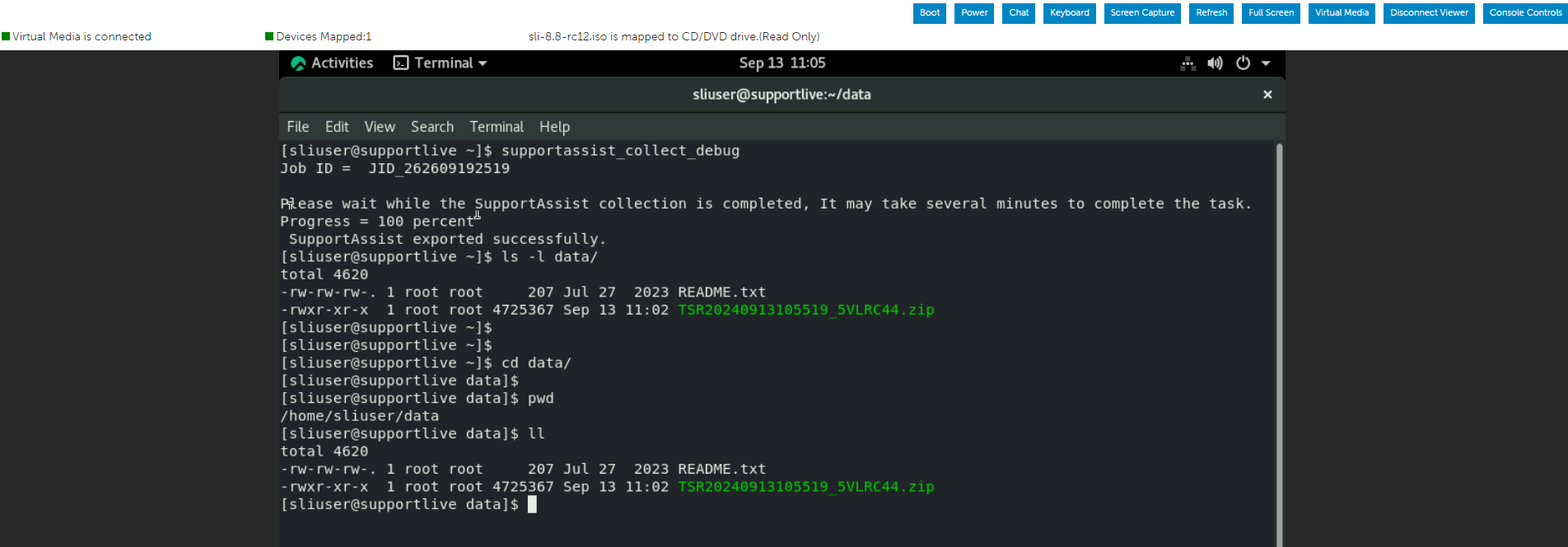
Once the Dell SupportAssist collection is completed, may go to /var/data folder to review or transfer the TSR report.
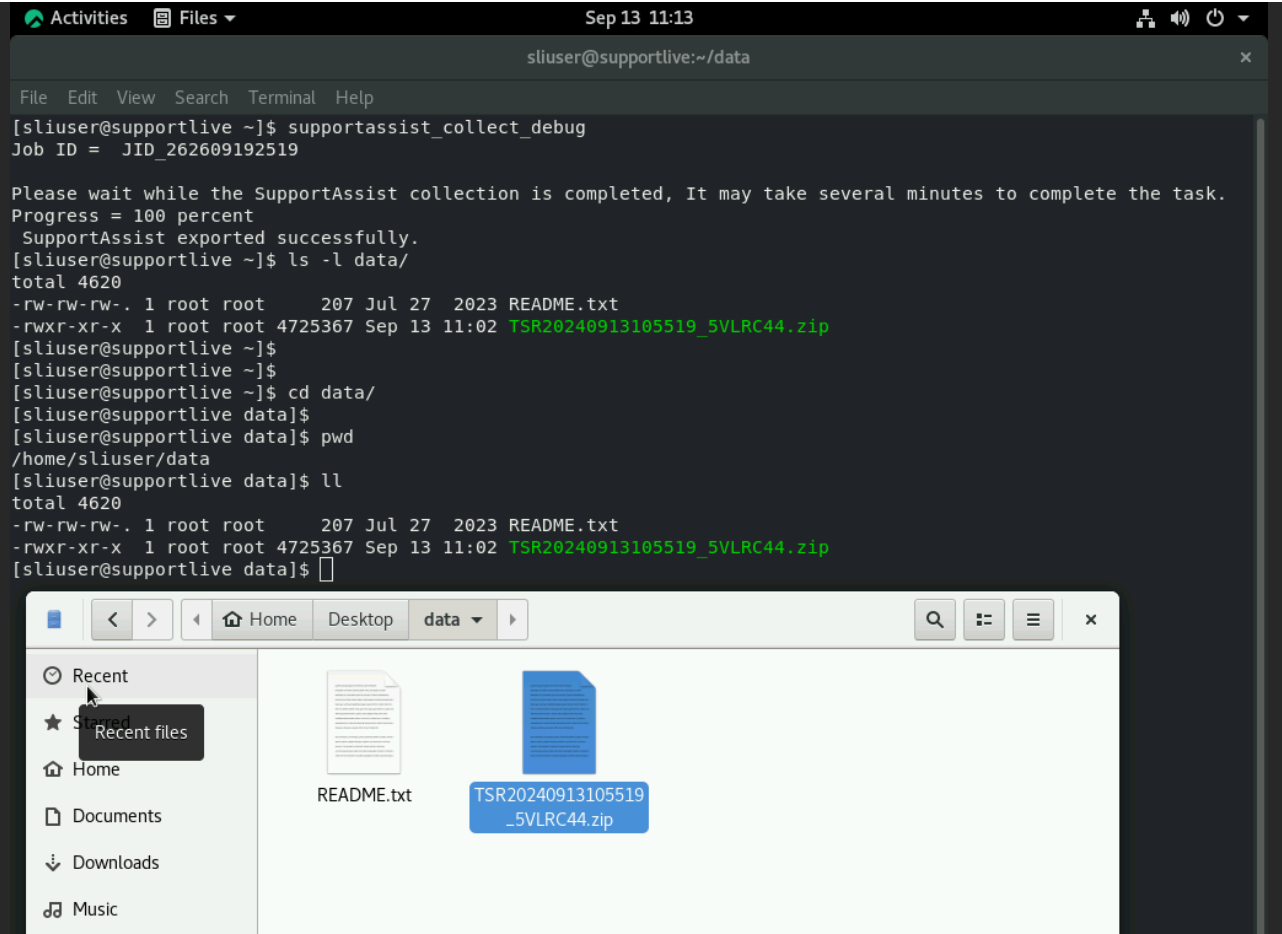
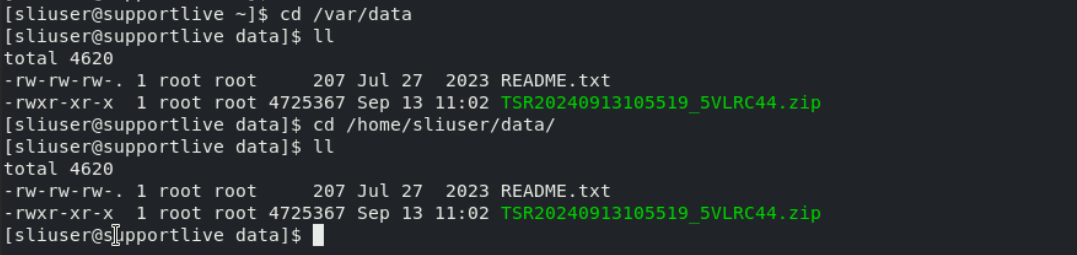
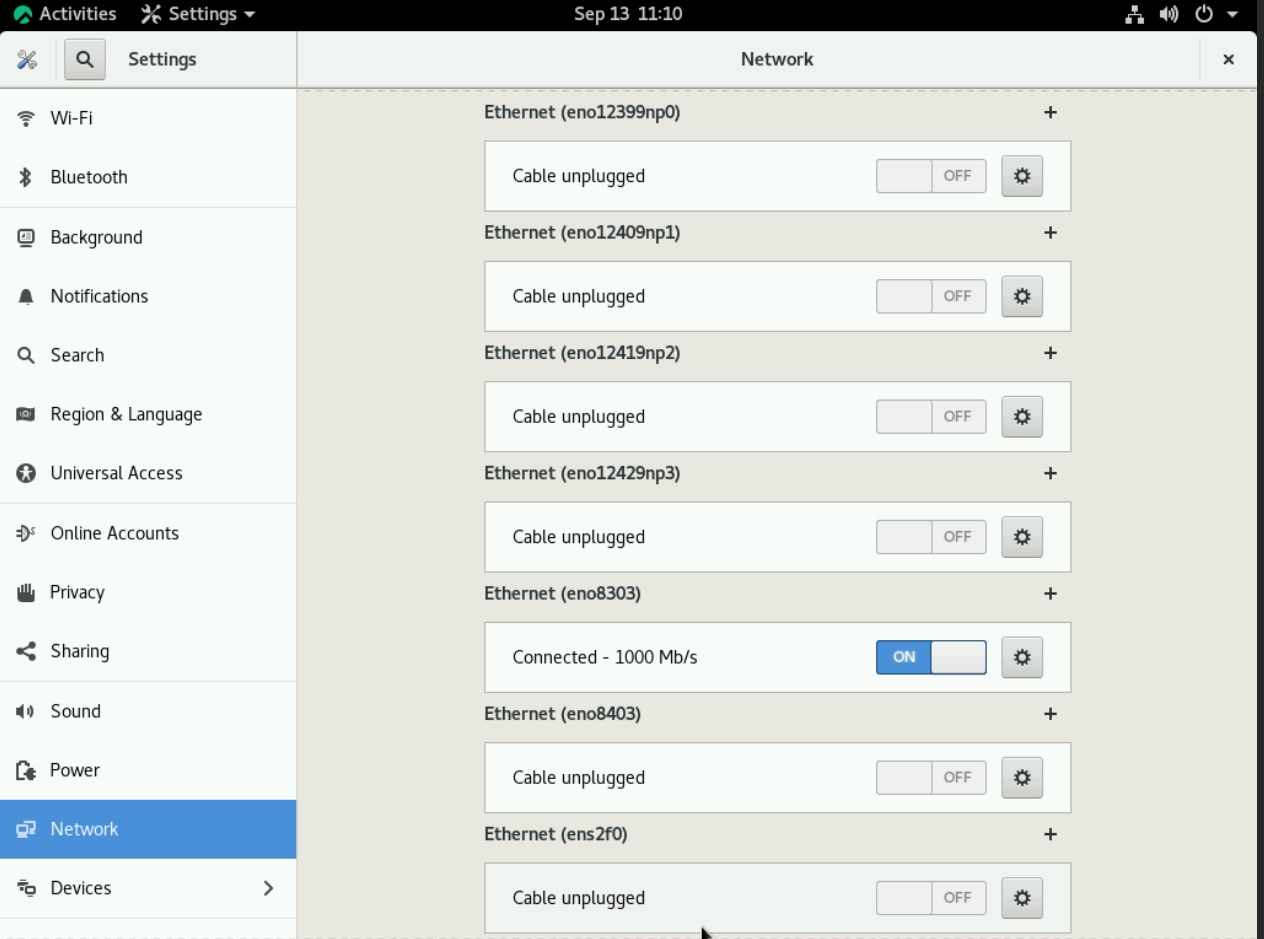
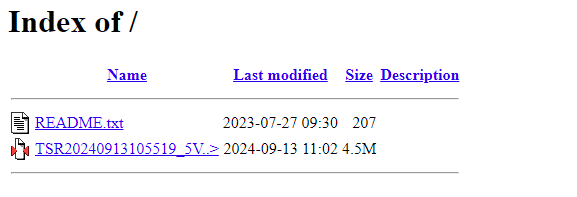
The TSR report can be transferred to any connected USB stick or share using Network.
Affected Products
Red Hat Enterprise Linux Version 8Article Properties
Article Number: 000228559
Article Type: How To
Last Modified: 21 May 2026
Version: 7
Find answers to your questions from other Dell users
Support Services
Check if your device is covered by Support Services.