Dell Optimizer Version 6.x Purchased Apps Information
Summary: This article provides information about accessing and using Purchased Apps in Dell Optimizer (DO) version 6.x.
This article applies to
This article does not apply to
This article is not tied to any specific product.
Not all product versions are identified in this article.
Symptoms
Dell is adding a Purchased Apps module within DO 6.x as the new software download utility and is replacing the legacy Dell Digital Delivery (DDD) software.
Note: There are system compatibility limitations with Dell ARM processor systems from September 2024 and later.
The Dell and Alienware Purchased App is available and should be the default programs for you to use and download your software.
The Dell and Alienware Purchased App is available and should be the default programs for you to use and download your software.
Cause
Dell decided to shift from DDD to DO 6.x with Purchased Apps.
Resolution
Dell Optimizer 6.x
Dell Purchased Apps enables Users to download and install software that was purchased with their Dell computer.
Dell Optimizer 6.x is already installed on any Dell Windows computer that is shipped from the factory. The software must be reinstalled if the Windows Operating System (OS) is reinstalled.
Key Differences with Dell Optimizer 6.x:
- Integration of Purchased Apps: Dell Optimizer 6.x now includes the "Purchased Apps" module, allowing Users to access and download purchased software directly within the software.
- Simplified Software Download Process: Dell Optimizer 6.x streamlines the software download process, making it easier for Users to find and download the software they need.
- Enhanced User Experience: Dell Optimizer 6.x provides a more intuitive and User-friendly interface, making it easier for users to navigate and find the software they need.
More information is available in the following article: Transition to the new Dell Optimizer
Warning: Software that is purchased independently of a Dell platform is available through Dell Digital Locker and not through Dell Optimizer.
- There are system compatibility limitations with Dell ARM processor systems from September 2024 and later.
- Dell Optimizer 6.x will progressively be compatible with older computers.
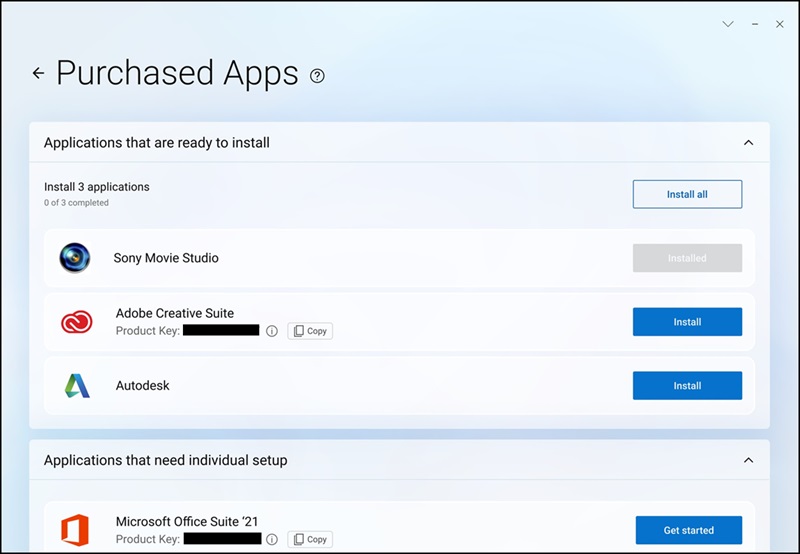
Accessing Purchased Apps
- Launch the Dell Optimizer 6.x application.
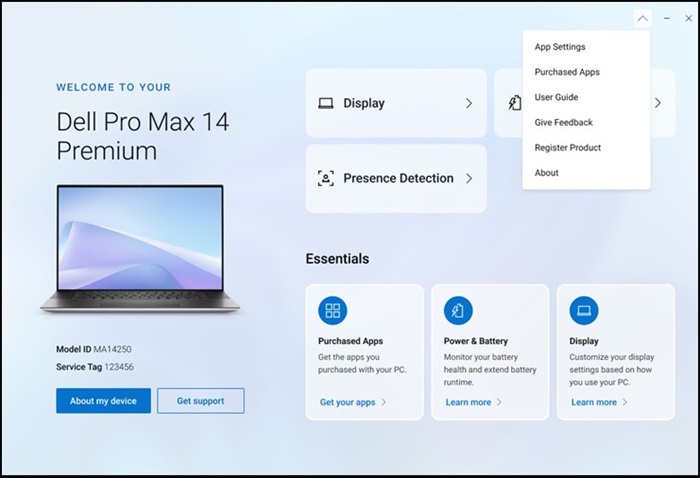
- Select Purchased Apps from the dropdown menu.
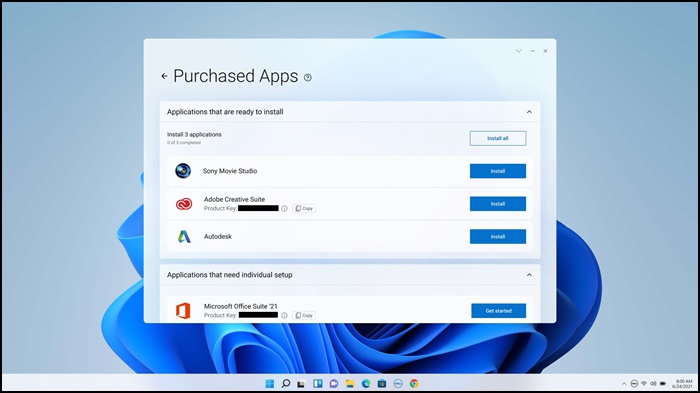
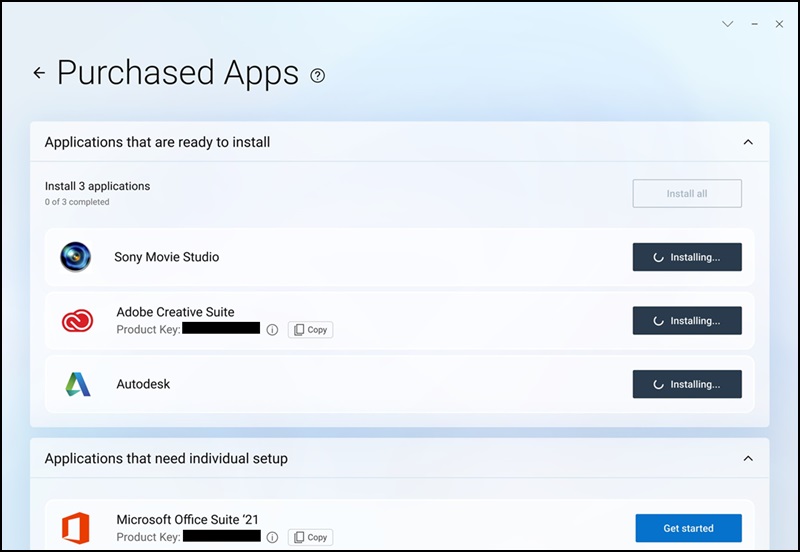
- Selecting Install All will start installing the entire list.
You can also choose to install them one at a time.
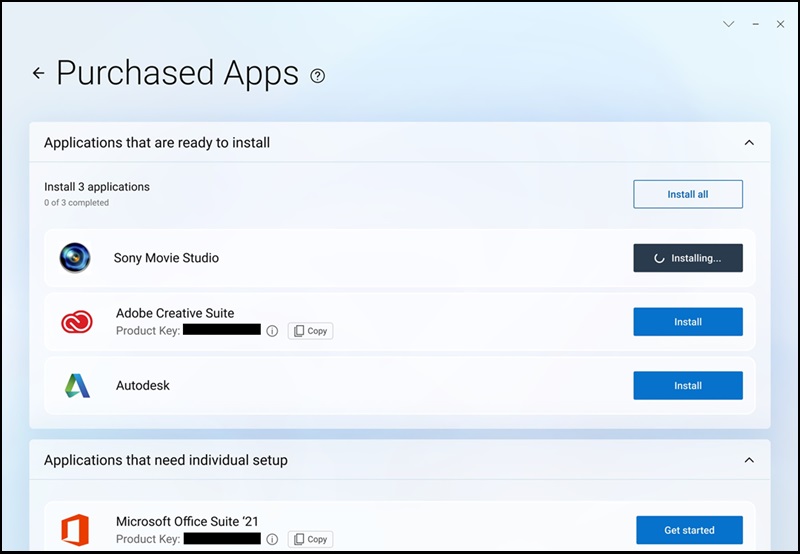
Upon completion, the selected software is visible as "Installed."
How to Troubleshoot the Purchased Apps Module in Dell Optimizer 6.x
Affected Products
Dell All-in-One, Dell Pro All-in-One, Dell Pro Max Micro, Dell Pro Max Slim, Dell Pro Max Tower, Dell Pro Micro, Dell Pro Slim, Dell Pro Tower, Dell Slim, Dell Tower, Inspiron, OptiPlex, Vostro, XPS, G Series, G Series, Dell Laptops, Dell Plus
, Dell Pro, Dell Pro Max, Dell Pro Plus, Dell Pro Premium, Inspiron, Latitude, Dell Pro Rugged, Vostro, XPS, Fixed Workstations, Mobile Workstations, Dell Optimizer, Dell Pro Max Micro XE FCM2250, Dell Pro Max Slim XE FCS1250, Dell Pro Max Tower T2 XE FCT2250, Dell Pro Max 16 XE MC16250, Dell Pro Slim Plus XE5 QBS1250, Dell Pro Tower Plus XE5 QBT1250
...
Article Properties
Article Number: 000270498
Article Type: Solution
Last Modified: 22 May 2026
Version: 7
Find answers to your questions from other Dell users
Support Services
Check if your device is covered by Support Services.