如何解壓縮 Dell 用戶端裝置管理員
Summary: 本文提供如何解壓縮 Dell 用戶端裝置管理員 (DCDM) 的相關資訊。
This article applies to
This article does not apply to
This article is not tied to any specific product.
Not all product versions are identified in this article.
Instructions
有幾種選項可用於從.cab檔中提取內容:Windows 檔案總管、命令列或任何支援.cab檔案的第三方歸檔應用程式。
注意:由於第三方應用程式的廣泛可用性,因此不提供任何範例。
使用 Windows 檔案總管:
- 從下載 Dell 用戶端裝置管理員的資料夾中,以滑鼠右鍵按一下 cab 檔案,然後選取 使用>Windows 檔案總管開啟。
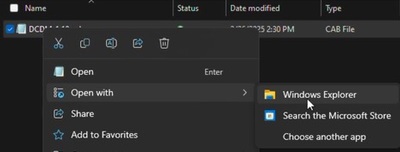 注意:如需有關下載 Dell 用戶端裝置管理員的資訊,請參閱 如何下載 Dell 用戶端裝置管理員。
 - 選取所有檔案,按一下滑鼠右鍵,然後按 一下「解壓縮」。
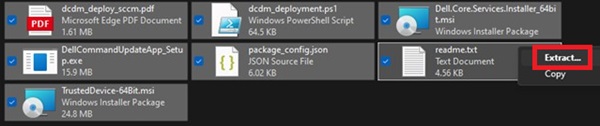
- 使用選取目的地視窗前往要將內容解壓縮至的位置,然後按一下 解壓縮 按鈕。
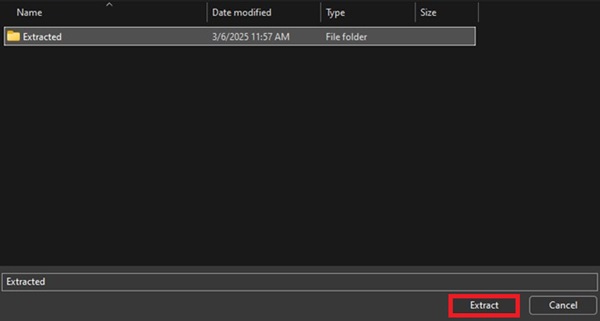 注意:資料夾結構遺失,且使用 Windows 檔案總管解壓縮壓縮檔案時,DCDM_Deployment.ps1 指令檔無法依設計運作。如果您打算使用提供的 PowerShell 指令檔部署 DCDM,您必須建立名為 安裝程式的新 資料夾,然後將Dell.Core.Services.Installer_64bit.msi、DellCommandUpdateApp_Setup.exe和TrustedDevice-64Bit.msi移至其中。
使用命令列:
- 開啟命令提示字元,並將目錄焦點設定為儲存 cab 檔案的資料夾。
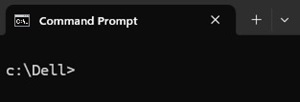 注意:如需有關下載 Dell 用戶端裝置管理員的資訊,請參閱 如何下載 Dell 用戶端裝置管理員。
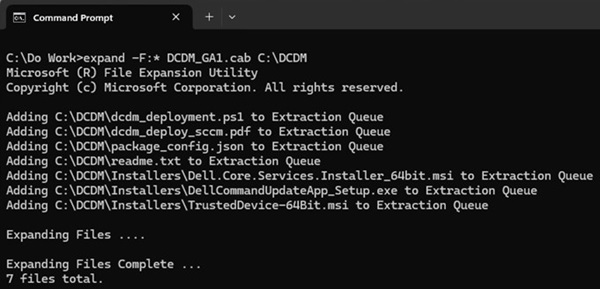
 - 輸入以下命令:
expand -F:* cabfile_path existing_destination_folder
cabfile_path 是 Dell 用戶端裝置管理員 cab 檔案的名稱,existing_destination_folder則是要解壓縮內容之資料夾的完整路徑。
Affected Products
Dell Client Device ManagerArticle Properties
Article Number: 000299313
Article Type: How To
Last Modified: 22 May 2026
Version: 2
Find answers to your questions from other Dell users
Support Services
Check if your device is covered by Support Services.