如何解压 Dell Client Device Manager
Summary: 本文提供有关如何解压戴尔客户端设备管理器 (DCDM) 的信息。
This article applies to
This article does not apply to
This article is not tied to any specific product.
Not all product versions are identified in this article.
Instructions
有多个选项可用于从 .cab 文件中提取内容:Windows 资源管理器、命令行或任何支持.cab文件的第三方归档应用程序。
提醒:由于第三方应用程序的广泛可用性,未提供任何示例。
使用 Windows 资源管理器:
- 从下载 Dell Client Device Manager 的文件夹中,右键单击 cab 文件,然后选择Open With Windows Explorer( 使用>Windows 资源管理器打开)。
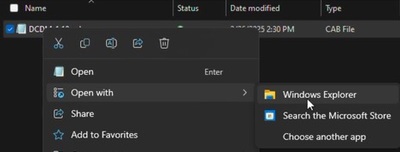 提醒:有关下载 Dell Client Device Manager 的信息,请参阅 如何下载 Dell Client Device Manager。
 - 选择所有文件,单击鼠标右键,然后单击 解压。
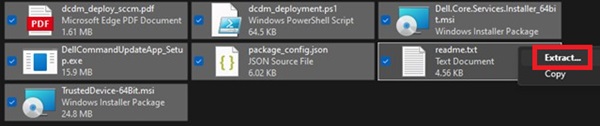
- 使用Select a Destination窗口转至要将内容解压到的位置,然后单击 Extract 按钮。
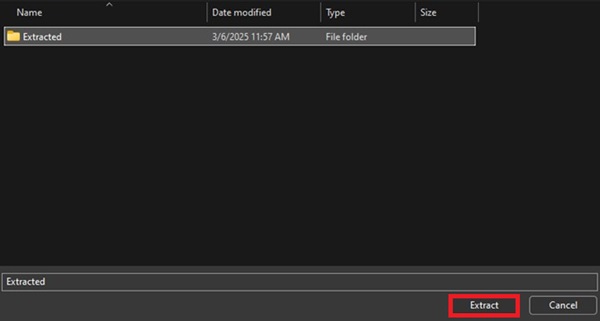 提醒:使用 Windows 资源管理器解压 cabinet 文件时,文件夹结构丢失,并且 DCDM_Deployment.ps1 脚本无法正常工作。如果您打算使用提供的 PowerShell 脚本部署 DCDM,则必须创建一个名为 Installers 的新文件夹,然后将 Dell.Core.Services.Installer_64bit.msi、DellCommandUpdateApp_Setup.exe 和TrustedDevice-64Bit.msi移动到其中。
使用命令行:
- 打开命令提示符,并将目录焦点设置为下载 cab 文件的文件夹。
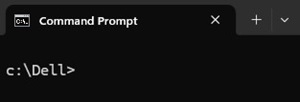 提醒:有关下载 Dell Client Device Manager 的信息,请参阅 如何下载 Dell Client Device Manager。
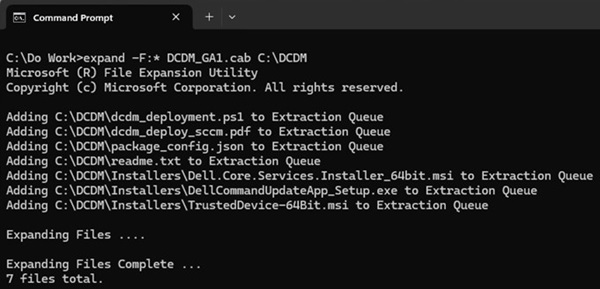
 - 键入以下命令:
expand -F:* cabfile_path existing_destination_folder
cabfile_path 是 Dell Client Device Manager cab 文件的名称,existing_destination_folder 是要在其中解压内容的文件夹的完整路径。
Affected Products
Dell Client Device ManagerArticle Properties
Article Number: 000299313
Article Type: How To
Last Modified: 22 May 2026
Version: 2
Find answers to your questions from other Dell users
Support Services
Check if your device is covered by Support Services.