How To Package .NET Desktop Runtime x64 for Microsoft Configuration Manager
Summary: This article provides information about how to package .NET Desktop Runtime x64 for Microsoft Configuration Manager (MCM) as a prerequisite for Dell software solutions.
This article applies to
This article does not apply to
This article is not tied to any specific product.
Not all product versions are identified in this article.
Instructions
Microsoft .NET Desktop Runtime x64 can be packaged for Microsoft Configuration Manager as a prerequisite for Dell software solutions and other third-party software.
Affected Products:
- Dell Pro AI Studio
- Dell Client Device Manager
- Dell Display and Peripheral Manager
- Dell Trusted Device
- Dell Command | Update
Prerequisites
- Download the latest version of .NET Desktop Runtime x64 from Microsoft
.
- Place the .NET Desktop Runtime x64 installation file on a file share in your environment.
Packaging for Microsoft Configuration Manager
- Open the Configuration Manager Console.

- Go to Software Library > Application Management > Applications
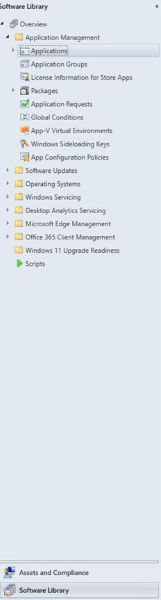
- Click the Create Application button in the top ribbon.

- Click the radio button for Manually specify the application information and click Next.
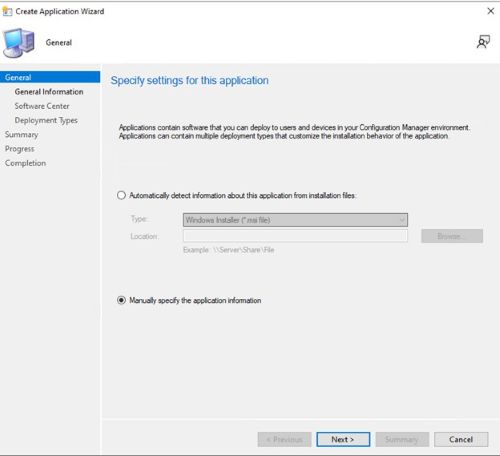
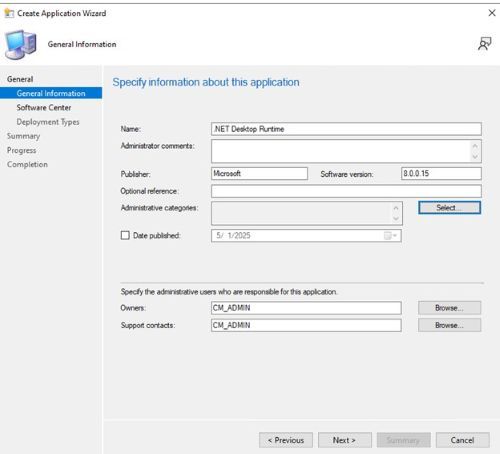
- Enter a name and provide any needed information such as publisher and software version, then update the application owner, and support contact if needed and click Next.
- On the Software Center entry screen, update the language if needed and click Next.
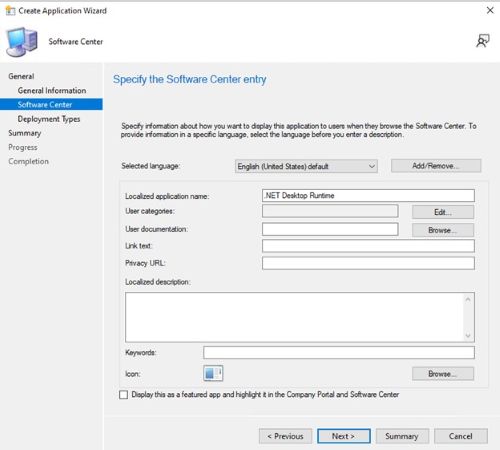
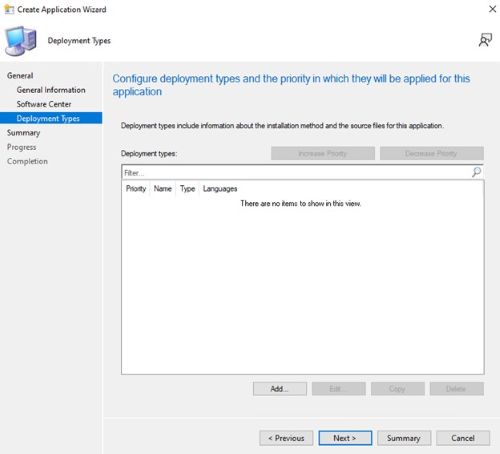
- On the Deployment Types screen, click Add.
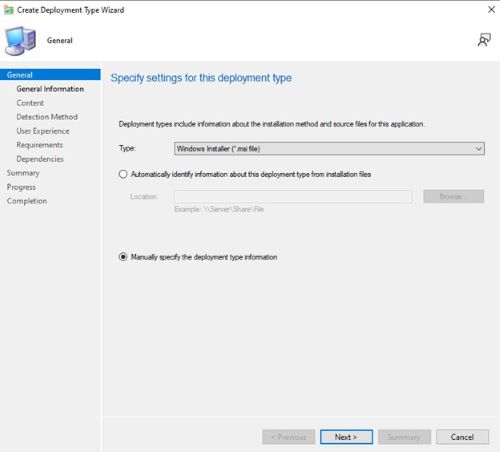
- Click the radio button to Manually specify the deployment type information and click Next.
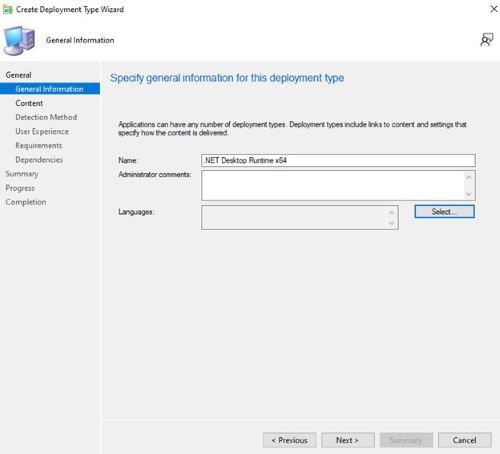
- Provide a name and select a language if needed then click Next.
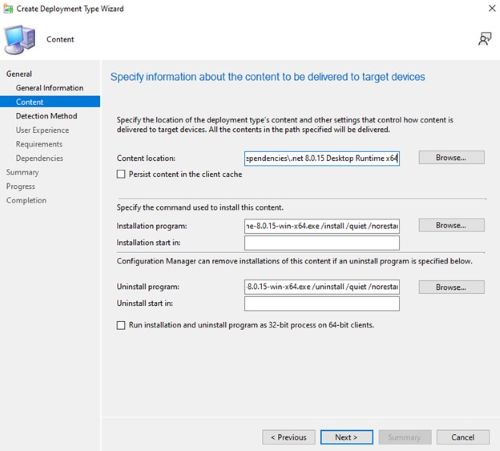
- Click Browse next to the Content location and select the folder where the installer is located.
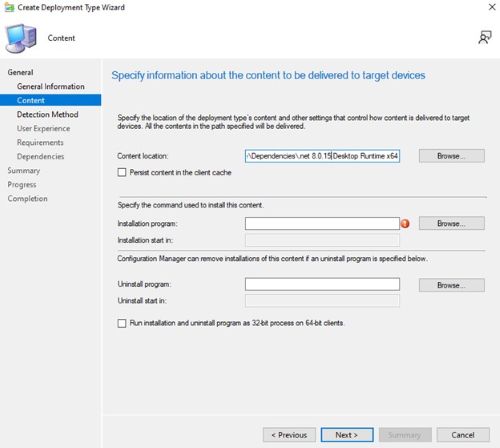
- In the installation program field type
windowsdesktop-runtime-{VERSION}-win-x64.exe /install /quiet /norestartwhere {VERSION} is the application version number example 8.0.15.
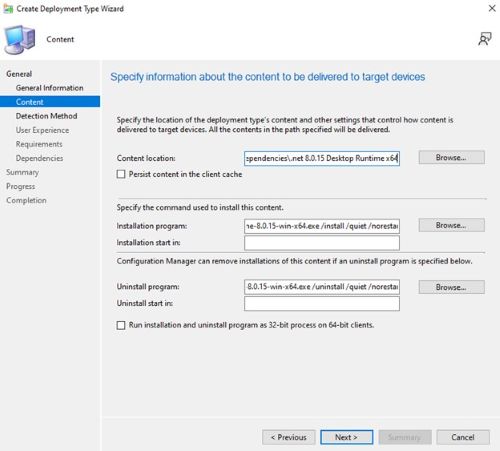
- For uninstall program type
windowsdesktop-runtime-{VERSION}-win-x64.exe /uninstall /quiet /norestartwhere {VERSION} is the application version number example 8.0.15. Then click Next.
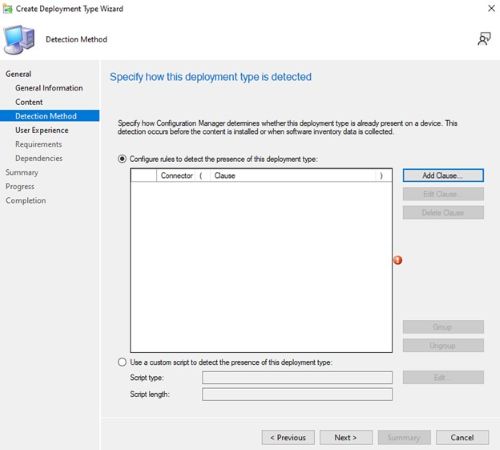
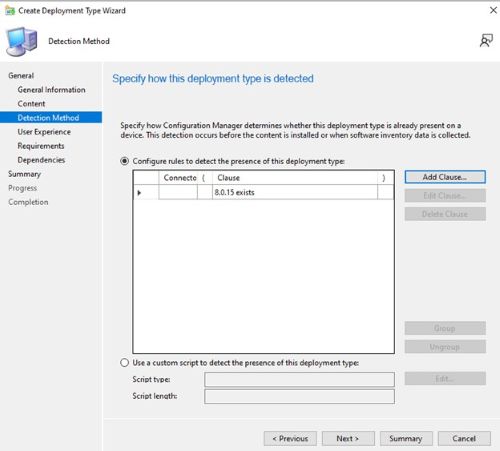
- On the Detection Method page, click the Add Clause button.
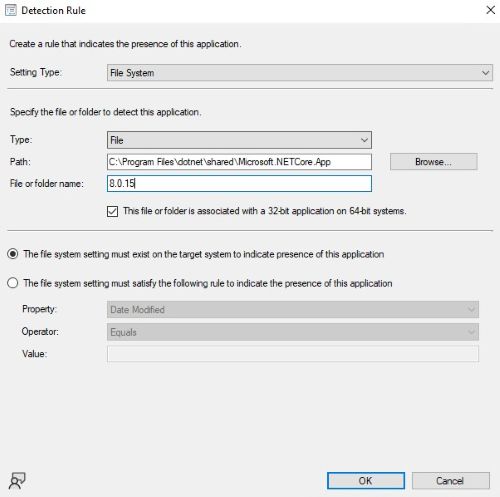
- Set the following options then click OK.
Setting Type: File System
Type: File
Path: C:\Program Files\dotnet\shared\Microsoft.NETCore.App
File or folder name: 8.0.15
- Click Next.
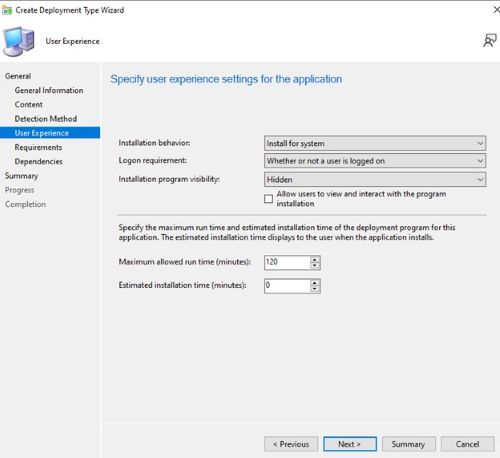
- On the User Experience page, set the options below and click Next.
Installation behavior: Install for system
Logon requirement: Whether or not a user is logged on
Installation program visibility: Hidden
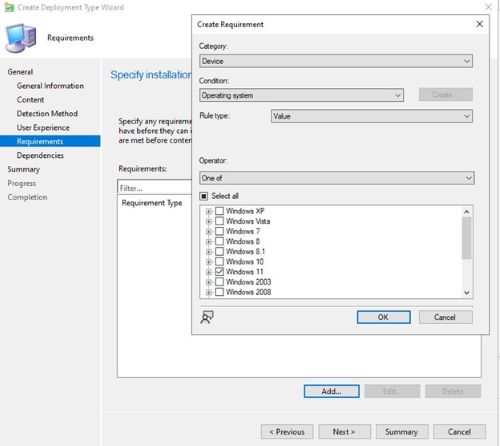
- On the Requirements page, click Add
- Select the requirements based on your environment, then click Ok.
- Once finished click Next.
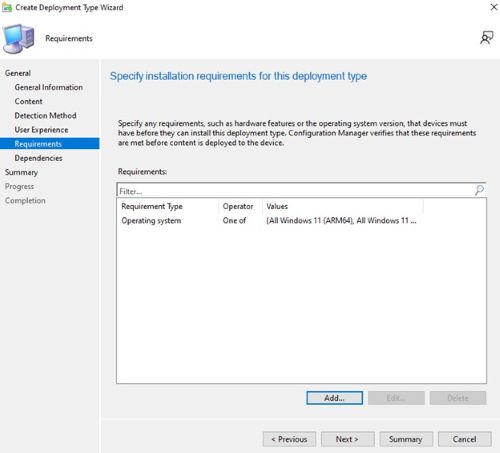
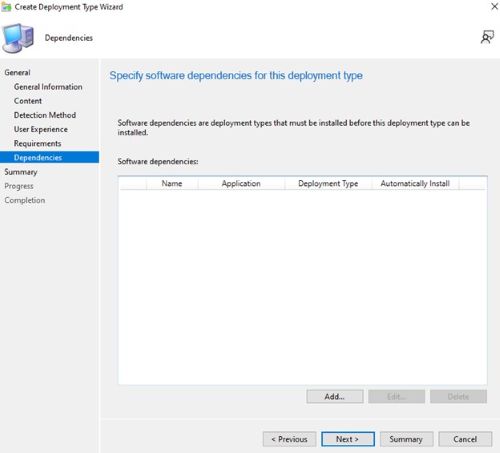
- On the Dependencies page, click Next.
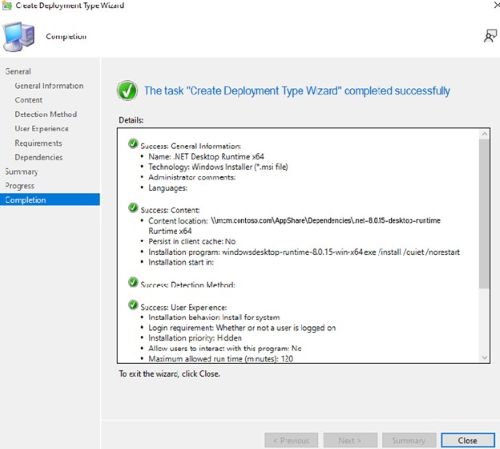
- On the Summary page, click Next then on the completion page click Close.
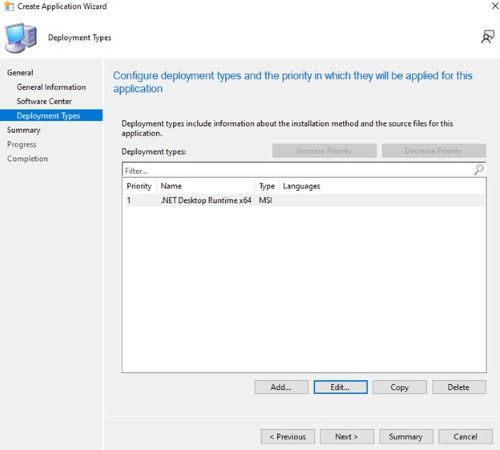
- Click Next on the Deployment Types page.
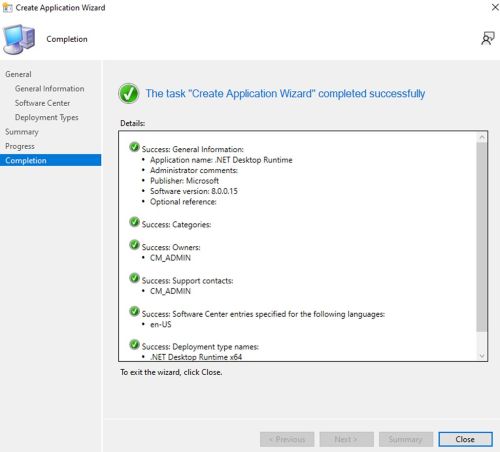
- On the Summary page, click Next then on the completion screen click Close.
Affected Products
Dell Command | Update, Dell Client Device Manager, Dell Display and Peripheral Manager, Dell Pro AI Studio, Dell Trusted DeviceArticle Properties
Article Number: 000322743
Article Type: How To
Last Modified: 23 May 2026
Version: 2
Find answers to your questions from other Dell users
Support Services
Check if your device is covered by Support Services.