NetWorker: How To Determine Server Load Using nsrwatch
Summary: Determine NetWorker server load using nsrwatch when NetWorker Management Console (NMC) Graphical User Interface (UI) or NetWorker User Interface (NWUI) UI are not available.
This article applies to
This article does not apply to
This article is not tied to any specific product.
Not all product versions are identified in this article.
Instructions
Determining Load on a NetWorker Server
To determine the load on a NetWorker server using nsrwatch, follow these steps:
- Log in to the NetWorker server and launch
nsrwatchfrom an Administrator Command prompt or a Terminal session.
Launch nsrwatch
- Clear the existing window panes by pressing the keys in the following order; a, m, s, d, and o.
Press a, then m, then s, then d, and lastly o
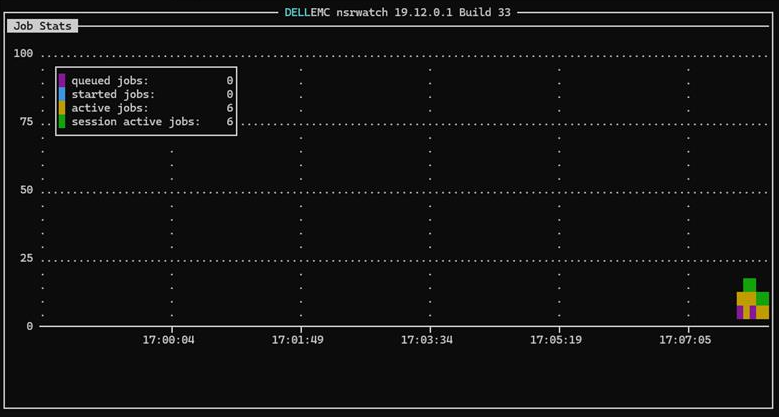
- Press the b key to launch the Job Stats window in
nsrwatch.
Press b to launch Job Stats
- Copy and paste the individual lines for the following:
- Queued jobs
- Started jobs
- Active jobs
- Session active jobs
Important Note: Do not send a screenshot or try to copy and paste the whole window.
- To get back to the cleared screen, type b.
Type b to get back to the cleared screen
- To get the default settings displayed, type o, then d, s, m, and a
Type o, then d, then s, then m, and lastly a
- To quit out of
nsrwatch, type q.
Type q to quit
For help, type h and use the down arrow to scroll down through the help screen. Type q to quit out of the help screen.
Here is an example of the Job Stats window which is tapped.
Additional Information
Affected Products
NetWorkerArticle Properties
Article Number: 000355575
Article Type: How To
Last Modified: 18 Sep 2025
Version: 2
Find answers to your questions from other Dell users
Support Services
Check if your device is covered by Support Services.