PowerProtect: Authentication failure using external authentication provider after updating
Summary: Users are unable to authenticate to PowerProtect Data Manager User Interface (PPDM UI) using external authentication providers after updating to PowerProtect Data Manager 19.19 or above. ...
This article applies to
This article does not apply to
This article is not tied to any specific product.
Not all product versions are identified in this article.
Symptoms
After an update from PowerProtect Data Manager 19.18 or earlier to PowerProtect Data Manager 19.19 or later, authentication through external identity providers may fail. Affected users are not able to log in to the user interface using Microsoft Active Directory or OpenLDAP accounts.
Cause
With the new architectural change introduced in PowerProtect Data Manager for authentication-IAM, settings that existed within PowerProtect Data Manager before update in some environments may not work after update.
Resolution
If software update to PowerProtect Data Manager 19.19 or later has been completed, perform the following steps to restore access:
-
Log in with the PowerProtect Data Manager User Interface using local admin account or using any local account with an administrator role.
- Check that any affected users are part of an identity provider group that is mapped to the correct role. PowerProtect Data Manager does not support nested groups.
- Select "Administration" in the left section of the user interface and select "Access Control".
- Under "Users/Groups" tab, verify that the provider group is listed and it has been assigned the correct role.
- Ensure that the stored credentials for the identity provider are correct. Ensure that these credentials grant permission to search the directory for affected users and groups.
- Select "Administration" in the left section of the user interface and select "Access Control".
- Select "Directory Settings".
- Verify that the connection to the identity provider is listed.
- Select identity provider and select "Edit" button.
- Verify all the fields and if needed, type the password to connect to the identity provider and select "Apply" button to save changes.
- Verify that the current host certificate for the identity provider exists in the trust store.
If not, manually add the host certificate. The PowerProtect Data Manager Security Configuration Guide provides instructions.
Instructions to add a certificate to the trust store can also be found in this KB article:
PowerProtect: Authentication Fails Using Active Directory After Upgrading to Version 19.19 due to SSL handshake error.
-
Check the Group Search Attribute, Group Member Attribute, Group Search Base, User Search Path, User Object Type Name, and Group Object Type Name settings for the identity provider under the Advanced Settings section.
Verify these settings against those in use on the identity provider.
Example of Advanced Settings: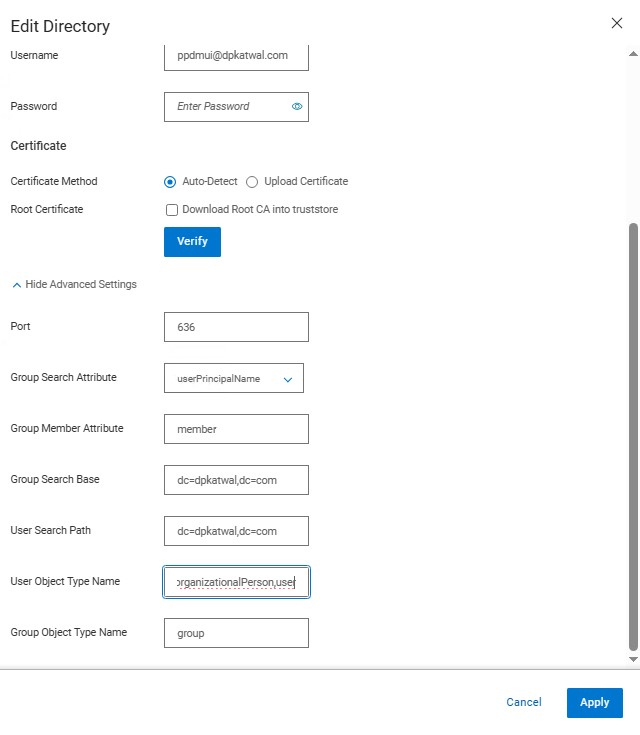
-
Check the user's primary name setting on the identity provider for any affected users.
-
Using the sAMAccountName or userPrincipalName instead may be required.
-
Verify that the credential syntax is correct.
When sAMAccountName attribute is used, username is user while authenticating using PowerProtect Data Manager User Interface.
When userPrincipalName attribute is used, username is user@domain. Format used has to match to the format configured in the identity provider (for example Microsoft Active Directory).
-
Sometimes identity provider may have to be removed and readded followed by the group mapping.
-
Contact Dell Customer Support if further assistance is required.
Additional Information
If you have not started the software update to PowerProtect Data Manager 19.19 or later, perform the following steps before you start the update:
-
Check the Group Search Attribute and Group Member Attribute settings for the identity provider.
Verify these settings against those in use on the identity provider. Check the user primary name setting on the identity provider.
-
Verify the credential syntax is correct:
-
-
When the group search attribute is sAMAccountName, the username is user.
-
When the group search attribute is userPrincipalName, the username is user@domain.
-
If the identity provider is OpenLDAP, the username must not contain the domain.
-
Affected Products
PowerProtect Data Manager Appliance, PowerProtect Data Manager, PowerProtect Data Manager EssentialsProducts
PowerProtect Data Manager SoftwareArticle Properties
Article Number: 000356076
Article Type: Solution
Last Modified: 20 Aug 2025
Version: 1
Find answers to your questions from other Dell users
Support Services
Check if your device is covered by Support Services.