PowerVault ME5: How to Shutdown or Restart a Controller.
Summary: Restarting controller processors can be required by a configuration change or to resolve an operational problem. Shutting down controller processors is recommended before either removing a controller module from its enclosure or powering off its enclosure for maintenance or a move. ...
This article applies to
This article does not apply to
This article is not tied to any specific product.
Not all product versions are identified in this article.
Instructions
Caution: Shutting down or restarting a controller processor stops I/O to hosts and may cause service disruption. In a single-controller system, I/O to hosts will be unavailable until the controller is back online. In your dual-controller system, I/O to hosts continue on the partner controller if the mapping configuration and multipath are properly set. I/O to hosts is also unavailable if both controllers are shutdown/restarted simultaneously. A complete controller restart usually takes approximately 2-5 minutes.
Procedure
- Log in to PowerVault Manager
- Go to Maintenance > Hardware
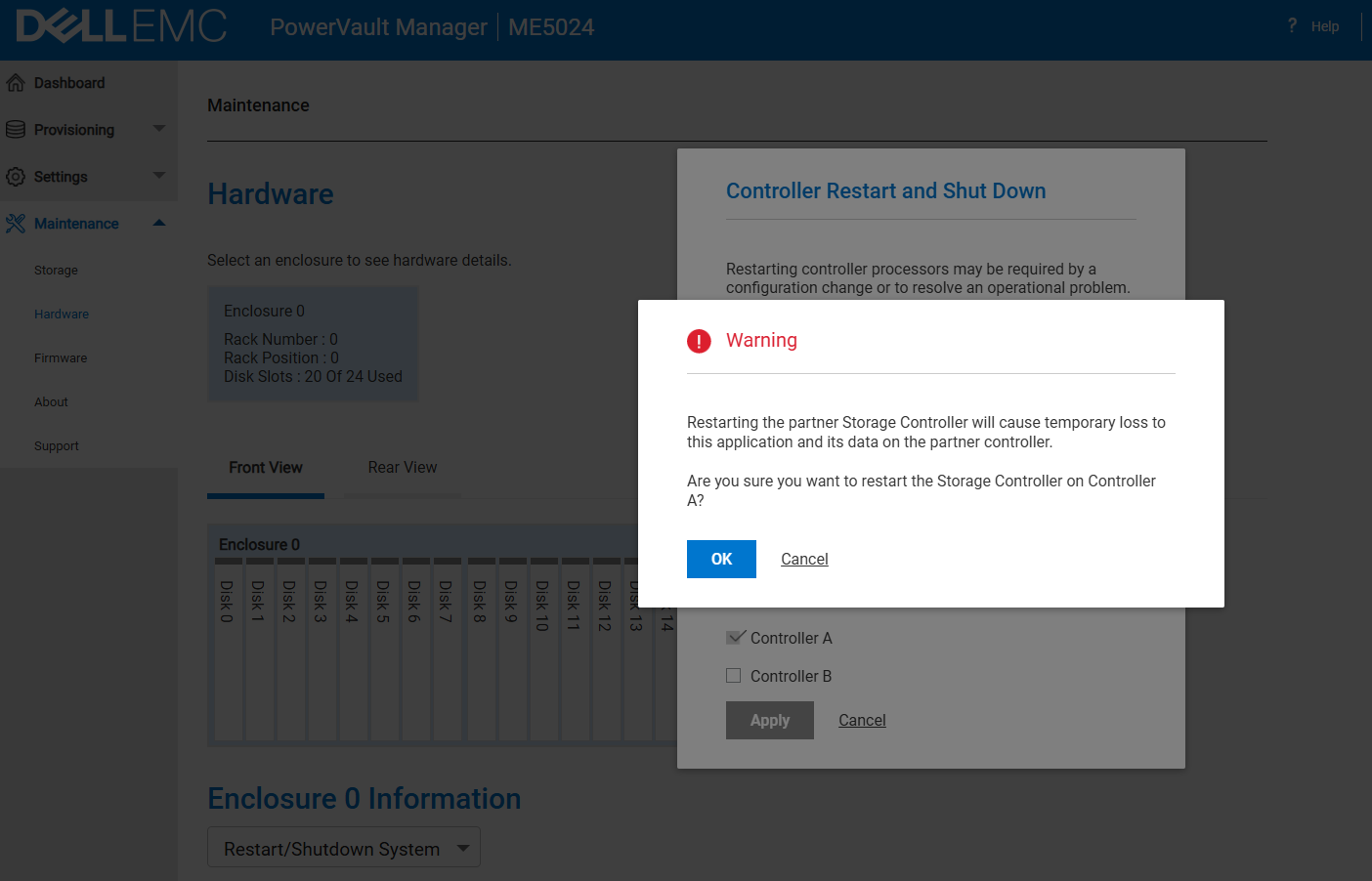
- Under Enclosure > Actions select Restart/Shutdown System
- To shutdown controller, select Shutdown SC operation
To restart controller, select Restart SC operation - Select the controller module to shutdown/restart: A, B, or both
- Click Apply. A confirmation panel appears
- Click Yes to continue; a message describes shutdown/restart activity
Using the CLI
Powering off the system
- Log in to the CLI or serial:
- In your dual-controller system, verify that the partner controller is online by running the command:
-
# show shutdown-status
Storage Controller A upStorage Controller B up
Other MC Status Operational
Success: Command completed successfully. (2026-02-06 10:08:25)
- To shut down controller A , B or both run the command:
- # shutdown both
WARNING: This operation will cause data to be unavailable from both controllers. Do you want to continue? (y/n)
Powering on the system
- To restart controller A , B or both run the command:
- # restart sc both
While a Storage Controller is restarting, communication will temporarily be lost with the corresponding Management Controller, and also may cause a temporary loss of data availability.
Do you want to continue? (y/n) y
Restarting both controllers will cause a temporary loss of data availability.
Do you want to continue? (y/n) y - Wait for the controller to complete POST and load its operating system (About 2 minutes)
- Confirm the controllers are online using the commands:
show shutdown-status or show redundancy-mode.
-
# show shutdown-status
Storage Controller A upStorage Controller B up
Other MC Status Operational
Success: Command completed successfully. (2019-01-28 08:28:55)
# show redundancy-mode
System Redundancy
-----------------
Controller Redundancy Mode: Active-Active ULP
Controller Redundancy Status: Redundant
Controller A Status: Operational
Controller A Serial Number: CN049H29FCG0085C0038X00
Controller B Status: Operational
Controller B Serial Number: CN049H29FCG0085E005SX00
Other MC Status: OperationalSuccess: Command completed successfully. (2019-01-28 08:32:07)
If you want to confirm that the controller has fully shut down, check that the OK to Remove back LED is illuminated.
NOTE: During the controller shutdown process, the Management Controller (MC) continues to respond. Therefore, if you are monitoring the system using the ping command, it will still reply even when the controller itself is down.

Additional Information
Refer to this video:
PowerVault ME5: How to Shutdown or Restart a Controller
Duration: 00:01:26 (hh:mm:ss)
When available, closed caption (subtitles) language settings can be chosen using the CC icon on this video player.
You can also view this video on YouTube.
Affected Products
ME SeriesProducts
PowerVault ME5012, PowerVault ME5024, PowerVault ME5084, PowerVault ME5212, PowerVault ME5224, PowerVault ME5284Article Properties
Article Number: 000393532
Article Type: How To
Last Modified: 09 Feb 2026
Version: 4
Find answers to your questions from other Dell users
Support Services
Check if your device is covered by Support Services.