Dell NativeEdge: Virtual Machine COM ports report IRQ conflicts
Summary: On certain NativeEdge Gateway 5200 systems, Windows Virtual Machines (VM) can report IRQ conflicts when three or more COM ports are passed through, leading to device errors.
This article applies to
This article does not apply to
This article is not tied to any specific product.
Not all product versions are identified in this article.
Symptoms
- Windows Device Manager shows exclamation marks on Communications Ports with “This device cannot find enough resources that it can use. (Code 12)” when three or more COM ports are enabled via passthrough.
Cause
- By default, legacy ISA serial configuration assigns COM1/COM3 to share IRQ 4 and COM2/COM4 to share IRQ 3. This may cause conflicts when IRQs are required for each passed‑through COM port.
- The passthrough design relies on 1:1 IRQ mappings; shared IRQs are not supported for these legacy ISA devices in this scenario.
Resolution
Fix
This issue is resolved in NativeEdge 4.1.0.0. A hotfix has been created for 3..2.0.0 Hotfix 4 also available. It is recommended to use NativeEdge 4.1.0.0 if possible.
Post endpoint hotfix patch or upgrade to 4.1.0.0+
Further user intervention may be required if one of the conditions is met
- VM was created prior to patch/upgrade, and COM3 or COM4 passthrough is required.
- Newly created VM requires custom COM port to IRQ assignment.
COM3 and COM4 are auto‑assigned to IRQ6/IRQ7 when IRQ3/IRQ4 are already occupied. User inputs takes precedence over IRQ6/IRQ7 if explicitly set.
Setting advanced hypervisor parameters
To ensure each COM port uses a dedicated IRQ, set the following attributes on all affected VM (during deployment or VM edit).
Note: Values must be integers in the range 0–15 and must not collide with IRQs that are already in use by the guest OS.
- COM3: Key =
hw.com3.irq→ set to a free IRQ number (e.g., 6) - COM4: Key =
hw.com4.irq→ set to a free IRQ number (e.g., 7)
How to choose an IRQ value (Windows):
- In the VM, run
msinfo32.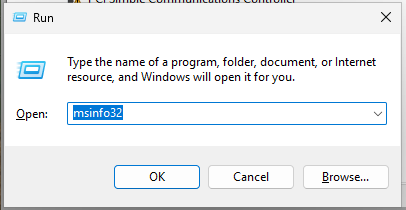
- Navigate to System Summary → Hardware Resources → IRQs and note an IRQ not listed/used.
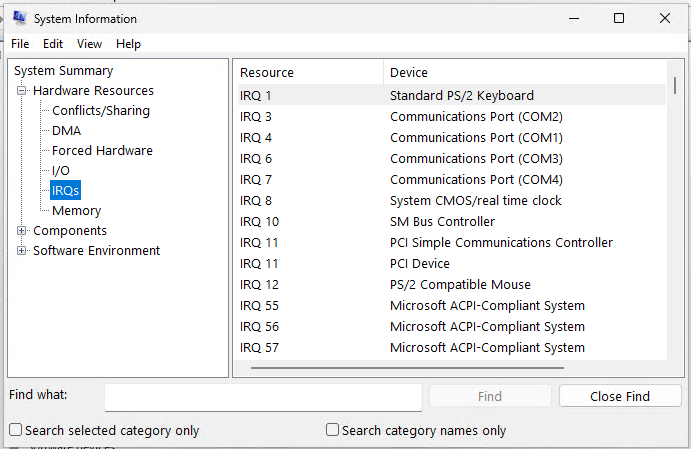
- In the Orchestrator, edit the VM and update the advanced hypervisor parameters. The VM will be shut down and re-started to apply changes. Reinstallation is not required.
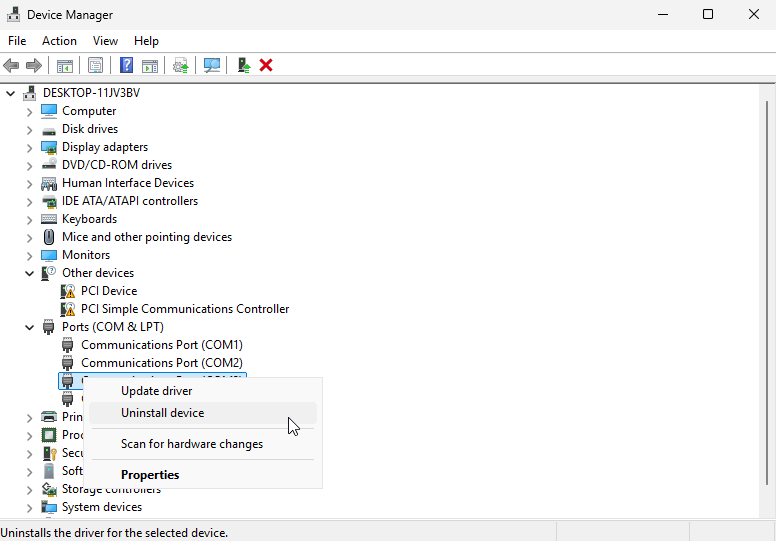
- IRQ resource assignment passed through the deployment using advanced_hypervisor_parameters may not be accurately reflected in Windows due how IRQ resources are cached. If this behaviour is encountered, open Device Manager, and uninstall COM3 and COM4 devices. Reboot the VM and confirm under system information the changes have taken place.
Affected Products
Dell Automation Platform, NativeEdge Solutions, Dell Automation Platform Components, NativeEdgeArticle Properties
Article Number: 000414494
Article Type: Solution
Last Modified: 21 Jan 2026
Version: 2
Find answers to your questions from other Dell users
Support Services
Check if your device is covered by Support Services.