Windows Server TPM-WMI Event ID 1801 Secure Boot Certificates
Summary: Event 1801 from Trusted Platform Module Windows Management Instrumentation (TPM-WMI) logs that Windows thinks Secure Boot certificates are not applied due to unsynchronized Secure Boot databases. ...
This article applies to
This article does not apply to
This article is not tied to any specific product.
Not all product versions are identified in this article.
Symptoms
In Windows Server PowerEdge server machines, Event ID 1801 of source TPM-WMI appears in the system event log. Alert details are as follows:
Source: TPM-WMI
Event ID: 1801
Message:
"Updated Secure Boot certificates are available on this device but have not yet been applied to the firmware. Review the published guidance to complete the update and maintain full protection. This device signature information is included here."
The server continues to function, but the Windows system log registers this error repeatedly. This indicates that Windows believes the updated Secure Boot certificates have not been applied.
The alert continues after following guidance of KB article PowerEdge: Server BIOS Update Guidelines for Microsoft Secure Boot Certificates.
The alert continues after updating the BIOS firmware to a version that includes the updated secure boot certificates.
The alert appears periodically. It can also be triggered by rebooting the machine.
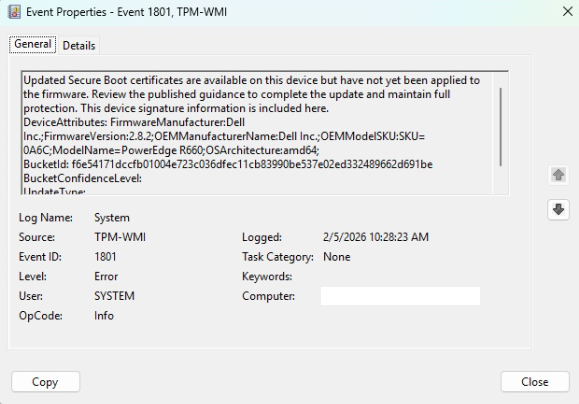
Figure 1. Sample Alert
Cause
There are two databases where Secure Boot data exists in the firmware: Default (flashed by BIOS firmware updates) and Active (enforced at boot). Windows flags Event 1801 if these are not synchronized.
Resolution
The following steps force a synchronization of the Default and Active databases mentioned above:
- Ensure that BIOS and Windows updates are installed, and that the server has been rebooted. Filter the system event log by
event ID 1808. This signals that the Default and Active databases are synchronized. If there is noevent ID 1808(onlyevent ID 1801are present), follow the steps below. - Reboot the server, enter System Setup > System Security. Under Secure Boot, change the Secure Boot Policy from Standard to Custom. This enables the Secure Boot Custom Policy Settings menu:
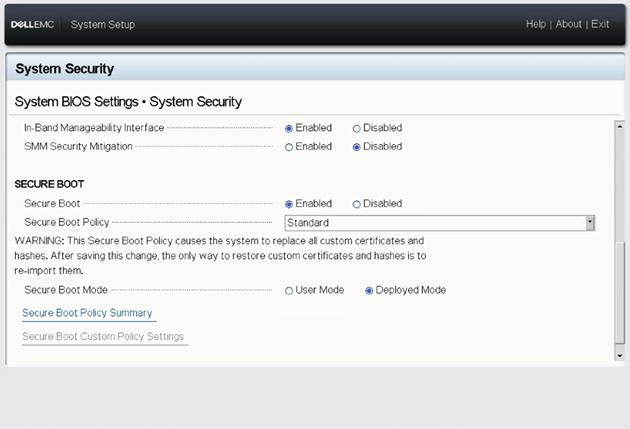
Figure 2. System Setup - Secure Boot Policy Summary.
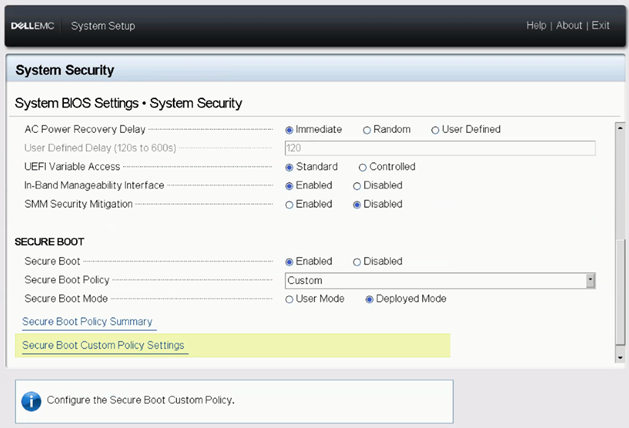
Figure 3. Secure Boot Custom Policy Settings.
- In the Secure Boot Custom Policy Settings main menu, click Restore Default Policy Entries (
PK,KEK,dbanddbx). Confirm the operation. Save and Exit to Windows:
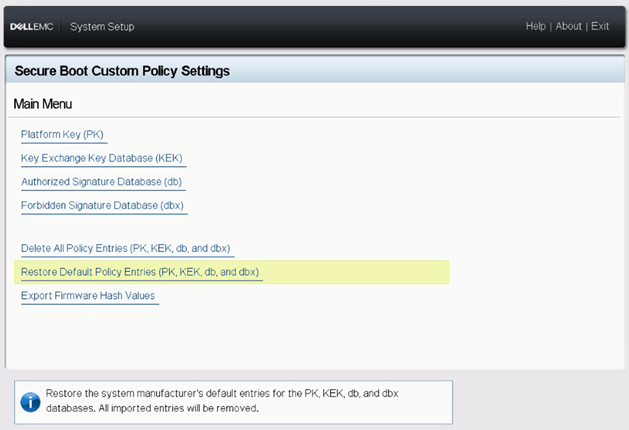
Figure 4. Restore Default Policy Entries.
- In Windows, open PowerShell as Admin and mark Secure Boot updates as pending using the following command (
Regedit.exescreenshots are included for reference):
reg add "HKLM\SYSTEM\CurrentControlSet\Control\SecureBoot" /v AvailableUpdates /t REG_DWORD /d 0x5944 /f
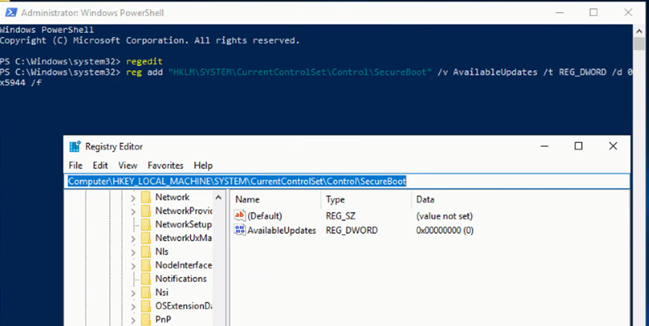
Figure 5. Updates Pending
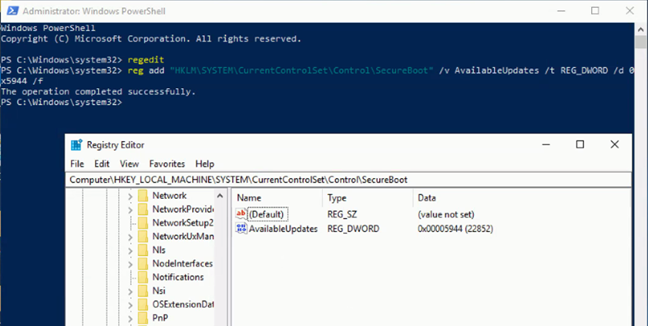
Figure 6. Operation Completed Successfully.
- Reboot the server twice. Shortly after the second reboot (around five minutes),
event ID 1808registers, signaling that the secure boot databases are synchronized andevent ID 1801no longer appears:
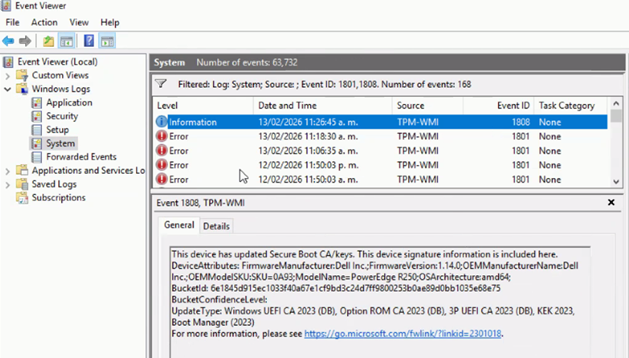
Figure 7. Filtered System Log
Article Properties
Article Number: 000429711
Article Type: Solution
Last Modified: 24 May 2026
Version: 4
Find answers to your questions from other Dell users
Support Services
Check if your device is covered by Support Services.