PowerEdge: Microsoft SQL Server Error Log
Resumen: The Microsoft SQL Server Error Log reports events on Microsoft SQL Server activity. Database version information, startup events, shutdown events, database activity, and error events are found in the Microsoft SQL Server Error Log. ...
Este artículo se aplica a:
Este artículo no se aplica a:
Este artículo no está vinculado a ningún producto específico.
En este artículo no se identifican todas las versiones de los productos.
Síntomas
SQL Server service events like service start failures and databases failing to come online can occur anytime with Microsoft SQL Server. The SQL Server Error Log may provide valuable information required to troubleshoot and resolve services and database failures.
Causa
Many different types of causes can result in SQL Server service and database failure events requiring the inspection of the SQL Server Error Log to resolve the issue.
Resolución
- The SQL Server Error Log is accessed in multiple ways. One way is in SQL Server Management Studio (SSMS). Under the Server instance tree in the left column of SSMS, it can be opened in the "SQL Server Logs" section under the "Management" container.
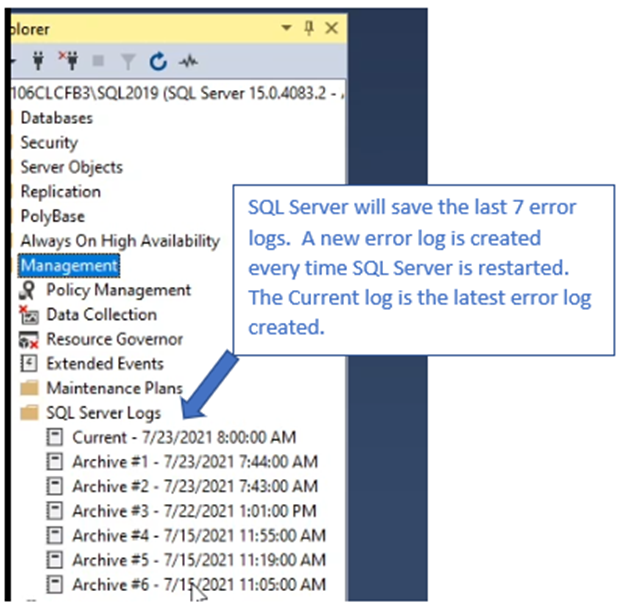
Figure 1: Screenshot of SQL Server Management Studio Location of SQL Server Logs
- In the Error Log, general SQL Server instance information is found such as edition and version number. Other items such as Authentication mode, location of Error Log, SQL Server service account, and startup parameters are also included.
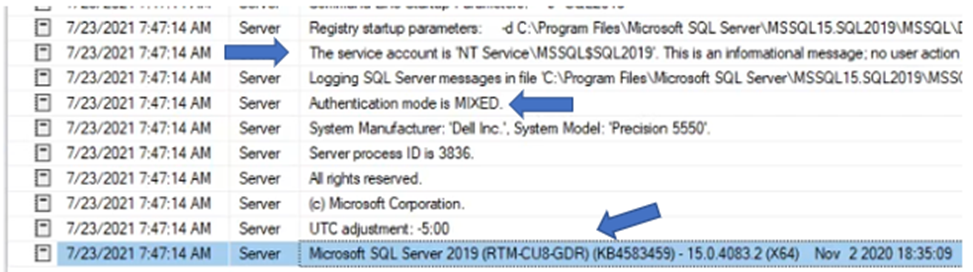
Figure 2: Screenshot of General SQL Server Instance Information
- The amount of physical server memory and number of server cores is also seen in the Log.
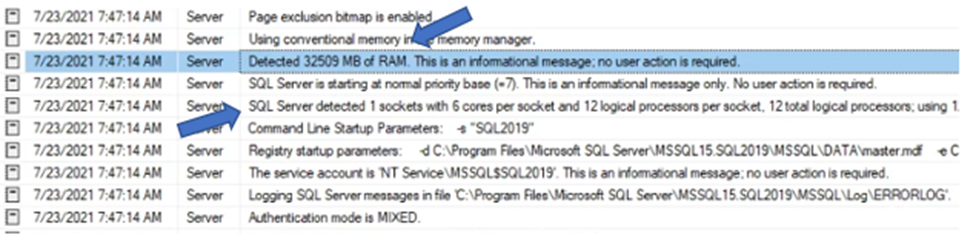
Figure 3: Screenshot of Physical Server Memory and Number of Server Cores
- Database online status is reported as databases are brought online.
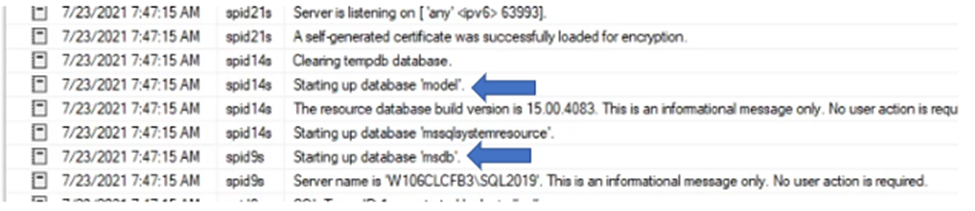
Figure 4: Screenshot of Database Online Status
- Error reporting is the most valuable factor of SQL Error Log functionality. The error in the screenshot below is related to the database files for the "Model" database missing when SQL Server starts up.
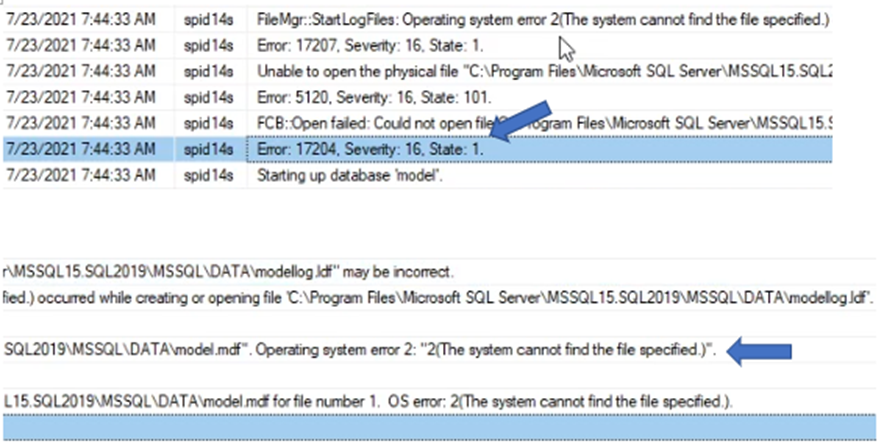
Figure 5: Screenshot of Error Reporting
- When an error entry in the Error Log is seen, we should see a message in the Server Application event log. Finding the event log message is an important step in the troubleshooting process as it might supply more information about the condition resulting in the errors found in both logs.
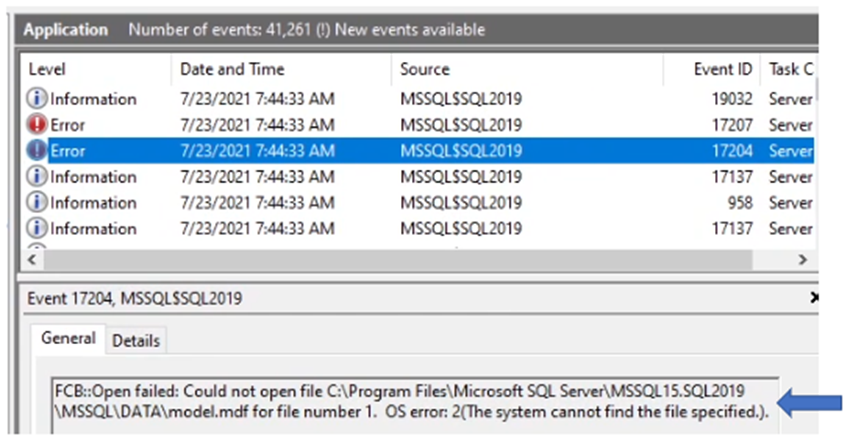
Figure 6: Screenshot of Error Entry in the Error Log
- The SQL Server Error Log is also accessed by going to the directory location holding the Error Logs. The directory location may be in a different location based on the location of the SQL Server application binary files.

Figure 7: Screenshot of SQL Server Error Log
- Another method of locating the Error Log and seeing the default location of the SQL Server instance database ".MDF" (database) and ."LDF" (Log) files are by using the "Sql Server Configuration Manager" tool. When viewing the properties of the "SQL Server Services," select the "Startup Parameters" section. We see the file locations for Error and Database files. The location of the SQL Server Error log may also be changed from here.
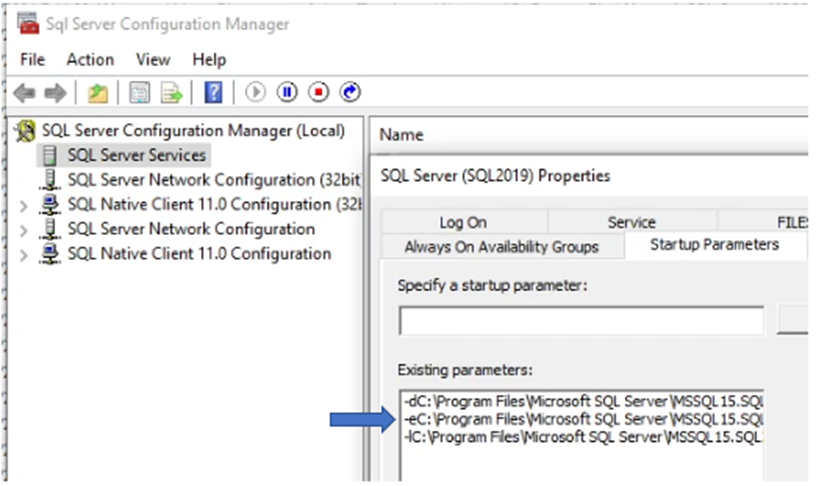
Figure 8: Screenshot of Startup Parameters Section
Información adicional
View this video:
Productos afectados
Dell Quickstart Data Warehouse Appliance, Microsoft Windows Server 2016, Microsoft Windows Server 2019, Microsoft Windows Server 2022, Prosupport for Microsoft SoftwarePropiedades del artículo
Número de artículo: 000200766
Tipo de artículo: Solution
Última modificación: 05 sept 2025
Versión: 12
Encuentra las respuestas que necesitas con la ayuda de otros usuarios de Dell
Servicios de asistencia
Comprueba si tu dispositivo está cubierto por los servicios de asistencia.