How to Export Windows Event Logs
Resumen: Learn how to export Event Viewer logs in Windows 11 or Windows 10. This guide explains how to save logs using Event Viewer.
Este artículo se aplica a
Este artículo no se aplica a
Este artículo no está vinculado a ningún producto específico.
No se identifican todas las versiones del producto en este artículo.
Instrucciones
- Press the Windows key.
- Type
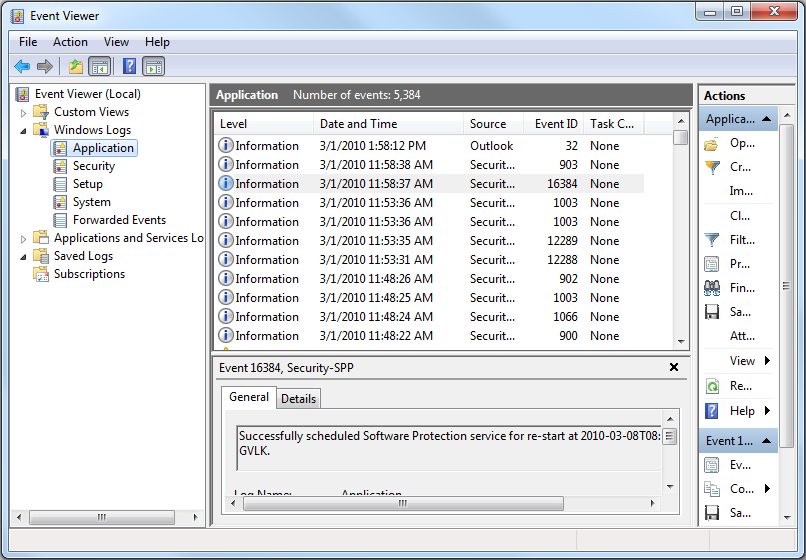
Event Viewerand then select Event Viewer from the list. - From the left pane, select the type of log to export.
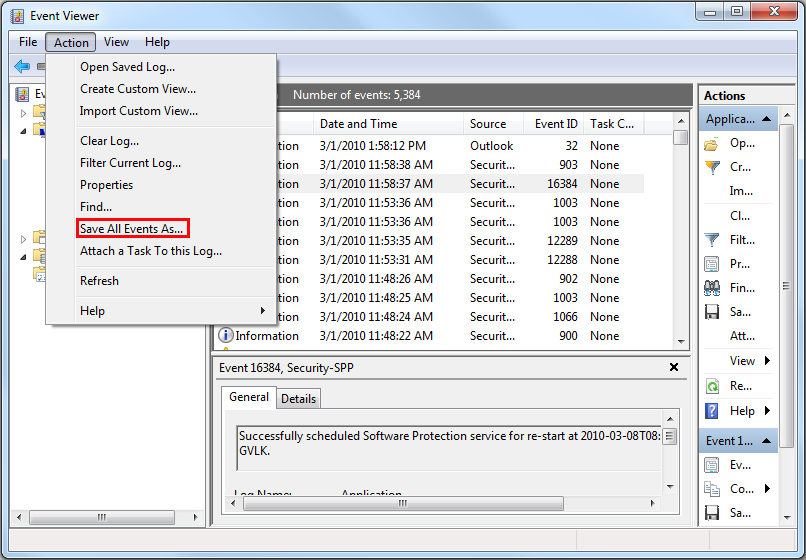
- Save the log by clicking Action and then clicking Save All Events As.
More information can be found at How to Save Event Logs
For information about BIOS event logs for Dell laptops, refer to BIOS Event Logs and Diagnostic Logging on Dell Laptops.
Productos afectados
Alienware, Dell All-in-One, Dell Pro All-in-One, Dell Pro Max Micro, Dell Pro Max Slim, Dell Pro Max Tower, Dell Pro Micro, Dell Pro Slim, Dell Pro Tower, Dell Slim, Dell Tower, Inspiron, Legacy Desktop Models, OptiPlex, Vostro, XPS, G Series
, G Series, Alienware, Dell Plus, Dell Pro, Dell Pro Max, Dell Pro Plus, Dell Pro Premium, Inspiron, Latitude, Dell Pro Rugged, Vostro, XPS, Legacy Laptop Models, Fixed Workstations, Mobile Workstations, Dell Pro Max Micro XE FCM2250, Dell Pro Max Slim XE FCS1250, Dell Pro Max Tower T2 XE FCT2250, Dell Pro Max 16 XE MC16250, Dell Pro Micro Plus XE QBM1250, Dell Pro Slim Plus XE5 QBS1250, Dell Pro Tower Plus XE5 QBT1250
...
Propiedades del artículo
Número del artículo: 000124382
Tipo de artículo: How To
Última modificación: 12 ene 2026
Versión: 8
Encuentre respuestas a sus preguntas de otros usuarios de Dell
Servicios de soporte
Compruebe si el dispositivo está cubierto por los servicios de soporte.