Microsoft SQL Server-reparationsinstallation
Résumé: SQL Server-installation, SQL-reparationsinstallation, reparationsinstallation, reparation, installera, SQL Server-skada, SQL-skada
Cet article concerne
Cet article ne concerne pas
Cet article n’est associé à aucun produit spécifique.
Toutes les versions du produit ne sont pas identifiées dans cet article.
Symptômes
Problem: SQL-installationen som vi arbetar med har skadats och förhindrar att SQL Server-grundfunktionerna fungerar som förväntat.
När de binära programfilerna för en SQL Server-installation skadas måste ett av följande alternativ följas för att säkerställa en stabil arbetsmiljö för SQL Server-installationen.
- Utför en ny installation av server och återställa SQL Server-databaser
- Flytta produktionsdatabaser till en annan, som installation av SQL Server
- Utför en reparationsinstallation av den skadade SQL Server-instansen som behåller befintliga databaser
Den här artikeln följer stegen för att utföra en SQL Server-reparationsinstallation.
Cause
Skadad programvara i SQL Server-programmet och databasfiler.
Résolution
Installationsprocess:
1. Gå till startmenyn för SQL-programgruppen för den instans som vi försöker reparera. Hitta alternativet "Installationscenter" i startmenyn och öppna det. I det här exemplet ingår SQL Server 2017 och den här proceduren är densamma för alla versioner av Microsoft SQL Server som stöds.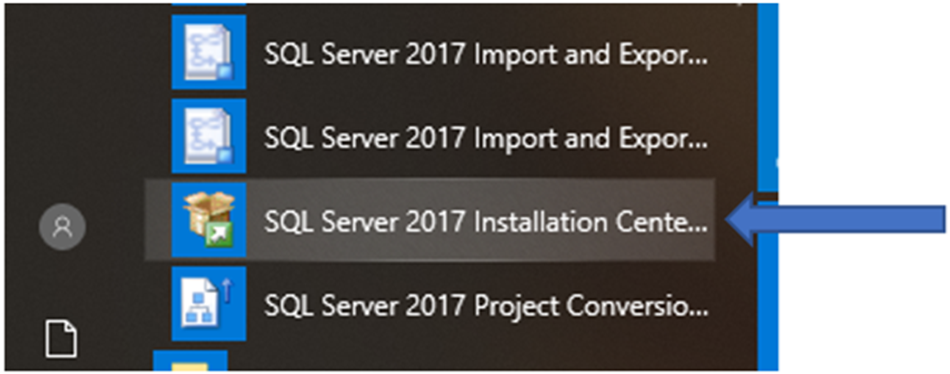
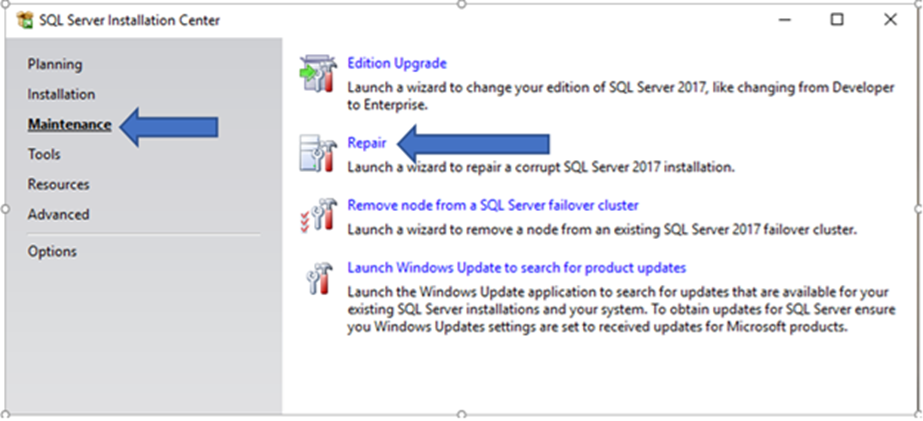
2. Klicka sedan på avsnittet Maintenance (underhåll) i den vänstra delen av listan. Leta rätt på Repair (reparera) i urvalslistan till höger och välj det.
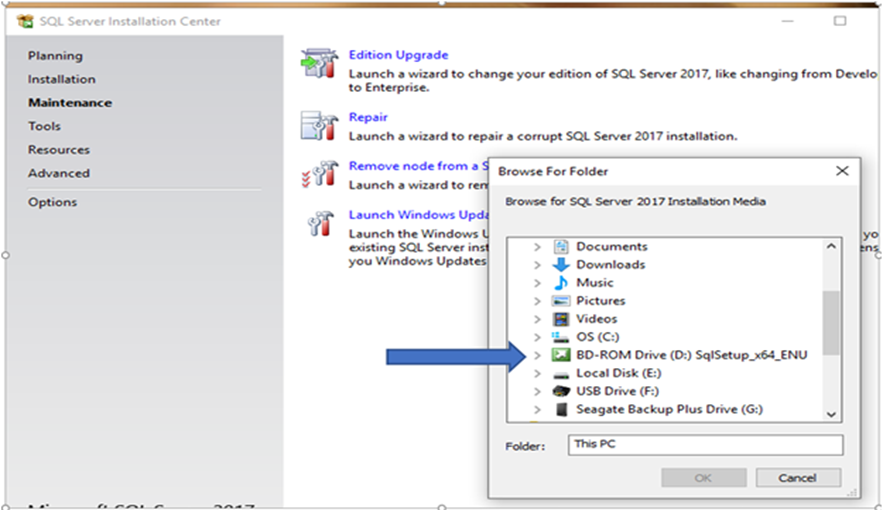
3. I fönstret Browse For Folder hittar du den SQL Server-monterade enheten som mediekälla. Mediet måste matcha den version av SQL Server-instansen som vi reparerar. Klicka på mediekällan för att starta installationsprogrammet.
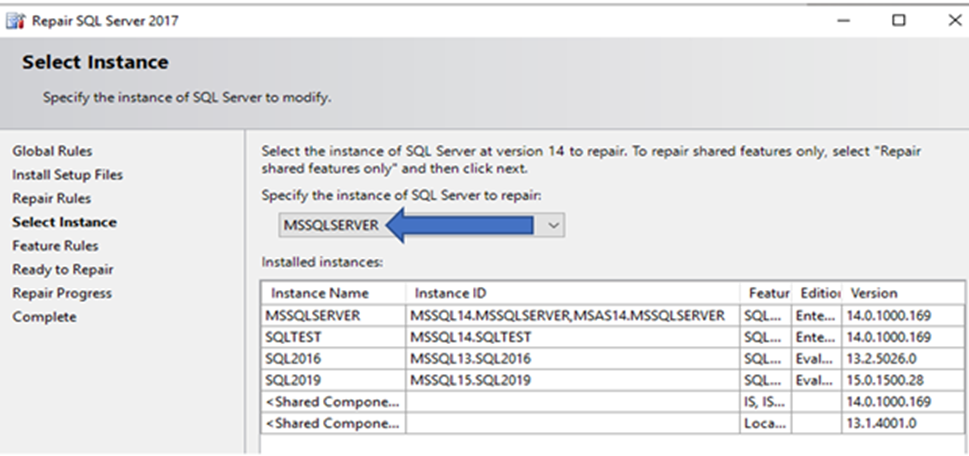
4. På servrar med flera installationer av SQL Server måste instansen som kräver reparation väljas i listan över registrerade SQL Server-instanser. I exemplet nedan visas "MSSQLSERVER".
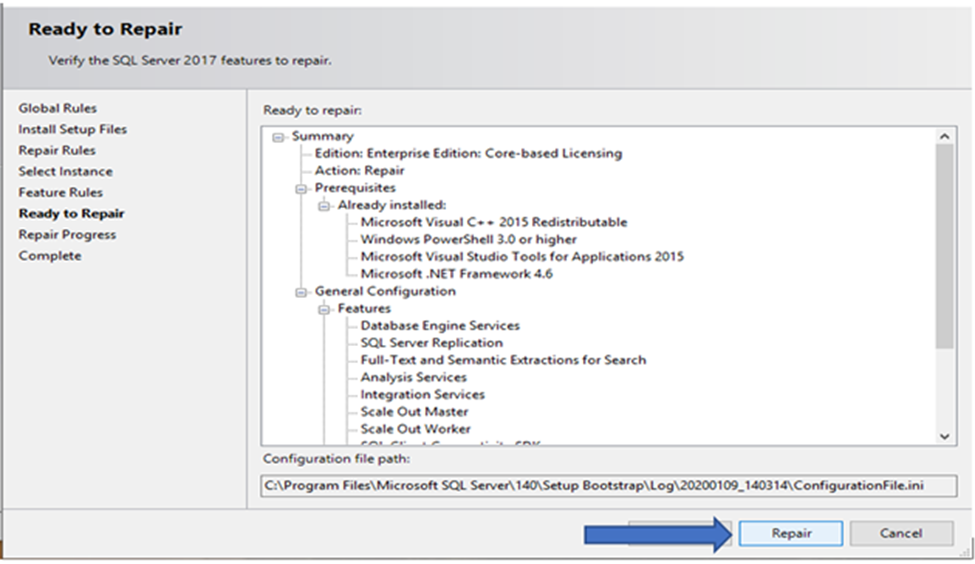
5. Skärmen "Redo att reparera" visar de programfunktioner som ursprungligen installerades. Välj knappen Reparera för att påbörja reparationsinstallationen.
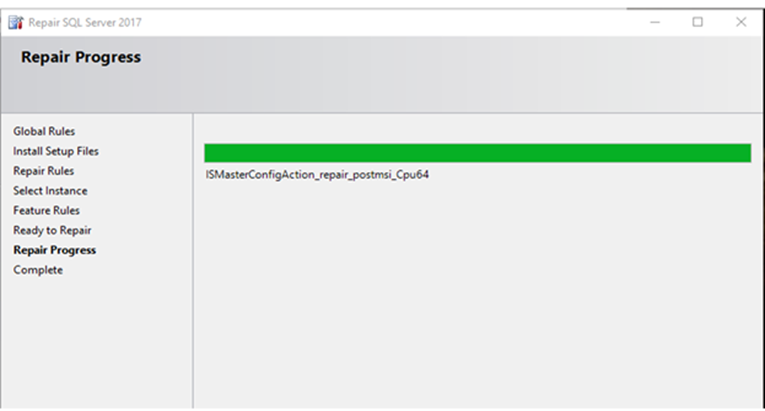
6. Panelen Repair Progress returnerar installationsinformationen.
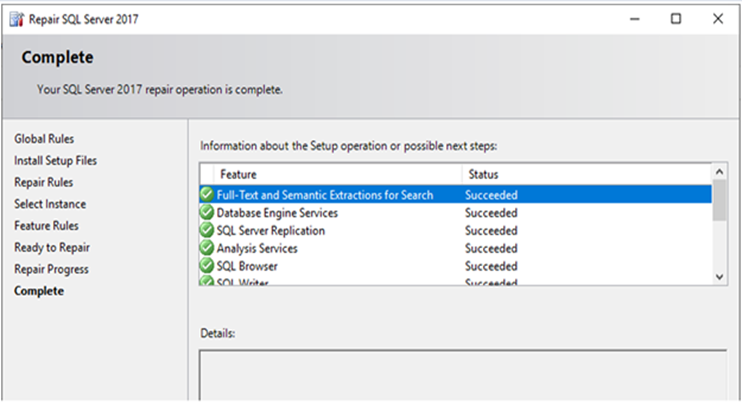
7. På den senaste skärmen rapporteras installationsresultat och en ny uppsättning programbinärfiler borde ha skrivits för installationen av SQL Server-instansen.
8. Efter en lyckad reparationsinstallation bör de senaste kumulativa uppdateringarna av SQL Server tillämpas, vilket garanterar att de binära programfilerna matchar versionerna av SQL Server-databaser som finns under SQL Server-instansen.
Produits concernés
Dell Quickstart Data Warehouse Appliance, Prosupport for Microsoft SoftwarePropriétés de l’article
Numéro d’article: 000128944
Type d’article: Solution
Dernière modification: 19 avr. 2026
Version: 6
Trouvez des réponses à vos questions auprès d’autres utilisateurs Dell
Services de support
Vérifiez si votre appareil est couvert par les services de support.