PowerProtect Data Manager: Hyper-V Backups Fail with "Connecting to remote server failed"
Summary: This article contains information about Hyper-V Backups failing with error "Connecting to remote server failed with the following error access is denied. For more information, see the remote troubleshooting help topic." ...
Symptoms
The Hyper-V backup fails with the following error:
"Connecting to remote server failed with the following error access is denied. For more information, see the remote troubleshooting help topic".
Cause
This error may be caused by the Windows Remote Management service being configured to listen on the HTTPS protocol on the Hyper-V server. HTTP protocol is not configured.
This may not be the only reason this error may occur.
Resolution
Step 1: Verify that the Windows Remote Management Server is configured to listen only on the HTTPS protocol.
- Run the command:
winrm enumerate winrm/config/Listener
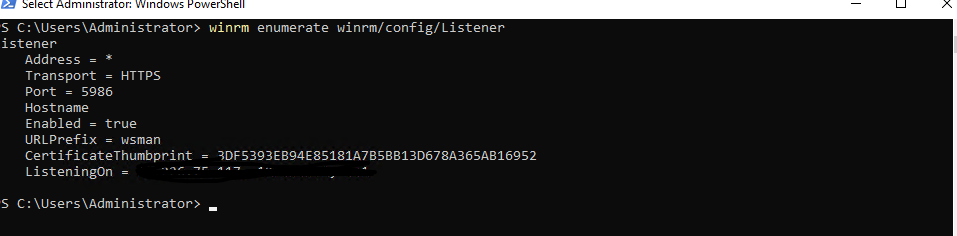
Figure1: Command to display Windows Remote Management listeners.
- If all the Listeners are using only the "HTTPS" transport, move to Step 2
Step 2: Fix the Hyper-V Agent Plugin service (hvpluginservice.exe) to run in https mode.
- In the Hyper-V Agent install bin directory, open the
appsettings.jsonfile in a text editor
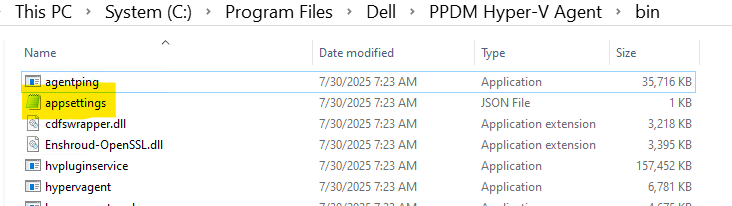
Figure 2: appsettings.json file in the install bin directory
- In the
appsettings.jsonfile, modify theWinrmInfosection:- PortNumber from "5985" to "5986"
- Protocol from "HTTP" to "HTTPS"
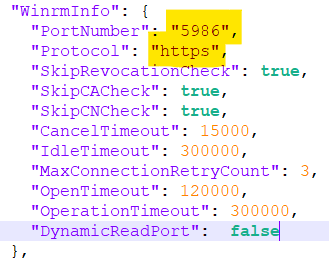
Figure 3: appsettings.json file after changing the PortNumber and Protocol fields under the WinRM section
- Save the changes
- If running, restart the Dell PowerProtect Hyper-V Protection Agent Service to apply the changes.
Step 3: Repeat steps on all nodes of the cluster.
- If in a clustered environment, repeat Steps 1 and 2 on all nodes of the cluster.