我該如何解除安裝 Mac 版 Dell Encryption Enterprise?
Riepilogo: 您可以依照以下指示收集 Mac 版 Dell Encryption Enterprise/Mac 版 Dell Data Protection Enterprise Edition 的記錄。
Questo articolo si applica a
Questo articolo non si applica a
Questo articolo non è legato a un prodotto specifico.
Non tutte le versioni del prodotto sono identificate in questo articolo.
Istruzioni
註:
- 截至 2021 年 2 月,Mac 版 Dell Encryption Enterprise 已達到維護結束的期限。Dell 已不再更新此產品及其文章。如需更多資訊,請參閱 Dell Data Security 的產品生命週期 (支援結束及壽命結束) 政策。如果您對其他文章有任何問題,請聯絡您的銷售團隊或聯絡 endpointsecurity@dell.com。
- 請參考端點安全性,以取得有關目前產品的其他資訊。
本文提供解除安裝 Mac 版 Dell Encryption Enterprise (之前稱為 Mac 版 Dell Data Protection | Enterprise Edition) 的步驟。
在下列情況,可能需要從端點解除安裝 Mac 版 Dell Encryption Enterprise:
- 修正授權差異
- 故障診斷產品
- 解決作業系統不相容的問題
受影響的產品:
- Dell Encryption Enterprise for Mac
- Dell Data Protection | Enterprise Edition for Mac
受影響的版本:
- v8.0.x 及更新版本
受影響的作業系統:
- Mac
在解除安裝 Mac 版 Dell Encryption Enterprise 之前,系統必須先解密。
Mac 版 Dell Encryption Enterprise 可透過以下方式解除安裝:
如需詳細資訊,請按一下偏好的方法。
UI
透過 UI 解除安裝產品會因安裝 v8.15.0 及更新版本 ,或安裝 v8.0.0 至 8.13.2 而有所不同。按一下適當的產品版本,即可執行解除安裝 Mac 版 Enterprise 的步驟。如需更多資訊,請參閱如何下載 Mac 版 Dell Encryption Enterprise。
v8.15.0 及更新版本
必須先下載 Mac 版 Dell Encryption Enterprise,才能開始解除安裝。
- 按兩下
Dell-Encryption-Enterprise-X.X.dmg以掛載安裝程式。
 註:
註:X.X= 安裝程式版本變數 - 在磁碟映像中,連按兩下公用程式。
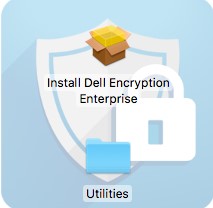
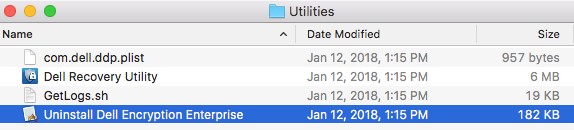
- 按兩下解除安裝 Dell Encryption Enterprise。
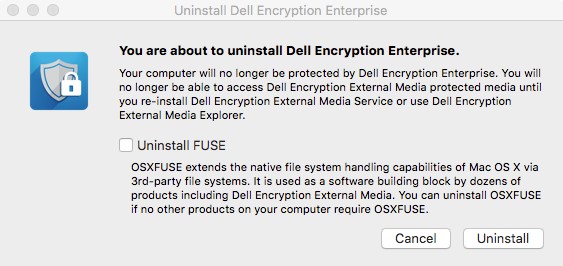
- 或者,請檢查解除安裝 FUSE,然後按一下解除安裝。
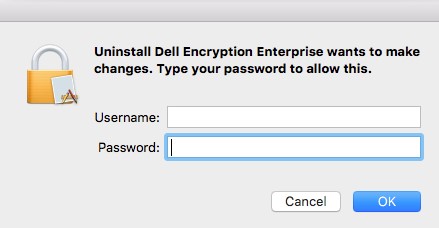
- 填入系統管理員帳戶的使用者名稱與密碼。填入後,按一下確定。
- 解除安裝後,按一下結束。

v8.0.0 至 8.13.2
必須先下載 Mac 版 Dell Encryption Enterprise,才能開始解除安裝。
- 按兩下
Dell-Data-Protection-X.X.dmg以掛載安裝程式。
 註:
註:X.X= 安裝程式版本變數 - 在磁碟映像中,連按兩下公用程式。

- 按兩下解除安裝 Dell Data Protection。
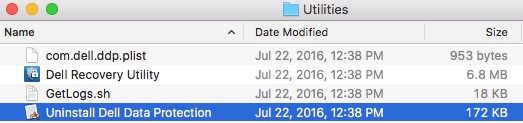
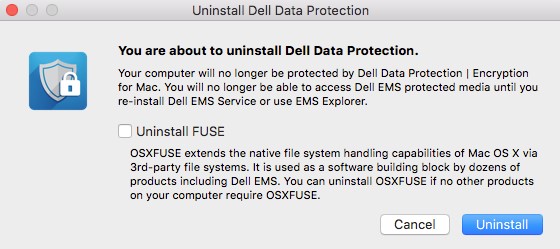
- 或者,請檢查解除安裝 FUSE,然後按一下解除安裝。
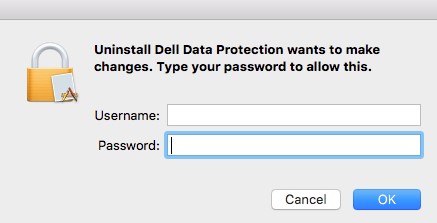
- 填入系統管理員帳戶的使用者名稱與密碼。填入後,按一下確定。
- 解除安裝後,按一下結束。

終端機
透過 UI 解除安裝產品會因安裝 v8.15.0 及更新 版本或安裝 8.13.2 及更舊版本 而有所不同。按一下適當的產品版本,即可執行解除安裝 Mac 版 Enterprise 的步驟。如需更多資訊,請參閱如何下載 Mac 版 Dell Encryption Enterprise。
v8.15.0 及更新版本
- 從 Apple 選單中,按一下前往,然後選取工具程式。
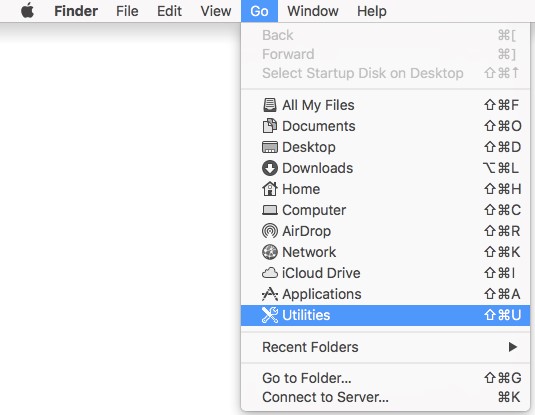
- 在「工具程式」功能表中,按兩下終端機。
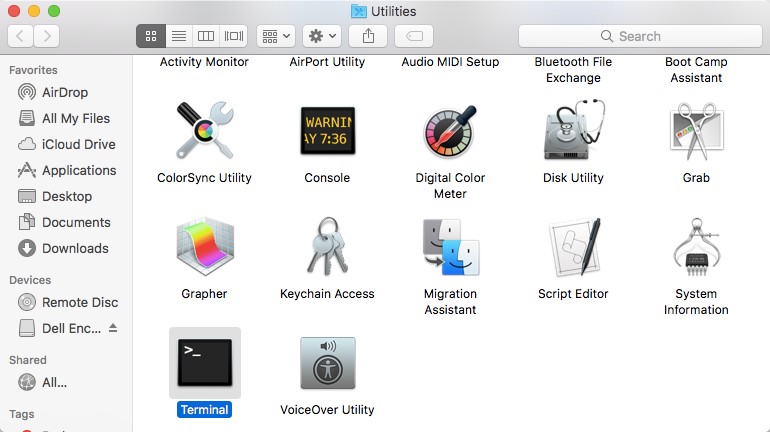
- 在終端機中,輸入
sudo /Library/Dell/Dell\ Encryption\ Enterprise/Dell\ Encryption\ Enterprise.app/Contents/Resources/Scripts/uninstall.sh然後按下 Enter 鍵。 - 輸入具 sudo 權限的帳戶登入資料,然後按 Enter 鍵。

v8.13.2 和更舊版本
必須先下載 Mac 版 Dell Encryption Enterprise,才能開始解除安裝。
- 從 Apple 選單中,按一下前往,然後選取工具程式。
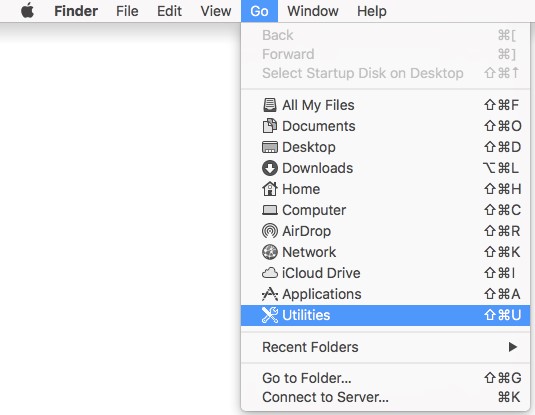
- 在「工具程式」功能表中,按兩下終端機。
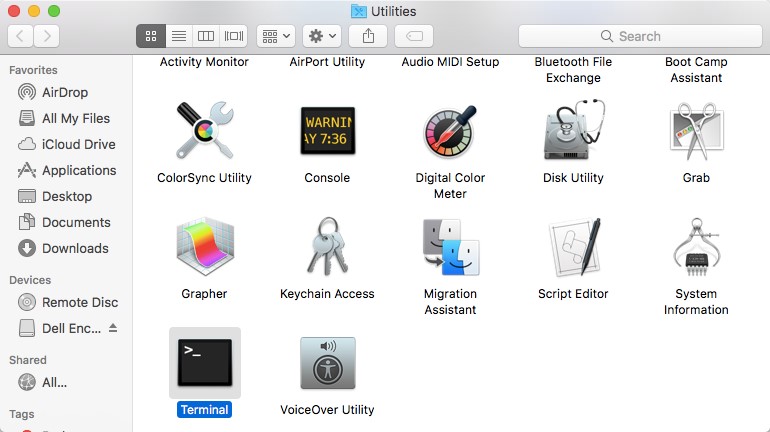
- 在終端機中,輸入
sudo /Library/Extensions/DellDataProtection.kext/Contents/Resources/Scripts/uninstall.sh然後按下 Enter 鍵。

- 輸入具 sudo 權限的帳戶登入資料,然後按 Enter 鍵。
Informazioni aggiuntive
Video
Prodotti interessati
Dell EncryptionProprietà dell'articolo
Numero articolo: 000123776
Tipo di articolo: How To
Ultima modifica: 10 ago 2026
Versione: 20
Trova risposta alle tue domande dagli altri utenti Dell
Support Services
Verifica che il dispositivo sia coperto dai Servizi di supporto.