如何解除安裝 Dell Security Management Server
Riepilogo: 瞭解如何依照以下指示解除安裝 Dell Security Management Server 或 Dell Data Protection Enterprise Edition Server。
Questo articolo si applica a
Questo articolo non si applica a
Questo articolo non è legato a un prodotto specifico.
Non tutte le versioni del prodotto sono identificate in questo articolo.
Istruzioni
Dell Security Management Server (先前稱為 Dell Data Protection Enterprise Edition Server) 可能需要解除安裝以進行:
- 故障診斷產品。
- 解決作業系統不相容的問題。
- 遷移伺服器。
本文說明解除安裝產品的步驟。
受影響的產品:
- Dell Security Management Server
- Dell Data Protection Enterprise Edition Server
受影響的版本:
- 8.0.0 及更新版本
受影響的作業系統:
- Windows
Dell Security Management Server 的解除安裝會依版本而有所不同。
按一下適當的版本,以瞭解特定的步驟。如需版本控制資訊,請參閱 如何識別 Dell Data Security 伺服器版本。
警告:解除安裝前應先備份 Dell Security Management Server。如需關於執行備份的更多資訊,請參閱 如何備份與還原 Dell Security Management Server。
版本 9.8.0 及更新版本
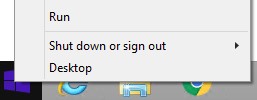
- 使用系統管理員身份,在 Windows「開始」功能表上按右鍵,然後按一下執行。
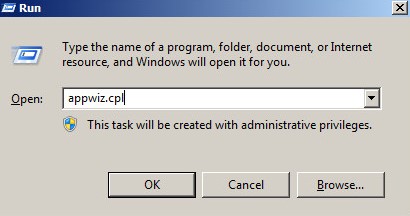
- 在 「執行 」UI 中,鍵入
appwiz.cpl。 - 按下確定。
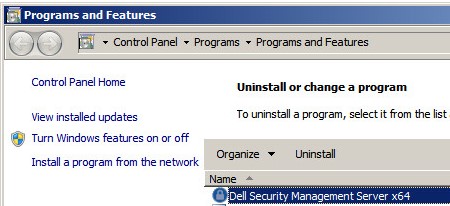
- 在 「程式和功能」中,按兩下 Dell Security Management Server x64。
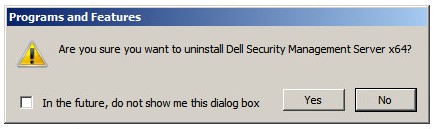
- 按一下是。
版本 8.3.0 至 9.7.0
- 使用系統管理員身份,在 Windows「開始」功能表上按右鍵,然後按一下執行。
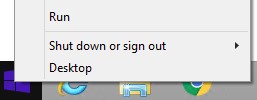
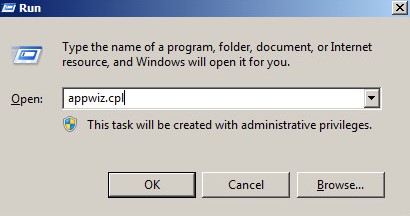
- 在 「執行 」UI 中,鍵入
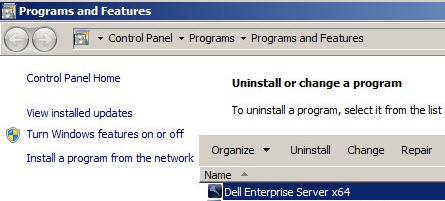
appwiz.cpl。 - 按下確定。這會開啟「程式與功能」。
- 按兩下 Dell Enterprise Server x64 或 Dell Enterprise Server x86。
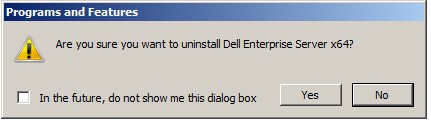
- 按一下是。
版本 8.0.0 至 8.1.0
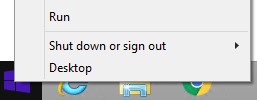
- 使用系統管理員身份,在 Windows「開始」功能表上按右鍵,然後按一下執行。
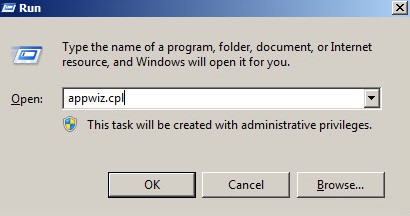
- 在執行 UI 中輸入
appwiz.cpl。 - 按下確定。這會開啟「程式與功能」。
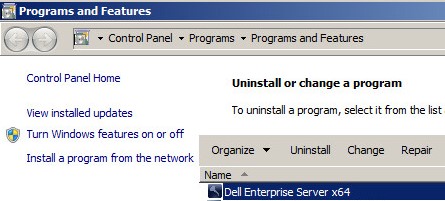
- 按兩下 Dell Enterprise Server x64 或 Dell Enterprise Server x86。
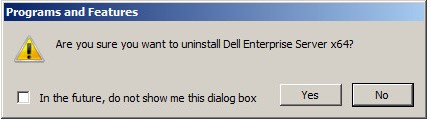
- 按一下是。
- 按一下確定。
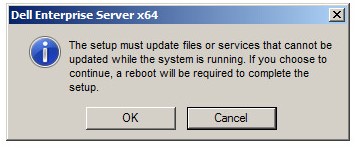
- 將 Windows 伺服器重新開機。
如要聯絡支援部門,請參閱 Dell Data Security 國際支援電話號碼。
請前往 TechDirect,以線上產生技術支援要求。
如需更多深入見解與資源,請加入 Dell 安全性社群論壇。
Informazioni aggiuntive
Video
Prodotti interessati
Dell EncryptionProprietà dell'articolo
Numero articolo: 000124927
Tipo di articolo: How To
Ultima modifica: 04 giu 2026
Versione: 16
Trova risposta alle tue domande dagli altri utenti Dell
Support Services
Verifica che il dispositivo sia coperto dai Servizi di supporto.