XtremIO X2: How to Suspend/Resume Native Replication sessions on an X2 array
Riepilogo: Instruction on how to Suspend and or Resume a Native Replication Session on an X2 array as noted in the XtremIO User guide under Managing Remote Protection Session.
Questo articolo si applica a
Questo articolo non si applica a
Questo articolo non è legato a un prodotto specifico.
Non tutte le versioni del prodotto sono identificate in questo articolo.
Istruzioni
To Suspend a Native Replication session:
1. From the Data Protection menu, select the Sessions option to open the Sessions window.
2. Click Remote to display the list of defined Remote Protections Sessions.
3. Click to select the session.
Note: Verify that the selected session’s status is Active
4. Click Manage > Suspend
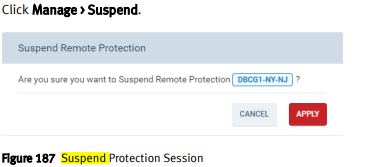
5. Click Apply
To Suspend a session from a selected Sessions Context:
1. From the Data Protection menu, select the Sessions option to open the Sessions window
2. Click Remote to display the list of defined Remote Protection Sessions.
3. Double-click a session to open the Session’s Details window.
Note: Verify that the displayed status is Active.
4. Click Manage > Suspend.
5. Click Apply
Resuming a Remote Protection Session:
Note: You can resume a suspended session.
You can resume a session from the Sessions window context or from a selected session context.
1. From the Data Protection menu, select the Sessions option to open the Sessions window
2. Click Remote to display the list of defined Remote Protection Sessions.
3. Click to select a session.
Note: Verify that the selected session’s status is Suspended.
4. Click Manage > Resume
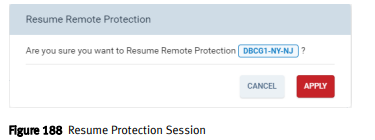
5. Click Apply
To resume a session from a selected Sessions context:
1. From the Data Protection menu, select the Sessions option to open the Sessions window
2. Click Remote to display the list of defined Remote Protection Sessions.
3. Double-click a session to open the Session’s Details window.
Note: Verify that the displayed status is Suspended.
4. Click Manage > Resume.
5. Click Apply.
1. From the Data Protection menu, select the Sessions option to open the Sessions window.
2. Click Remote to display the list of defined Remote Protections Sessions.
3. Click to select the session.
Note: Verify that the selected session’s status is Active
4. Click Manage > Suspend
5. Click Apply
To Suspend a session from a selected Sessions Context:
1. From the Data Protection menu, select the Sessions option to open the Sessions window
2. Click Remote to display the list of defined Remote Protection Sessions.
3. Double-click a session to open the Session’s Details window.
Note: Verify that the displayed status is Active.
4. Click Manage > Suspend.
5. Click Apply
Resuming a Remote Protection Session:
Note: You can resume a suspended session.
You can resume a session from the Sessions window context or from a selected session context.
1. From the Data Protection menu, select the Sessions option to open the Sessions window
2. Click Remote to display the list of defined Remote Protection Sessions.
3. Click to select a session.
Note: Verify that the selected session’s status is Suspended.
4. Click Manage > Resume
5. Click Apply
To resume a session from a selected Sessions context:
1. From the Data Protection menu, select the Sessions option to open the Sessions window
2. Click Remote to display the list of defined Remote Protection Sessions.
3. Double-click a session to open the Session’s Details window.
Note: Verify that the displayed status is Suspended.
4. Click Manage > Resume.
5. Click Apply.
Informazioni aggiuntive
For these instructions and more related to Native Replication, please see the Dell EMC XtremIO Storage Array User Guide "Managing Local Data Protection"
Prodotti interessati
XtremIO HW X2-R, XtremIO HW X2-S, XtremIO HW X2-T, XtremIO X2Proprietà dell'articolo
Numero articolo: 000204396
Tipo di articolo: How To
Ultima modifica: 15 mag 2026
Versione: 5
Trova risposta alle tue domande dagli altri utenti Dell
Support Services
Verifica che il dispositivo sia coperto dai Servizi di supporto.