PowerProtect Data Manager:如何變更介面逾時
Riepilogo: PowerProtect 介面會在預設的 1800 秒 (30 分鐘) 後逾時。
Questo articolo si applica a
Questo articolo non si applica a
Questo articolo non è legato a un prodotto specifico.
Non tutte le versioni del prodotto sono identificate in questo articolo.
Istruzioni
如何在 19.22.0.24 及更舊版本中增加 PowerProtect 介面逾時。
- 開啟 SSH 工作階段至 PowerProtect,並使用管理員帳戶進行驗證。
- 製作
app-config.json檔案:cp -p /usr/local/brs/lib/ecdm-ui/main/app-config.json /usr/local/brs/lib/ecdm-ui/main/app-config.json.orig - 更新
idle-timeout值在app-config.json值介於 1 到 3600 秒之間的檔。- 文字編輯器:
vi /usr/local/brs/lib/ecdm-ui/main/app-config.json - 可使用
sed公用程式:sed -i 's/"idle-timeout": 1800/"idle-timeout": 3600/' /usr/local/brs/lib/ecdm-ui/main/app-config.json
- 文字編輯器:
- 請確認
app-config.json檔案已正確更新:grep 'idle-timeout' /usr/local/brs/lib/ecdm-ui/main/app-config.json
注意:如果值不在 1 到 3600 秒之間,則使用預設的 1800 秒(30 分鐘)。
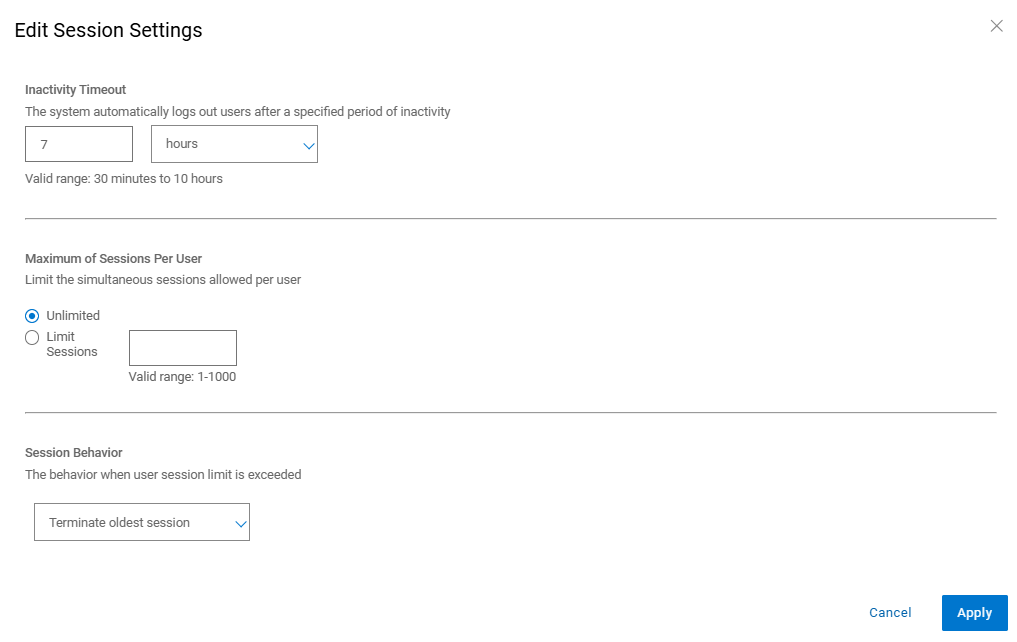
如何在 20.1.0.0-17 及更新版本中增加 PowerProtect 介面逾時。
在 PowerProtect 介面中,瀏覽至「管理 > 存取控制 > 工作階段設定」。
Informazioni aggiuntive
預設值 app-config.json 檔案:
admin@ppdm:/> cat /usr/local/brs/lib/ecdm-ui/main/app-config.json
{
    "idle-timeout": 1800
}
admin@ppdm:/>
可使用 app-config.json 更新後的檔案:
admin@ppdm:/> cat /usr/local/brs/lib/ecdm-ui/main/app-config.json
{
    "idle-timeout": 3600
}
admin@ppdm:/>
Proprietà dell'articolo
Numero articolo: 000221611
Tipo di articolo: How To
Ultima modifica: 22 mag 2026
Versione: 3
Trova risposta alle tue domande dagli altri utenti Dell
Support Services
Verifica che il dispositivo sia coperto dai Servizi di supporto.