Dell Client Device Manager를 추출하는 방법
Riepilogo: 이 문서에서는 DCDM(Dell Client Device Manager)을 추출하는 방법에 대한 정보를 제공합니다.
Questo articolo si applica a
Questo articolo non si applica a
Questo articolo non è legato a un prodotto specifico.
Non tutte le versioni del prodotto sono identificate in questo articolo.
Istruzioni
.cab 파일에서 콘텐츠를 추출하는 몇 가지 옵션이 있습니다. Windows 탐색기, 명령줄 또는 .cab 파일을 지원하는 타사 아카이브 애플리케이션.
참고: 타사 애플리케이션을 광범위하게 제공하기 때문에 예제가 제공되지 않습니다.
Windows 탐색기 사용:
- Dell Client Device Manager를 다운로드한 폴더에서 cab 파일을 마우스 오른쪽 버튼으로 클릭하고 Windows 탐색기에서> 열기를 선택합니다.
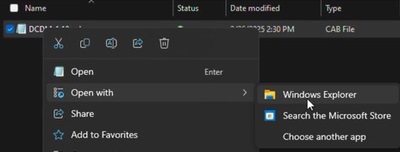 참고: Dell Client Device Manager 다운로드에 대한 자세한 내용은 Dell Client Device Manager 다운로드 방법을 참조하십시오.
 - 모든 파일을 선택하고 마우스 오른쪽 버튼으로 클릭한 다음 압축 풀기를 클릭합니다.
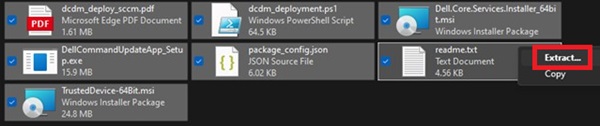
- Select a Destination 창을 사용하여 콘텐츠를 추출할 위치로 이동하고 Extract 버튼을 클릭합니다.
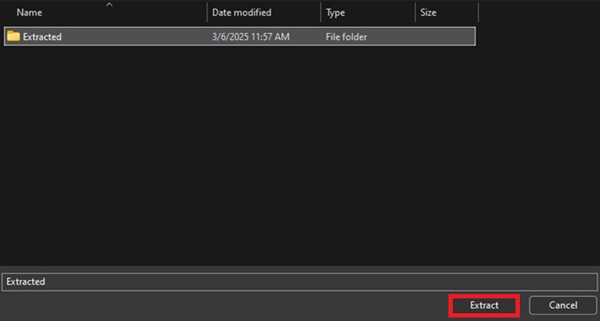 참고: 폴더 구조가 손실되고 Windows 탐색기를 사용하여 캐비닛 파일을 추출할 때 DCDM_Deployment.ps1 스크립트가 설계된 대로 작동하지 않습니다. 제공된 PowerShell 스크립트를 사용하여 DCDM을 배포하려면 Installers 라는 새 폴더를 만든 다음 Dell.Core.Services.Installer_64bit.msi, DellCommandUpdateApp_Setup.exe 및 TrustedDevice-64Bit.msi 폴더를 이동해야 합니다.
명령줄 사용:
- 명령 프롬프트를 열고 cab 파일이 다운로드된 폴더로 디렉터리 포커스를 설정합니다.
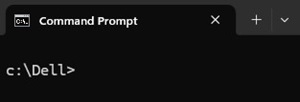 참고: Dell Client Device Manager 다운로드에 대한 자세한 내용은 Dell Client Device Manager 다운로드 방법을 참조하십시오.
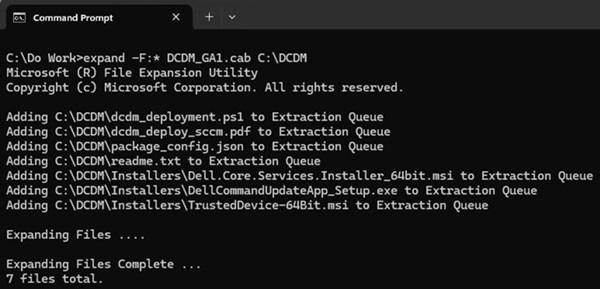
 - 다음 명령을 입력합니다.
expand -F:* cabfile_path existing_destination_folder
cabfile_path는 Dell 클라이언트 장치 관리자 cab 파일의 이름이고 existing_destination_folder는 압축을 풀 폴더의 전체 경로입니다.
Prodotti interessati
Dell Client Device ManagerProprietà dell'articolo
Numero articolo: 000299313
Tipo di articolo: How To
Ultima modifica: 22 mag 2026
Versione: 2
Trova risposta alle tue domande dagli altri utenti Dell
Support Services
Verifica che il dispositivo sia coperto dai Servizi di supporto.