How To Use Advanced Driver Restore in Dell Command Update
Riepilogo: This article provides instructions on how to utilize the Advanced Driver Restore (ADR) feature within Dell Command Update.
Questo articolo si applica a
Questo articolo non si applica a
Questo articolo non è legato a un prodotto specifico.
Non tutte le versioni del prodotto sono identificate in questo articolo.
Istruzioni
Advanced Driver Restore installs a baseline driver library on a freshly installed or reimaged Windows system, ensuring device recognition prior to standard updates. Instructions are provided for both the Graphical User Interface (GUI) and Command Line Interface (CLI) methods.
Using Advanced Driver Restore via GUI
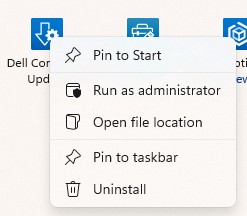
- Open Dell Command Update with administrator rights.
- Click the gear icon in the top-right corner to open Settings.

- Select Advanced Driver Restore in the left menu pane.
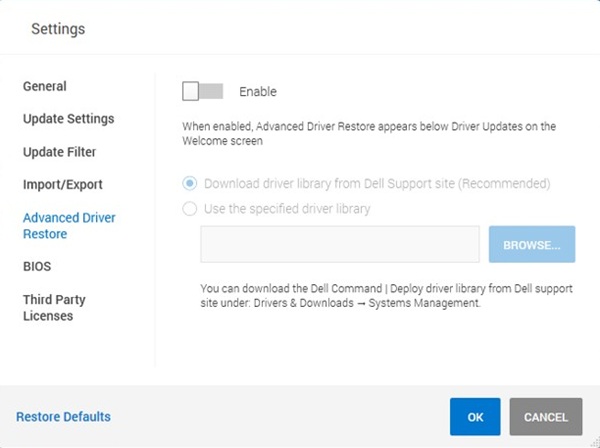
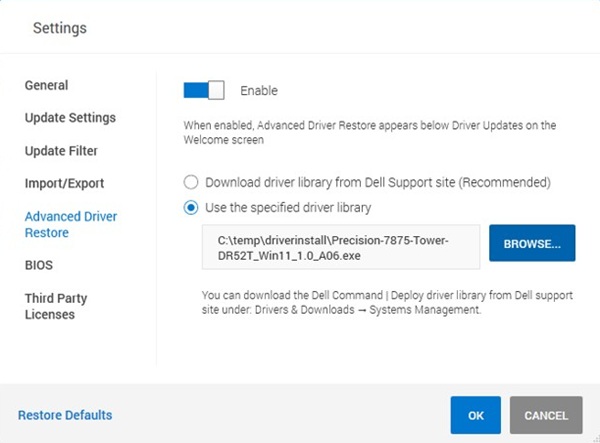
- Click the slider to Enable the feature.
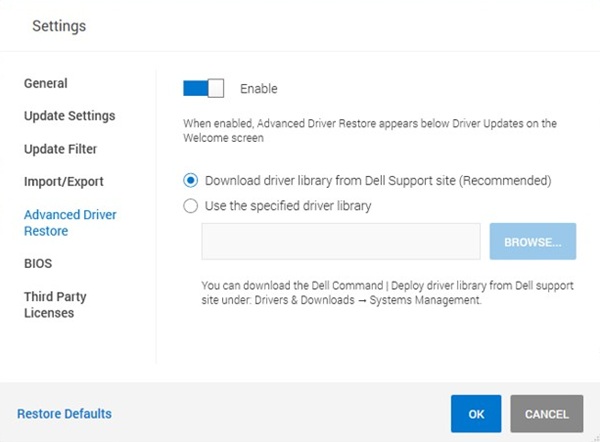
- Choose Download driver library from Dell Support Site (Recommended).
- If no Ethernet or WIFI drivers are currently installed, select use the specified driver library and click browse then change the file type to DUP if your driver pack is an .exe file.
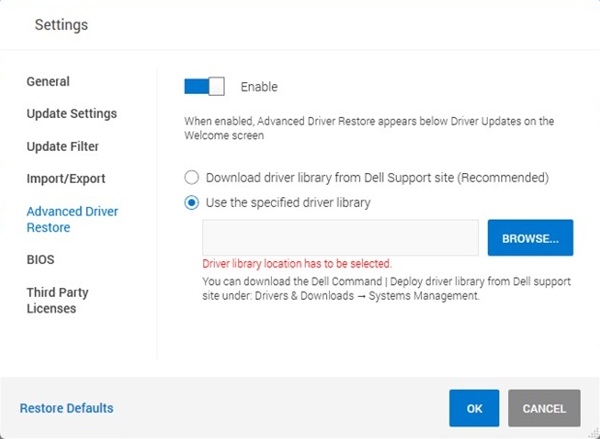
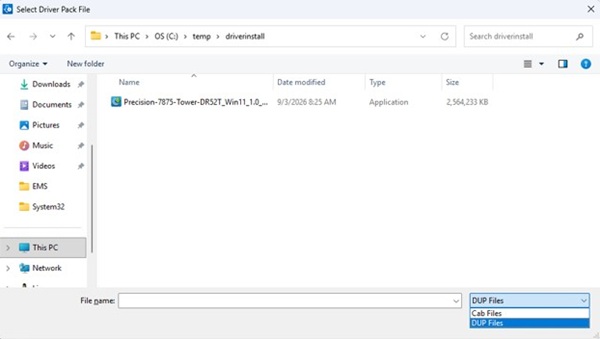 Note: You can download the driver pack for your device on the driver packs page using another device with internet access.
 - Click OK to save the settings.
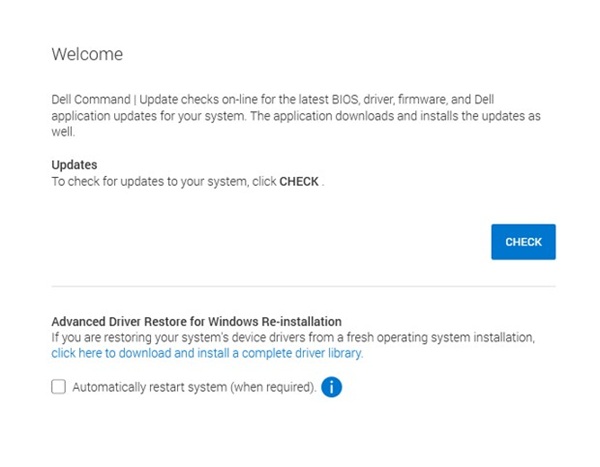
- Find the Advanced Driver Restore for Windows Reinstallation section on the main screen.

- Click the link to download and install a complete driver library.
- Wait for the tool to download and prepare the files.
- Restart your computer once the installation finishes.
- Open the application again and click Check to pull the remaining specific driver and firmware updates.
Using Advanced Driver Restore via Command Line
- Open a command prompt as administrator.
- Run the following command to enable Advanced Driver Restore:
"c:\Program Files (x86)\Dell\CommandUpdate\dcu-cli.exe" /configure -advanceddriverrestore=enable - Run the following command to download and install a driver pack for the device. If no Ethernet or WIFI drivers are currently installed use the command in step 4 with a pre-downloaded driver pack.
"c:\Program Files (x86)\Dell\CommandUpdate\dcu-cli.exe" /driverinstall -silent -outputlog=<.log file path> -reboot=disableNote: You can download the driver pack for your device on the driver packs page using another device with internet access. - Use the following command to install a pre-downloaded driver pack:
"c:\Program Files (x86)\Dell\CommandUpdate\dcu-cli.exe" /driverinstall -silent -driverlibrarylocation= -outputlog=<.log file path> -reboot=disable - Reboot your device.
Note: For more information on DCU-CLI, see the reference guide on the documentation page.
Prodotti interessati
Dell Command | UpdateProprietà dell'articolo
Numero articolo: 000507313
Tipo di articolo: How To
Ultima modifica: 10 set 2026
Versione: 1
Trova risposta alle tue domande dagli altri utenti Dell
Support Services
Verifica che il dispositivo sia coperto dai Servizi di supporto.