Bypass BitLocker When Recovery Key Loop Fails in Windows
요약: BitLocker recovery key not working or failed to unlock with this recovery key? Learn how to bypass BitLocker and unlock it from Command Prompt when stuck on the recovery blue screen.
이 문서는 다음에 적용됩니다.
이 문서는 다음에 적용되지 않습니다.
이 문서는 특정 제품과 관련이 없습니다.
모든 제품 버전이 이 문서에 나와 있는 것은 아닙니다.
지침
Your Windows computer keeps asking for your BitLocker recovery key in a repeating loop. Even when you enter the correct key, the system accepts it but then asks for it again instead of starting Windows.
This article shows you how to fix this issue and start your computer normally.
What You Need Before You Start
- Your 48-digit BitLocker recovery key
- Access to your computer (even though it won't fully start)
Where to find your recovery key:
- In your Microsoft account at account.microsoft.com/devices/recoverykey
- In your organization's Active Directory (if this is a work computer)
- On a USB drive where you saved it
- In a printout you made when you first set up BitLocker
How to Fix the BitLocker Recovery Key Loop
Follow these steps to stop the loop and start Windows normally:
Step 1: Open the Command Prompt
- On the screen asking for your recovery key, select Skip this drive at the bottom.
- Select Advanced options.
- Select Troubleshoot.
- Select Advanced options again.
- Select Command Prompt.
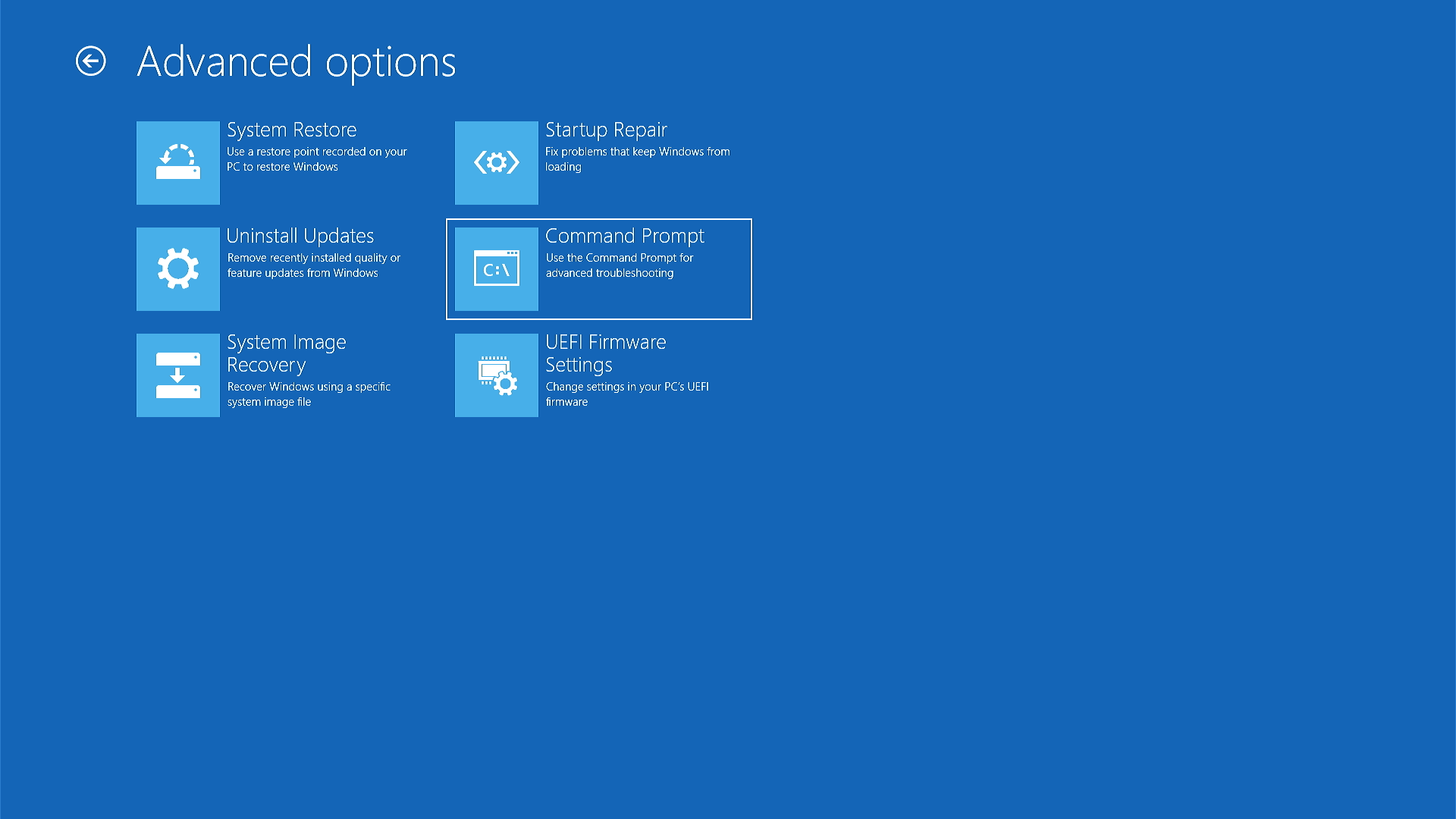
Step 2: Check Your Drive Status
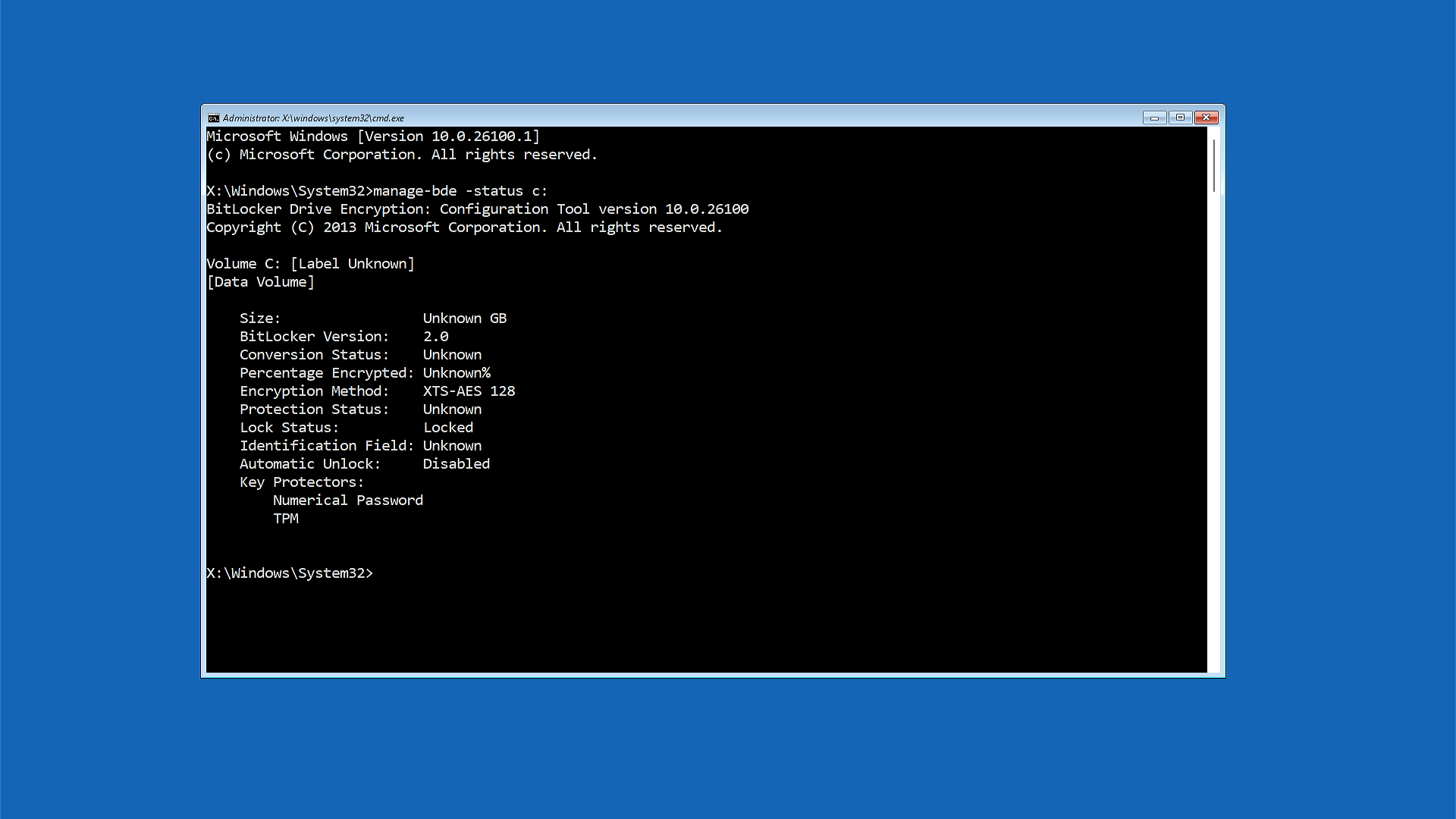
- In the Command Prompt window, type the following command and press Enter:
manage-bde -status c: - Look at the information that appears. Find the line that says Lock Status. It will show either:
- Locked (you need to continue to Step 3)
- Unlocked (skip to Step 4)
Step 3: Unlock Your Drive
Only do this step if your drive shows as "Locked" in Step 2.
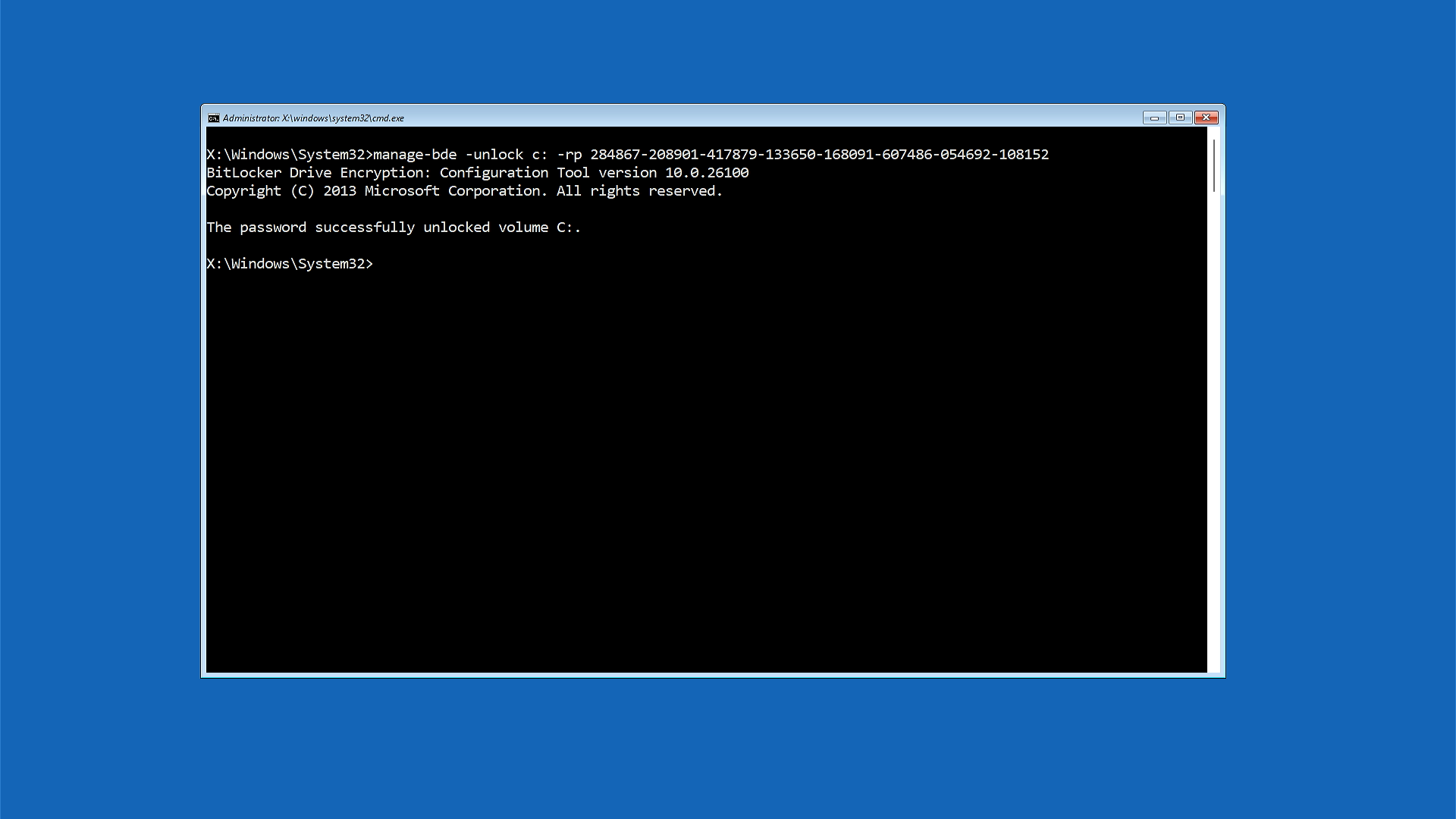
- Type the following command, replacing the example numbers with your actual 48-digit recovery key:
manage-bde -unlock c: -rp XXXXXX-XXXXXX-XXXXXX-XXXXXX-XXXXXX-XXXXXX-XXXXXX-XXXXXXNote: Your recovery key is 48 digits separated by dashes. Make sure you use the recovery key specific to your device. - Press Enter.
- Wait for the message that says Successfully unlocked volume C:.
Step 4: Temporarily Turn Off BitLocker Protection
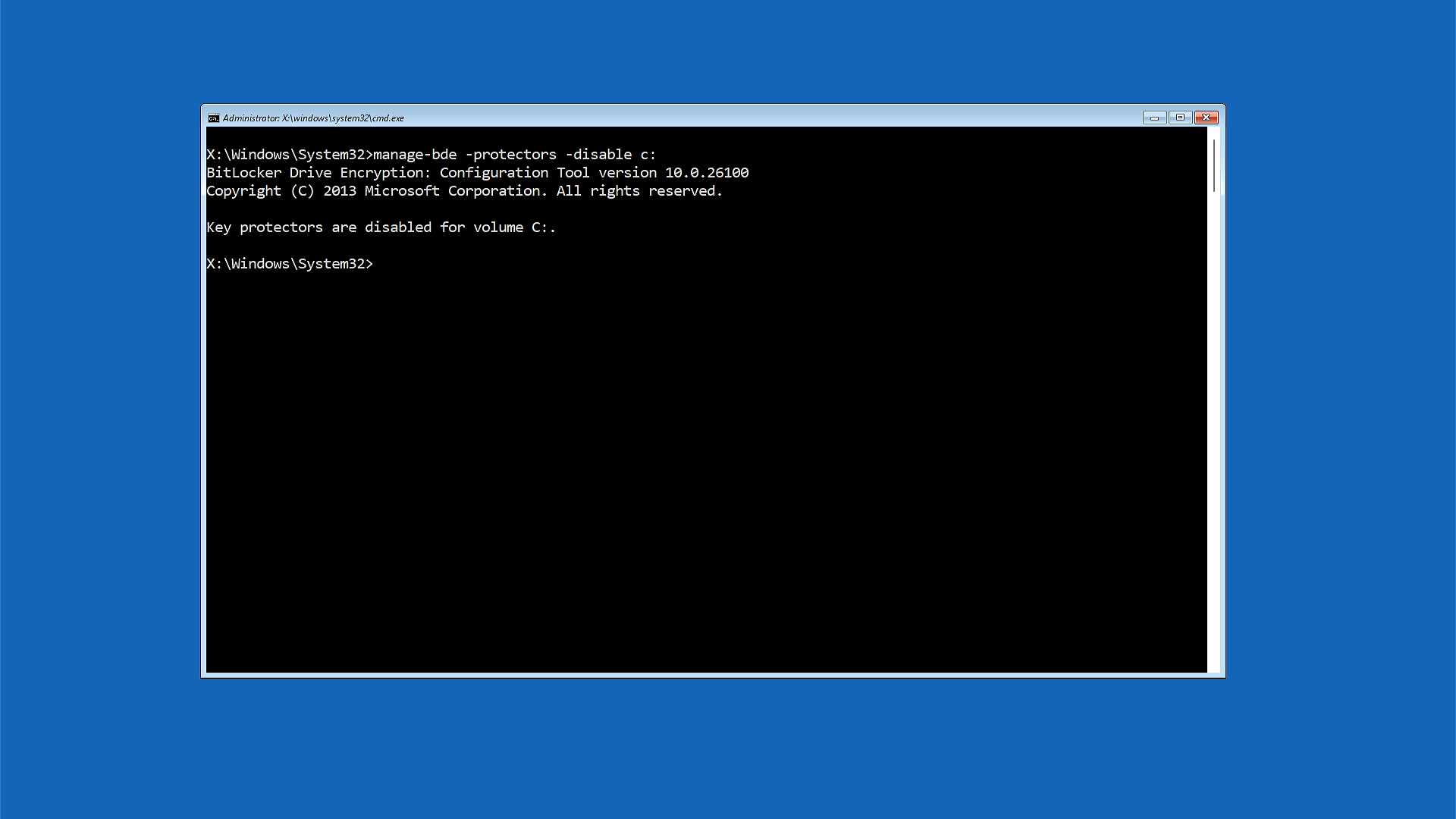
- Type the following command and press Enter:
manage-bde -protectors -disable c: - Wait for the message that says Protection is suspended or Key protectors are disabled for volume C:.
Note: This doesn't remove BitLocker from your computer, it just pauses it temporarily so Windows can start normally.
Step 5: Restart Your Computer
- Type the following command and press Enter:
exit - Select Continue or Exit and continue to Windows.
Your computer should now start Windows normally without asking for the recovery key.
Step 6: Turn BitLocker Protection Back On
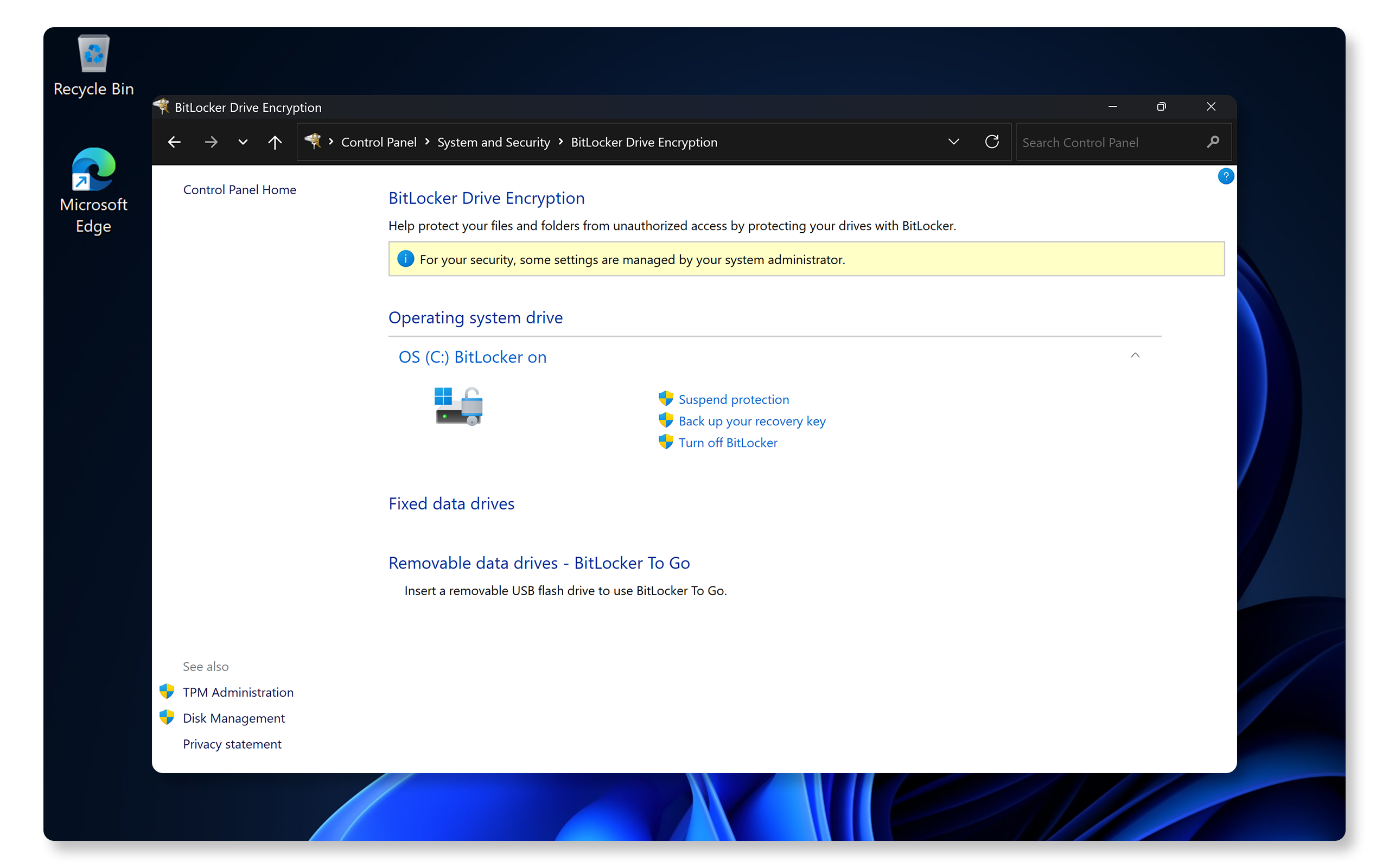
Once Windows starts, you need to turn BitLocker protection back on:
- Select Start and type bitlocker in the search box.
- Select Manage BitLocker from the results.
- Find your drive (usually C:) in the BitLocker window.
- Select Resume protection next to your drive.
- Wait for the message that says protection is active again.
Your computer is now fully protected and should work normally.
If These Steps Don't Work
If you're still having trouble after following these steps:
- Make sure you're using the correct recovery key. If you have multiple recovery keys saved, try each one.
Why This Problem Happens
This BitLocker loop can occur when:
- Windows updates change security settings
- Your computer's hardware configuration changes
- There's a temporary communication issue between BitLocker and Windows
The steps above fix the issue by temporarily pausing BitLocker protection, allowing Windows to start normally, and then reactivating protection once Windows is running.
해당 제품
Alienware, Dell All-in-One, Dell Pro Max Micro, Dell Pro Max Slim, Dell Pro Max Tower, Dell Pro Micro, Dell Pro Slim, Dell Pro Tower, Dell Slim, Dell Tower, Inspiron, Legacy Desktop Models, OptiPlex, Vostro, XPS, G Series, G Series, Alienware
, Dell Plus, Dell Pro, Dell Pro Max, Dell Pro Plus, Dell Pro Premium, Inspiron, Latitude, Dell Pro Rugged, Vostro, XPS, Legacy Laptop Models, Fixed Workstations, Mobile Workstations, Dell Pro Max Micro XE FCM2250, Dell Pro Max Slim XE FCS1250, Dell Pro Max Tower T2 XE FCT2250, Dell Pro Micro Plus XE QBM1250, Dell Pro Slim Plus XE5 QBS1250, Dell Pro Tower Plus XE5 QBT1250
...
문서 속성
문서 번호: 000130549
문서 유형: How To
마지막 수정 시간: 21 11월 2025
버전: 16
다른 Dell 사용자에게 질문에 대한 답변 찾기
지원 서비스
디바이스에 지원 서비스가 적용되는지 확인하십시오.