NetWorker: How To Identify Binary Version Details
Podsumowanie: This KB gives a general overview of how to identify NetWorker binary or executable version details for both Linux and Windows NetWorker hosts. This information can be useful in confirming if the correct version is in use or when comparing default vs. debug files. ...
Ten artykuł dotyczy
Ten artykuł nie dotyczy
Ten artykuł nie jest powiązany z żadnym konkretnym produktem.
Nie wszystkie wersje produktu zostały zidentyfikowane w tym artykule.
Instrukcje
This KB gives a general overview of how to identify NetWorker binary or executable version details for both Linux and Windows NetWorker hosts. This information can be useful in confirming if the correct version is in use or when comparing default vs. debug files.
Linux:
- On Linux based NetWorker hosts, confirm the install path:
find / -name binary_name
Or:
which PROCESS_NAME
- Use the strings command against the binary file:
strings /path/to/binary | grep -i "@(#)"
Example:
nve:~ # strings /usr/sbin/nsrexecd | grep -i "@(#)"
@(#) Product:      NetWorker
@(#) Release:      19.12.0.0.Build.21
@(#) Build number: 21
@(#) Build date:   Sat Dec 21 17:59:07 2024
@(#) Build arch.:  linux86w
@(#) Build info:   DBG=0,OPT=-O2 -fno-strict-aliasing
NOTE: For full details remove the
| grep -i "@(#)" from the command.
Windows:
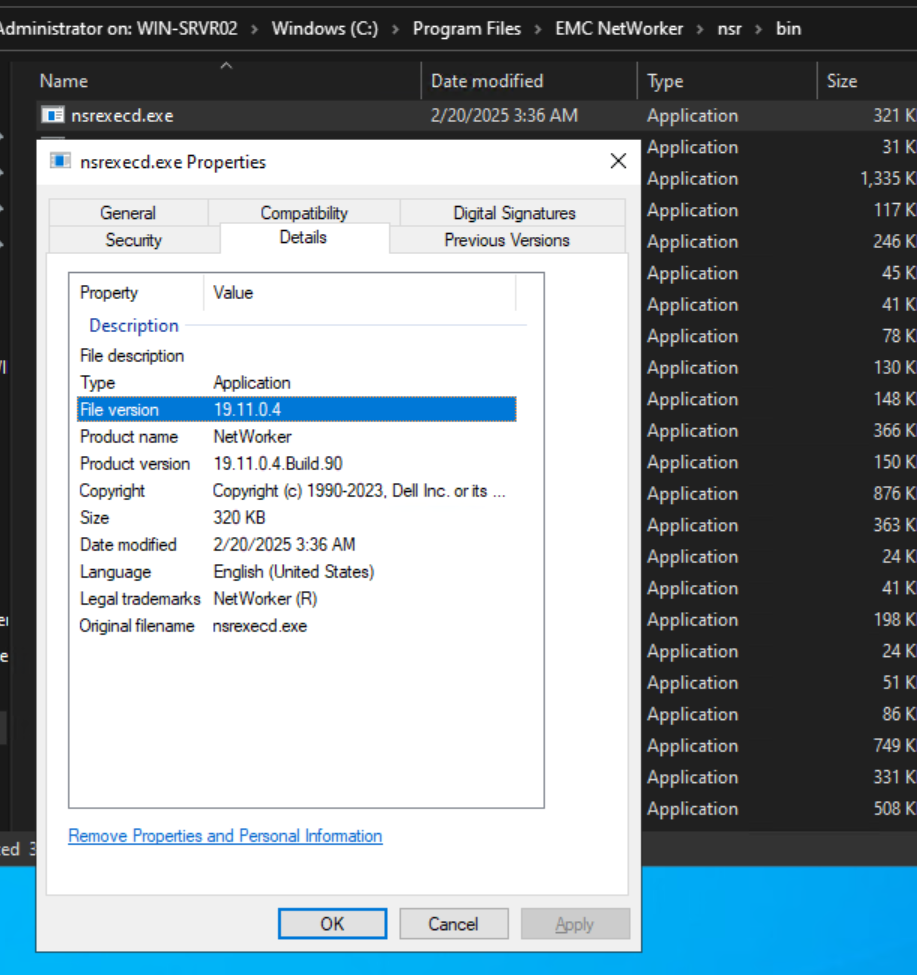
- Open Windows File Explorer and go to the NetWorker install path.
- Go to the NetWorker bin directory, e.g:
..\Program Files\EMC NetWorker\nsr\bin - Open the file properties of the executable in question, and select the Details tab:
Dodatkowe informacje
Produkty, których dotyczy problem
NetWorkerProdukty
NetWorkerWłaściwości artykułu
Numer artykułu: 000158059
Typ artykułu: How To
Ostatnia modyfikacja: 09 cze 2025
Wersja: 6
Znajdź odpowiedzi na swoje pytania u innych użytkowników produktów Dell
Usługi pomocy technicznej
Sprawdź, czy Twoje urządzenie jest objęte usługą pomocy technicznej.