Dell Nutanix: How to check each version
Resumo: This article introduces how to check each version of AOS, Files(File Server), Hypervisor, NCC, LCM and Foundation
Este artigo aplica-se a
Este artigo não se aplica a
Este artigo não está vinculado a nenhum produto específico.
Nem todas as versões do produto estão identificadas neste artigo.
Instruções
Article Summary
This article provides how to confirm versions of Acropolis OS(AOS), Files(File Sever), Hypervisor, Nutanix Cluster Check(NCC), Life Cycle Manager(LCM) and Foundation.
How to Confirm Versions
With Prism GUI(Log in to Prism GUI of the cluster and perform the following operations)
Note: Depending on AOS/LCM versions, the images might be different from the actual ones. If you have any questions, please contact our support.
・AOS/LCM/NCC/Foundation/Files/Hypervisor
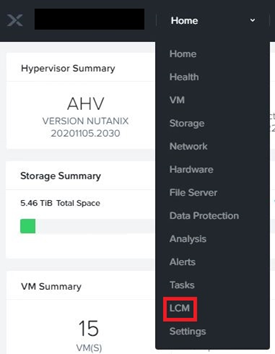
- Click LCM in the Home tab on the top left.
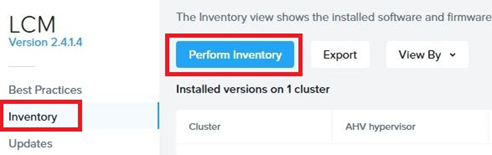
- Click Inventory in the left menu, then click Perform Inventory button.
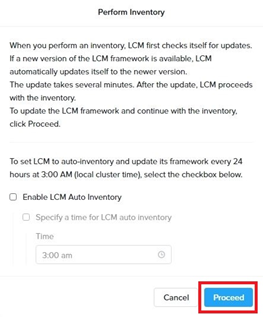
- Click Proceed button in the window. The inventory process will start.
- Click Back to Inventory button after completed inventory.
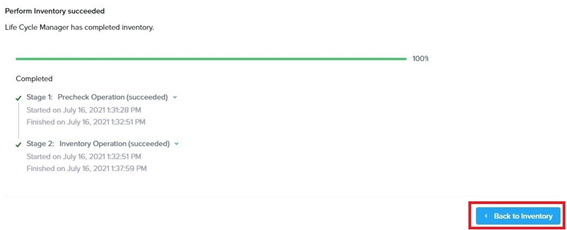
- The current version of each software is displayed under Installed version on ~.
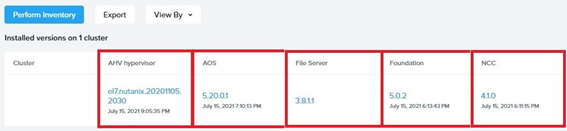
・AOS/LCM/NCC
- Click the user name on the top right, and click About Nutanix.
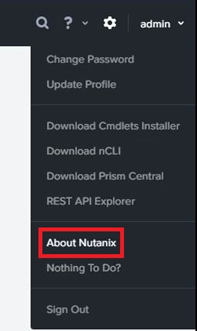
- The current version is displayed in the window.
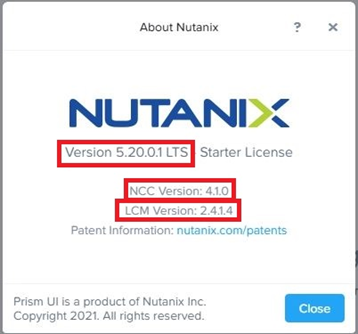
Note: You can also check the Prism Central/NCC/LCM version by logging in to the Prism GUI of the Prism Central VM and performing the same method.
・AOS/NCC/Files/Foundation/Hypervisor
- Click the gear icon on the top right.

- Click Upgrade Software in the left menu.
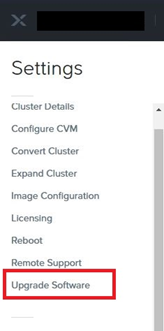
- Click the tab you want to confirm the version in the window.
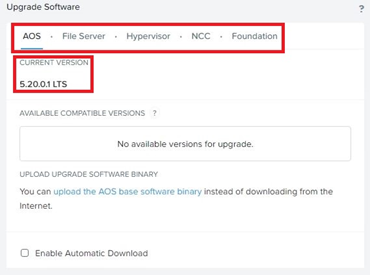
Note: For AHV, the Hypervisor version may not be displayed. In that case, please check by other methods.
With Commandline(Log in to any CVM of the cluster with SSH and execute the following commands)
・AOS
$ ncli cluster version
After executing the command, the column "Cluster Version" will be displayed as the current AOS version.
Note: You can also check the Prism Central version by logging in to the Prism Central VM with SSH and executing the same command.
・NCC
$ ncc --ncc_version
Note: You can also check the Prism Central NCC version by logging in to the Prism Central VM with SSH and executing the same command.
・Hypervisor(AHV)
$ hostssh “uname -a”
・Hypervisor(ESXi)
$ for i in `hostips`; do echo ESXi host:$i; ssh root@$i vmware -vl;done
・Hypervisor(Hyper-V)
$ allssh "winsh 'systeminfo | grep OS'"
・Foundation
$ cat ~/foundation/foundation_version
・LCM
$ cat ~/cluster/config/lcm/version.txt
Note: You can also check the Prism Central LCM version by logging in to the Prism Central VM with SSH and executing the same command.
Produtos afetados
Dell XC720XD Hyper-converged Appliance, Dell XC430 Hyper-converged Appliance, Dell XC430 Xpress Hyper-converged Appliance, Dell XC630 Hyper-converged Appliance, Dell XC6320 Hyper-converged Appliance, Dell EMC XC Series XC640 Appliance
, Dell EMC XC Series XC6420 Appliance, Dell XC730 Hyper-converged Appliance, Dell XC730XD Hyper-converged Appliance, Dell EMC XC Series XC740xd Appliance, Dell EMC XC Series XC940 Appliance
...
Propriedades do artigo
Número do artigo: 000122072
Tipo de artigo: How To
Último modificado: 29 jul. 2025
Versão: 5
Encontre as respostas de outros usuários da Dell para suas perguntas.
Serviços de suporte
Verifique se o dispositivo está coberto pelos serviços de suporte.