如何收集 Dell Encryption Enterprise for Mac 的日志
Resumo: 可以按照以下说明为 Dell Encryption Enterprise for Mac 或 Dell Data Protection Enterprise Edition for Mac 收集日志。
Este artigo aplica-se a
Este artigo não se aplica a
Este artigo não está vinculado a nenhum produto específico.
Nem todas as versões do produto estão identificadas neste artigo.
Sintomas
提醒:
- 从 2021 年 2 月起,Dell Encryption Enterprise for Mac 停止维护。戴尔不再更新本产品及其文章。有关更多信息,请参阅 Dell Data Security 的产品生命周期(结束支持/停售)政策。如果您对其他文章有任何疑问,请联系您的销售团队或联系 endpointsecurity@dell.com。
- 请参阅端点安全性,了解有关当前产品的其他信息。
强烈建议在进行故障处理或联系 Dell Data Security ProSupport 之前收集 Dell Encryption Enterprise for Mac(以前称为 Dell Data Protection | Enterprise Edition for Mac)的日志。
受影响的产品:
- Dell Encryption Enterprise for Mac
- Dell Data Protection | Enterprise Edition(Mac 版)
受影响的操作系统:
- Mac
Causa
不适用
Resolução
关于日志收集过程,请单击相应的 Dell Encryption Enterprise for Mac 版本。有关版本控制的更多信息,请参阅如何确定 Dell Encryption Enterprise for Mac / Dell Data Protection Enterprise Edition for Mac 版本。
要收集日志:
- 登录到相应的端点。
- 在 Dock 中,单击 System Preferences。

- 单击 Dell Encryption Enterprise。

- 在 Dell Encryption Enterprise for Mac 用户界面 (UI) 的底部,单击 Collect Logs。

- 在 Dell Data Security 日志记录 UI 中,
- (可选)设置日志收集的最大大小。
- (可选)设置日志收集 的开始日期 。
- 单击 Allow。

- 填充本地管理员凭据,然后单击 OK。

- 在 Dell Data Security 日志记录 UI 中:
- (可选)修改另存为名称。
- (可选)将标签关联到捆绑包。
- (可选)修改捆绑包的保存位置。
- 单击 Save。

- 完成后,单击 OK。

要收集日志:
- 登录到相应的端点。
- 将 Dell-Encryption-Enterprise-Mac-[VERSION].zip 安装程序下载到目标端点。
提醒:
- [VERSION] = Dell Encryption Enterprise for Mac 产品版本
- 双击 Dell-Encryption-Enterprise-Mac-[VERSION].zip。
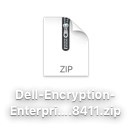
- 双击 Dell-Encryption-Enterprise-Mac-[VERSION].dmg 以装载驱动器。

- 在桌面上,双击 Dell Encryption Enterprise。

- 在 Dell Encryption Enterprise 中,双击 Utilities。

- 在 Utilities 文件夹中,双击 Dell Data Security – GetLogs.app。

- 在个人身份信息 (PII) 免责声明中,单击 Allow。

- 在出现的 UI 中:
- (可选)更改日志包的另存为名称。
- (可选)将标签添加到日志包。
- 选择日志包的保存位置。
- 单击 Save。

提醒:默认情况下,日志包将保存到活动用户的主目录。
- 填充本地管理员的用户名和密码。填写后,单击 OK。

- 单击 OK。

- 转至日志包位置(步骤 9C)。
要收集日志:
- 登录到相应的端点。
- 将 Dell-[PRODUCT]]-[VERSION].zip 安装程序下载到目标端点。
提醒:
- [PRODUCT] =
- v8.15.0 及更高版本:Encryption-Enterprise-Mac
- v8.14.2 及更低版本:Data-Protection-Mac
- [VERSION] = Dell Encryption Enterprise for Mac 产品版本
- 双击 Dell-[PRODUCT]-[VERSION].zip。
- 双击 Dell-[PRODUCT]-[VERSION].dmg 以装载映像。
- 依次选择 Go、Utilities 和 Terminal。

- 双击 Terminal 以启动 UI。
- 在终端中,键入
sudo sh。切勿按 Enter 键。 - 导航然后双击已装载的磁盘映像(步骤 4)。
- 双击 Utilities 文件夹。

提醒:此屏幕截图是在 Dell Data Protection | Enterprise Edition for Mac 版本上截取的,与 Dell Encryption Enterprise for Mac 上略有不同。
- 找到 GetLogs.sh 并转至步骤 11。

提醒:低于 8.10 版的 Dell Data Protection | Enterprise Edition for Mac 不包含 getlogs.sh。建议下载软件的最新版本,以确保使用最新的 getlogs.sh。
- 在终端窗口中,将 GetLogs.sh 拖到 sudo sh 之后(步骤 7),然后按 Enter 键。这自动填充 getlogs.sh 的位置路径。

提醒:要针对外部卷进行日志收集,请在按 Enter 键之前,在字符串末尾添加 –d [外部卷的路径]。例如:
sudo sh /volumes/Users/admin/Desktop/GetLogs.sh –d /Volumes/ExternalHD
- 输入具有 sudo 权限的帐户的凭据,然后按 Enter 键以运行 getlogs.sh。
提醒:在收集所有必需信息时,终端通常会在几分钟内一直显示“Resource busy”。

- shell 脚本完成后,可以从 Go > Home 收集日志输出 (Delllogs.zip)。

要联系支持部门,请参阅 Dell Data Security 国际支持电话号码。
转至 TechDirect,在线生成技术支持请求。
要获得更多见解和资源,请加入戴尔安全社区论坛。
Mais informações
Vídeos
Produtos afetados
Dell EncryptionPropriedades do artigo
Número do artigo: 000126826
Tipo de artigo: Solution
Último modificado: 23 ago. 2023
Versão: 15
Encontre as respostas de outros usuários da Dell para suas perguntas.
Serviços de suporte
Verifique se o dispositivo está coberto pelos serviços de suporte.