Collaboration Touchpad Does Not Control Zoom Application
Summary: This article provides information about an issue where you cannot control the Zoom application with a single-tap on the Collaboration Touchpad. This is seen on the Latitude 9330 laptop. ...
Acest articol se aplică pentru
Acest articol nu se aplică pentru
Acest articol nu este legat de un produs specific.
Acest articol nu acoperă toate versiunile de produs existente.
Symptoms
Single-tap does not control Zoom application on Collaboration Touchpad.
Cause
Double-tap is selected in the Collaboration Touchpad controls.
Resolution
Clear the double-tap checkbox to use a single tap as the default behavior. To enable additional control over the Collaboration Touchpad feature, follow these instructions:
- Go to the home screen and click Collaboration (Figure 1 [English only]).
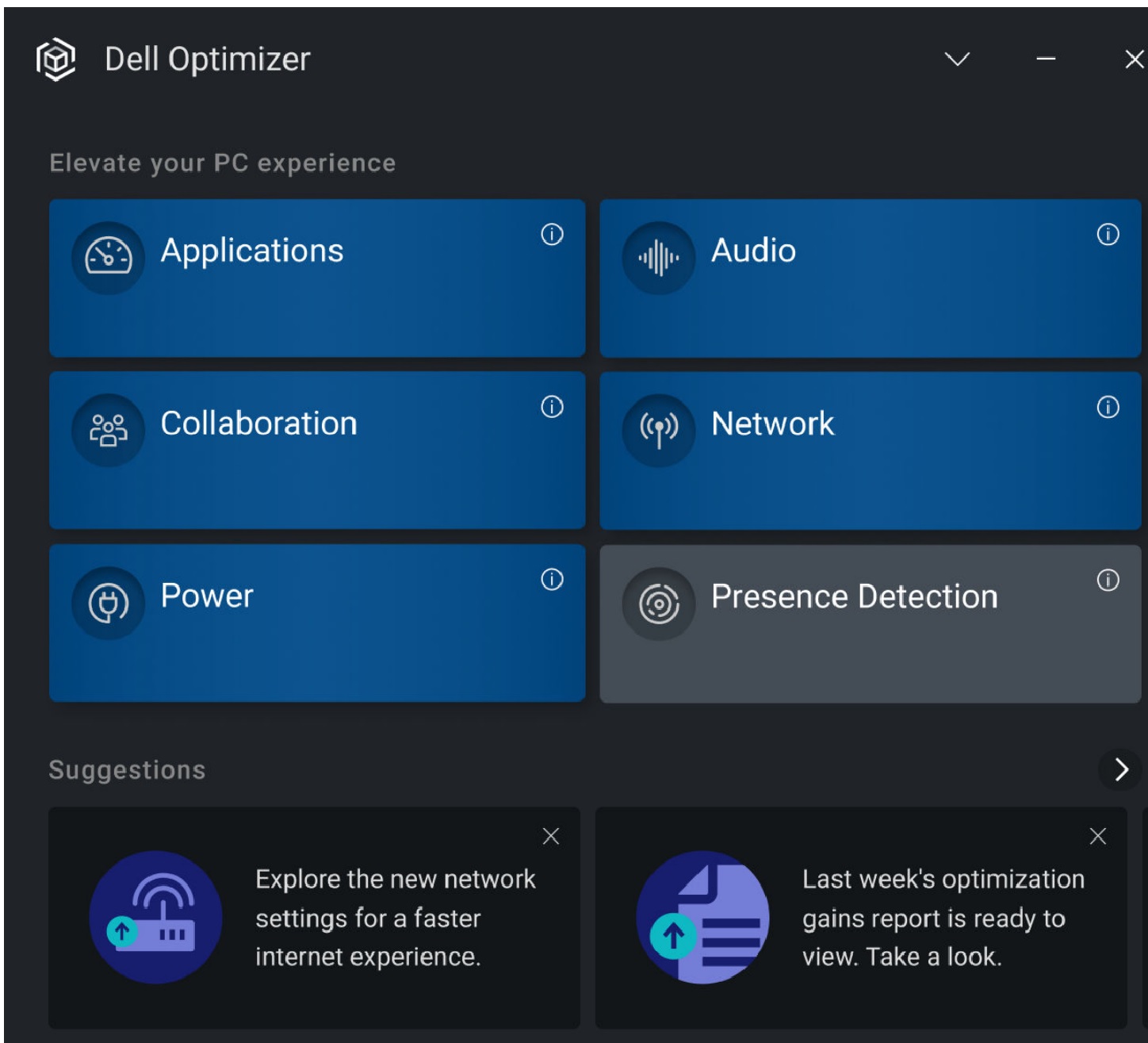
Figure 1: Collaboration Tile - The Collaboration screen is displayed. Confirm if the double-tap setting is enabled (the checkbox is checked). If you prefer to use a single-tap, clear it (Figure 2 [English only]).
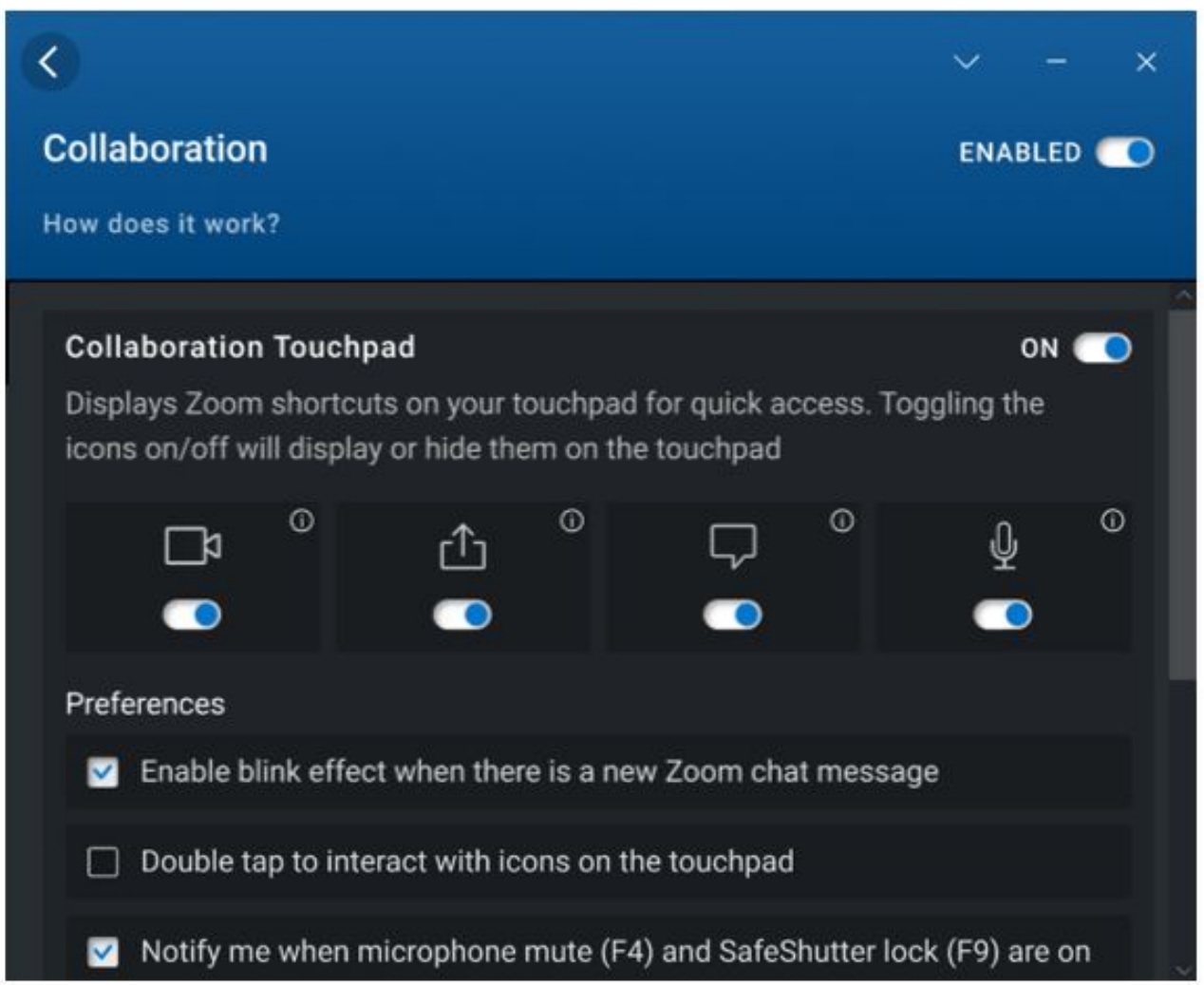
Figure 2: Collaboration settings - Check the double-tap checkbox to engage with the touchpad icons by tapping twice instead of once. Enable this setting to avoid activating the touchpad icons using a single tap accidentally. This checkbox is cleared by default, as single-tap is the default behavior.
Produse afectate
Dell Optimizer, Dell Pro 13 Premium PA13250, Latitude 9330Proprietăți articol
Article Number: 000200990
Article Type: Solution
Ultima modificare: 14 May 2026
Version: 5
Găsiți răspunsuri la întrebările dvs. de la alți utilizatori Dell
Servicii de asistență
Verificați dacă dispozitivul dvs. este acoperit de serviciile de asistență.