PowerProtect Data Manager: How to change the interface timeout
Summary: The PowerProtect Interface times out after the default 1800 seconds (30 minutes).
Acest articol se aplică pentru
Acest articol nu se aplică pentru
Acest articol nu este legat de un produs specific.
Acest articol nu acoperă toate versiunile de produs existente.
Instructions
How to increase the PowerProtect Interface timeout in 19.22.0.24 and older.
- Open an SSH session to PowerProtect and authenticate with the admin account.
- Make a copy of the
app-config.jsonfile:cp -p /usr/local/brs/lib/ecdm-ui/main/app-config.json /usr/local/brs/lib/ecdm-ui/main/app-config.json.orig - Update the
idle-timeoutvalue in theapp-config.jsonfile with a value between 1 and 3600 seconds.- Text editor:
vi /usr/local/brs/lib/ecdm-ui/main/app-config.json - The
sedutility:sed -i 's/"idle-timeout": 1800/"idle-timeout": 3600/' /usr/local/brs/lib/ecdm-ui/main/app-config.json
- Text editor:
- Verify that the
app-config.jsonfile was properly updated:grep 'idle-timeout' /usr/local/brs/lib/ecdm-ui/main/app-config.json
Note: The default 1800 seconds (30 minutes) is used if the value is not between 1 and 3600 seconds.
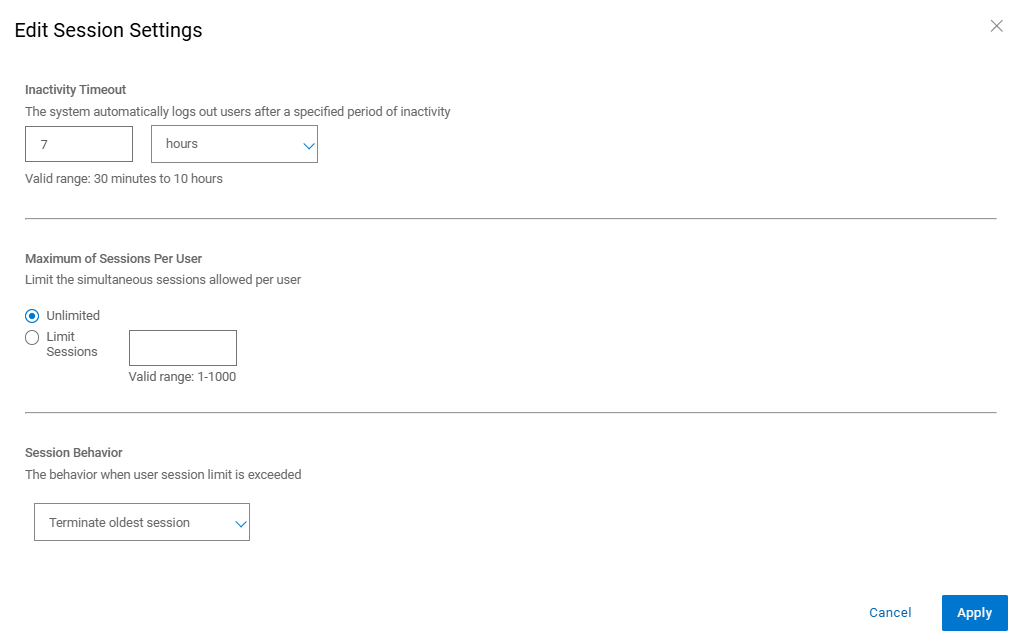
How to increase the PowerProtect Interface timeout in 20.1.0.0-17 and newer.
In the PowerProtect Interface, navigate to "Administration > Access Control > Session Settings."
Additional Information
The default app-config.json file:
admin@ppdm:/> cat /usr/local/brs/lib/ecdm-ui/main/app-config.json
{
    "idle-timeout": 1800
}
admin@ppdm:/>
The app-config.json file after the update:
admin@ppdm:/> cat /usr/local/brs/lib/ecdm-ui/main/app-config.json
{
    "idle-timeout": 3600
}
admin@ppdm:/>
Proprietăți articol
Article Number: 000221611
Article Type: How To
Ultima modificare: 22 mai 2026
Version: 3
Găsiți răspunsuri la întrebările dvs. de la alți utilizatori Dell
Servicii de asistență
Verificați dacă dispozitivul dvs. este acoperit de serviciile de asistență.