PowerProtect Data Manager: How to change the interface timeout
Zhrnutie: The PowerProtect Interface times out after the default 1800 seconds (30 minutes).
Tento článok sa vzťahuje na
Tento článok sa nevzťahuje na
Tento článok nie je viazaný na žiadny konkrétny produkt.
V tomto článku nie sú uvedené všetky verzie produktov.
Pokyny
How to increase the PowerProtect Interface timeout in 19.22.0.24 and older.
- Open an SSH session to PowerProtect and authenticate with the admin account.
- Make a copy of the
app-config.jsonfile:cp -p /usr/local/brs/lib/ecdm-ui/main/app-config.json /usr/local/brs/lib/ecdm-ui/main/app-config.json.orig - Update the
idle-timeoutvalue in theapp-config.jsonfile with a value between 1 and 3600 seconds.- Text editor:
vi /usr/local/brs/lib/ecdm-ui/main/app-config.json - The
sedutility:sed -i 's/"idle-timeout": 1800/"idle-timeout": 3600/' /usr/local/brs/lib/ecdm-ui/main/app-config.json
- Text editor:
- Verify that the
app-config.jsonfile was properly updated:grep 'idle-timeout' /usr/local/brs/lib/ecdm-ui/main/app-config.json
Note: The default 1800 seconds (30 minutes) is used if the value is not between 1 and 3600 seconds.
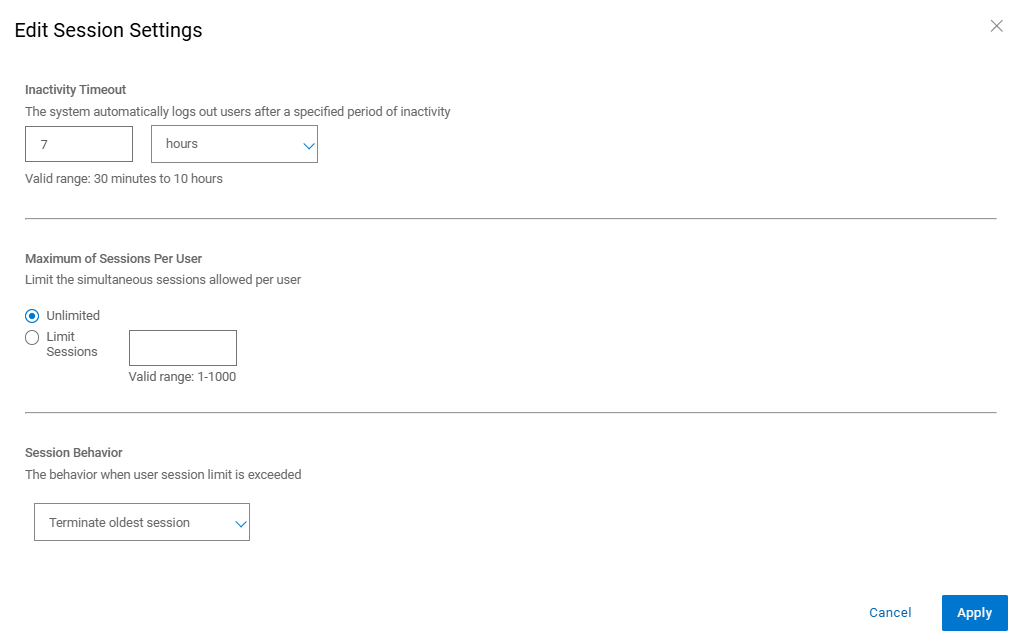
How to increase the PowerProtect Interface timeout in 20.1.0.0-17 and newer.
In the PowerProtect Interface, navigate to "Administration > Access Control > Session Settings."
Ďalšie informácie
The default app-config.json file:
admin@ppdm:/> cat /usr/local/brs/lib/ecdm-ui/main/app-config.json
{
    "idle-timeout": 1800
}
admin@ppdm:/>
The app-config.json file after the update:
admin@ppdm:/> cat /usr/local/brs/lib/ecdm-ui/main/app-config.json
{
    "idle-timeout": 3600
}
admin@ppdm:/>
Vlastnosti článku
Číslo článku: 000221611
Typ článku: How To
Dátum poslednej úpravy: 22 máj 2026
Verzia: 3
Nájdite odpovede na svoje otázky od ostatných používateľov spoločnosti Dell
Služby podpory
Skontrolujte, či sa na vaše zariadenie vzťahujú služby podpory.