Decrypting a Dell Data Protected Drive Without Uninstalling Dell Data Protection Personal Edition
Summary: This article provides a walkthrough of the decryption process without uninstalling Dell Data Protection | Personal Edition.
Ця стаття стосується
Ця стаття не стосується
Ця стаття не стосується якогось конкретного продукту.
У цій статті зазначено не всі версії продукту.
Instructions
Affected Products:
- Dell Data Protection | Personal Edition
Affected Versions:
- v8.0 - 8.13
Affected Operating Systems:
- Windows
Users may want to remove encryption from the computer for various reasons. Should the user want to decrypt a drive without uninstalling the Dell Data Protection software, this guide demonstrates how to remove the software for Windows 7, 8.1, and 10.
How to Remove Encryption in Windows:
- Launch the Dell Data Protection | Encryption software.
Windows 10
- Go to the Start icon on the task bar.

- Go to All Apps.

- Go to Dell.

- Go to Dell Data Protection Encryption.
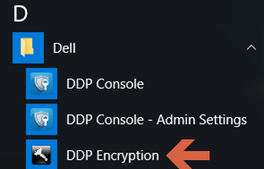
Windows 8.1
- Go to the Start Icon.

- Select the arrow to see the Applications.

- Go to the Dell folder and select Dell Data Protection | Encryption.
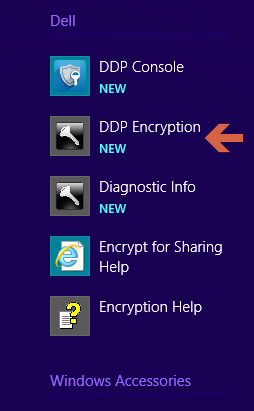
Windows 7
- Go to the Start Icon.

- Go to All Programs.

- Go to Dell.
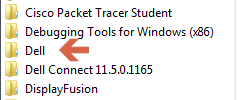
- Go to Dell Data Protection | Encryption.
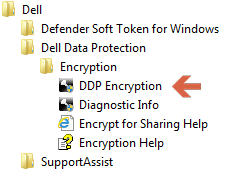
- Go to the Start icon on the task bar.
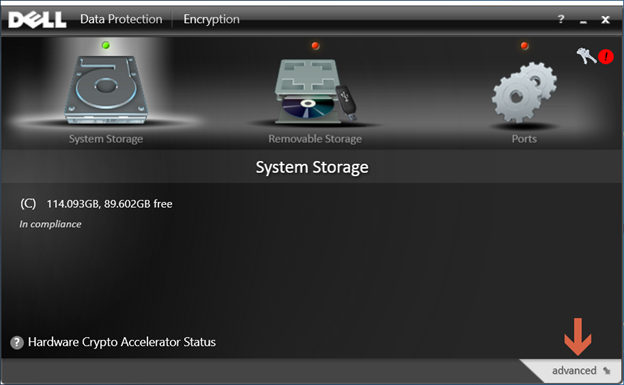
- Select advanced in the bottom-right corner.
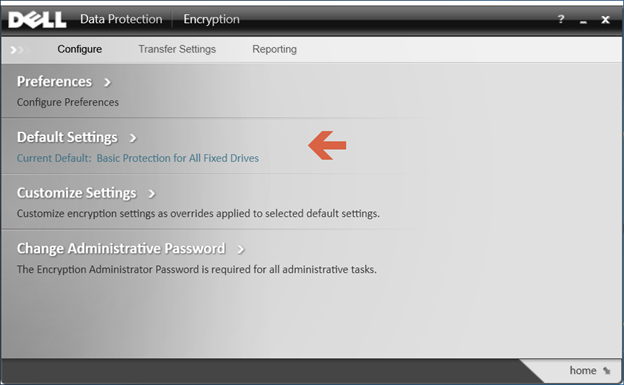
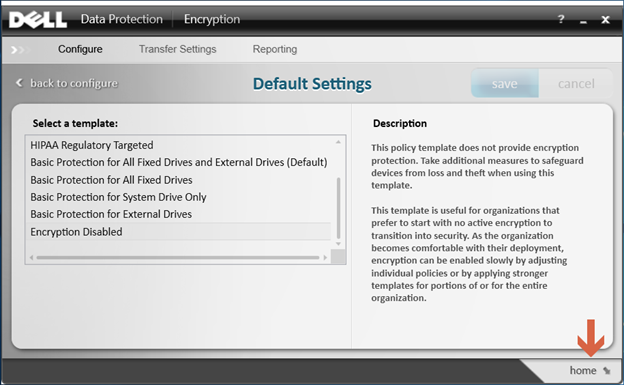
- Choose Default Settings.
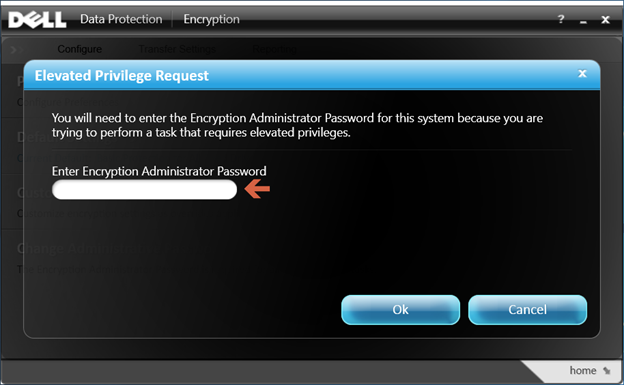
- Enter the Encryption Administrator Password that is created upon setup of the Dell Data Protection software.
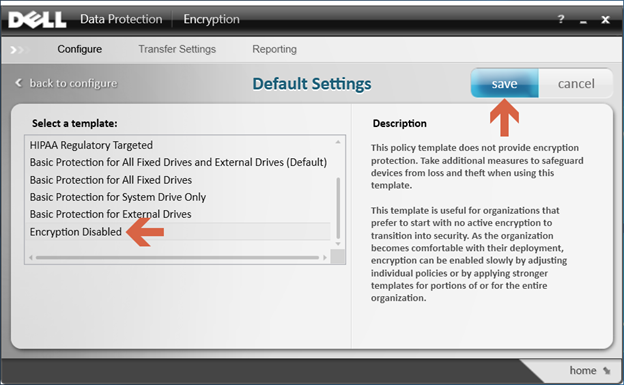
- Under Select a Template, use the scroll options to go to the option for Encryption Disabled and then select save.
- Select the option to go home in the bottom-right corner.
- The decryption process begins.
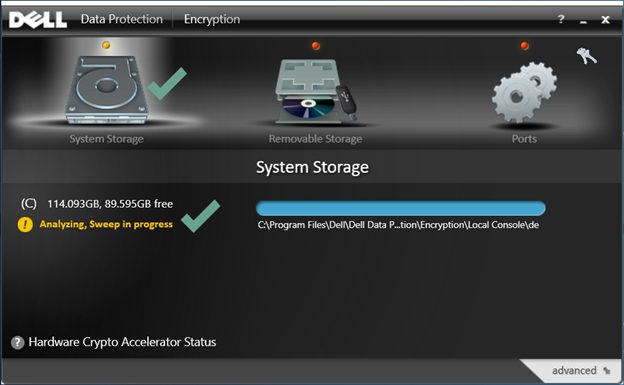 Note: This may take several hours to complete depending on the computer and the number of files encrypted.
To contact support, reference Dell Data Security International Support Phone Numbers.
Go to TechDirect to generate a technical support request online.
For additional insights and resources, join the Dell Security Community Forum.
Продукти, яких це стосується
Dell EncryptionВластивості статті
Article Number: 000125212
Article Type: How To
Востаннє змінено: 19 квіт. 2026
Version: 15
Отримайте відповіді на свої запитання від інших користувачів Dell
Служба підтримки
Перевірте, чи послуги служби підтримки поширюються на ваш пристрій.