How to Manually Back Up Encryption Keys in Dell Encryption Personal
摘要: Encryption keys for Dell Encryption Personal and Dell Data Protection Personal Edition may be manually backed up by following these instructions.
本文适用于
本文不适用于
本文并非针对某种特定的产品。
本文并非包含所有产品版本。
症状
This article provides information about how to manually back up encryption keys (also known as escrowing the keys) in Dell Encryption Personal (formerly Dell Data Protection | Personal Edition).
Affected Products:
- Dell Encryption Personal
- Dell Data Protection | Personal Edition
Affected Operating Systems:
- Windows
原因
Not applicable
解决方案
Click the appropriate client version for specific steps to backup the encryption keys. For more information about versioning, reference How to Identify the Dell Encryption Enterprise or Dell Encryption Personal Version.
Note:
- To successfully backup keys, Dell Encryption Personal requires a storage device (outside of the endpoint with Dell Encryption Personal installed).
- The Encryption Administrator Password is required to backup the keys.
- Log in to the Windows computer.
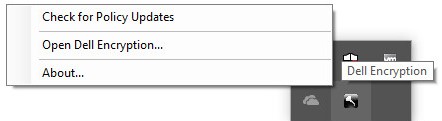
- In the Windows System Tray, right-click the Dell Encryption icon and then select Open Dell Encryption.
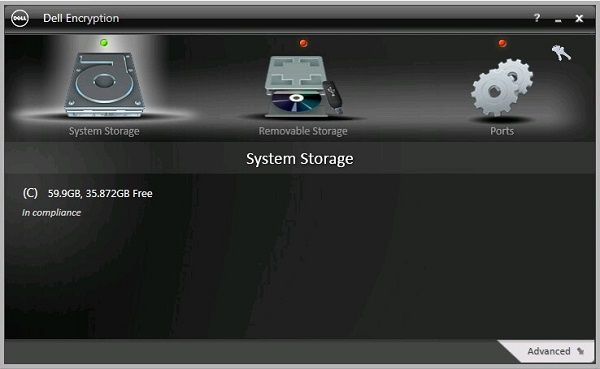
- Click the key icon in the upper right.
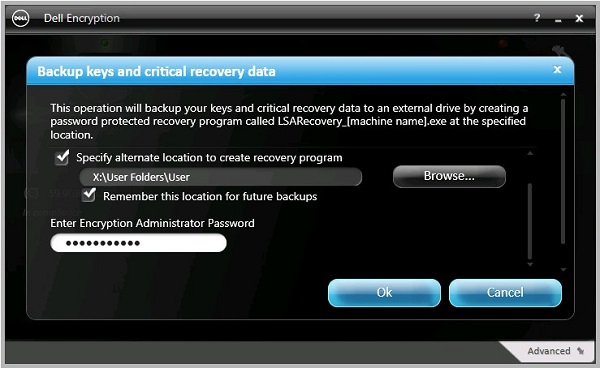
- From the Backup keys and critical recovery data menu:
- Check Specify alternate location to create recovery program.
- Click to Browse to a secondary storage device.
- Optionally, check Remember this location for future backups.
- Populate the Encryption Administrator Password.
- Click OK.
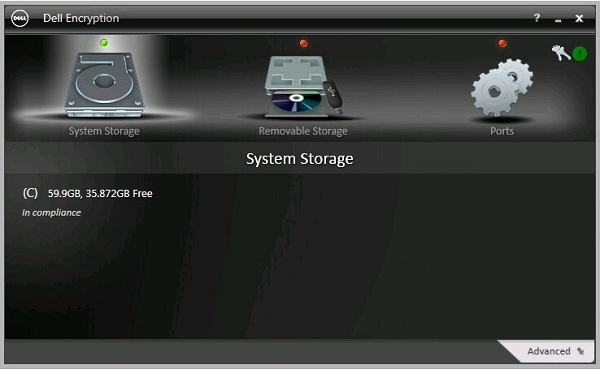
- The key icon (Step 2) displays a green ! icon beside it upon completion of the backup.
- The
LSARecovery_[NAME]appears in the location chosen (Step 4).

Note:
[NAME] = Name of the endpoint
- Log in to the Windows computer.
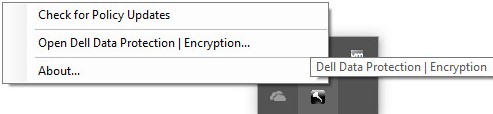
- In the Windows System Tray, right-click the Dell Data Protection | Encryption icon and then select Open Dell Data Protection | Encryption.
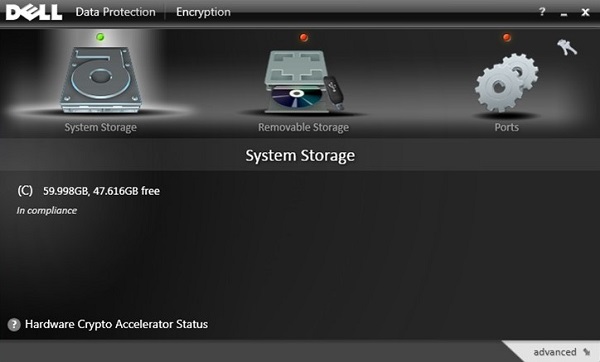
- Click the key icon in the upper right.
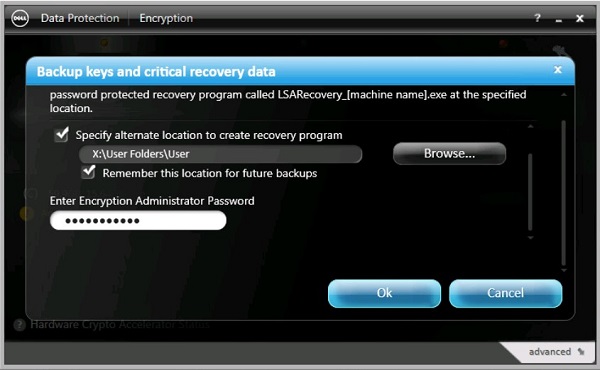
- From the Backup keys and critical recovery data menu:
- Check Specify alternate location to create recovery program.
- Click to Browse to a secondary storage device.
- Optionally, check Remember this location for future backups.
- Populate the Encryption Administrator Password.
- Click OK.
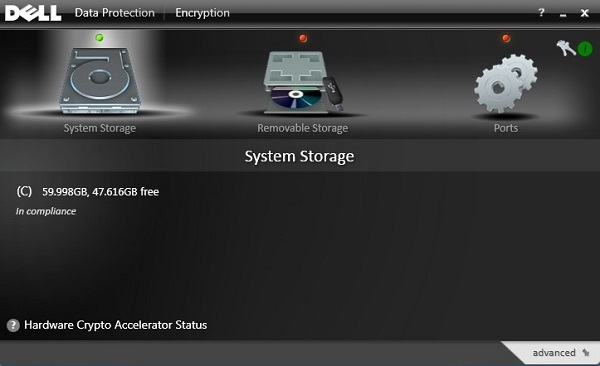
- The key icon (Step 2) displays a green ! icon beside it upon completion of the backup.
- The
LSARecovery_[NAME]appears in the location chosen (Step 4).

Note:
[NAME] = Name of the endpoint
- Log in to the Windows computer.
- In the Windows System Tray, right-click the Dell Data Protection | Encryption icon and then select Open Dell Data Protection | Encryption.
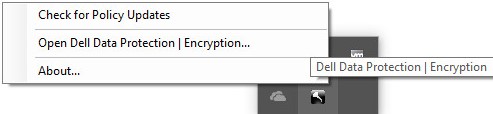
- Click the key icon in the upper right.
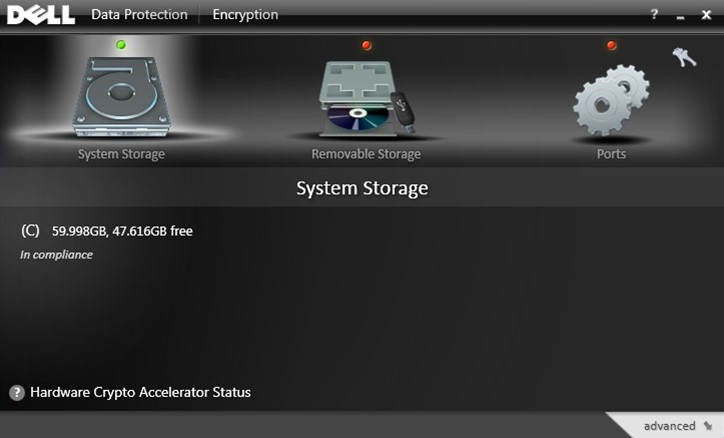
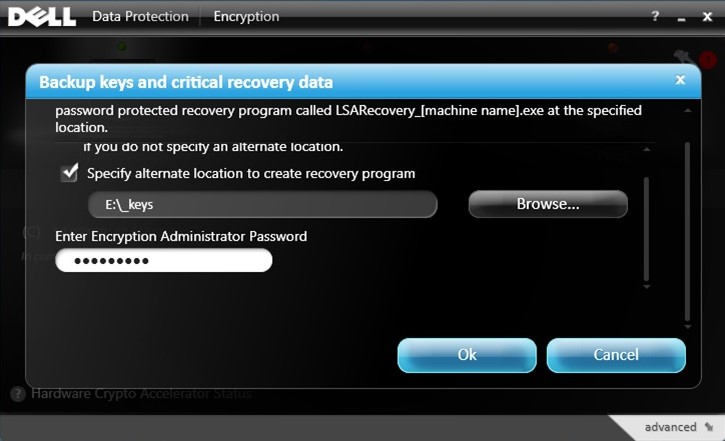
- From the Backup keys and critical recovery data menu:
- Check Specify alternate location to create recovery program.
- Click to Browse to a secondary storage device.
- Populate the Encryption Administrator Password.
- Click OK.
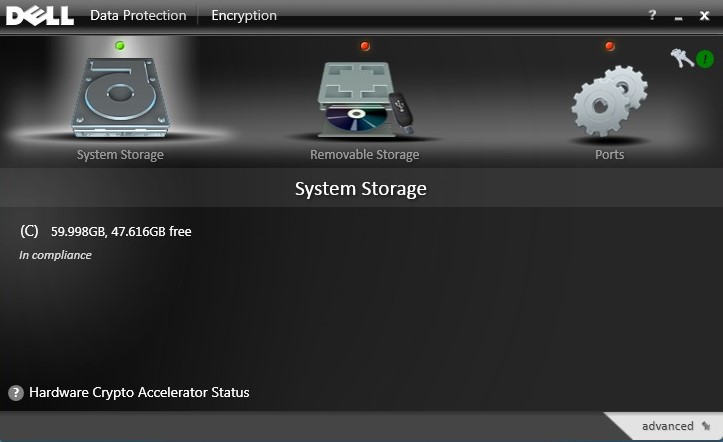
- The key icon (Step 2) displays a green ! icon beside it upon completion of the backup.
- The
LSARecovery_[NAME]appears in the location chosen (Step 4).

Note:
[NAME] = Name of the endpoint
To contact support, reference Dell Data Security International Support Phone Numbers.
Go to TechDirect to generate a technical support request online.
For additional insights and resources, join the Dell Security Community Forum.
其他信息
视频
受影响的产品
Dell Encryption文章属性
文章编号: 000126842
文章类型: Solution
上次修改时间: 24 10月 2023
版本: 9
从其他戴尔用户那里查找问题的答案
支持服务
检查您的设备是否在支持服务涵盖的范围内。