Dell Security Management Server Virtual Accessing the Postgres Database Using pgAdmin
摘要: This article provides information about how to access the Dell Security Management Server Virtual Postgres Database using pgAdmin.
本文适用于
本文不适用于
本文并非针对某种特定的产品。
本文并非包含所有产品版本。
说明
Affected Products:
- Dell Security Management Server Virtual
- Dell Data Protection | Virtual Edition
In order to change the database of a Dell Security Management Server Virtual (formerly Dell Data Protection | Virtual Edition), you have to access Postgres. This can be done in the command-line, but third-party tools such as pgAdmin can provide a better experience.
To access the database:
- Set a password.
- Allow remote access.
Note: These options can be found within the advanced configuration menu of the Dell Security Management Server Virtual console.
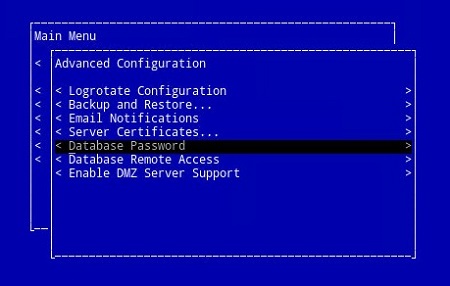
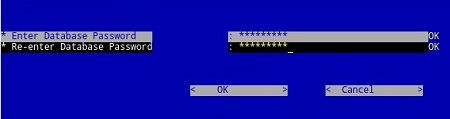
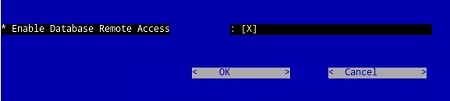
pgAdmin 3
- Now that access is configured, launch pgAdmin. From the drop-down menu, select File > Add Server….

- Populate the necessary fields in the New Server Registration screen:
- Name: The friendly name for the server you would like appears in the pgAdmin console.
- Host: The hostname or IP address of the Dell Data Protection | Virtual Edition server
- Port: The port number for accessing the database (It is 5432 by default and should be pre-populated.)
- Username:
ddp_admin - Password: The password that was entered in the database password field of the Dell Data Protection | Virtual Edition server console.
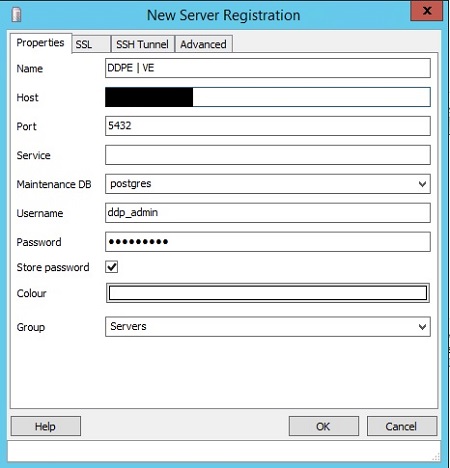
- Once that information is entered, press OK to complete the addition of the server to the pgAdmin console.
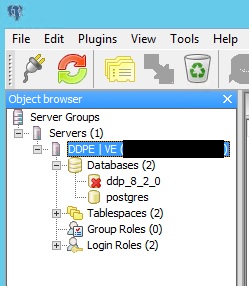
- Select ddp_8_2_0 and the red X should disappear, and a SQL icon should become available:
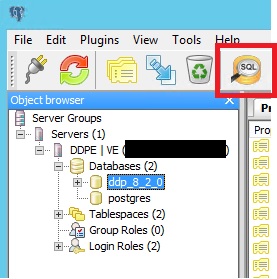
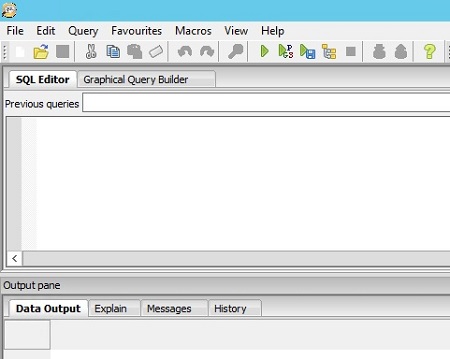
- Click that icon to bring up a query window:
pgAdmin 4
- Now that access is configured, open pgAdmin. From the drop-down menus, select Object > Create> Server:

- Give the Server a name (this is how it appears in your pgAdmin browser):
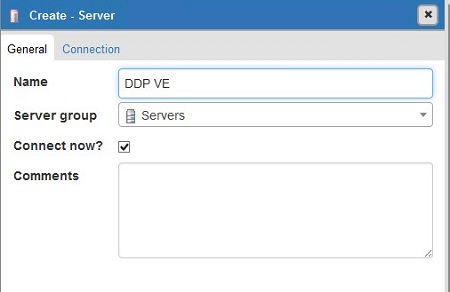
- Click the connection tab. Enter the following fields:
- Host: The hostname or IP address of the Dell Data Protection | Virtual Edition server
- Port: The port number for accessing the database (It is 5432 by default and should be pre-populated.)
- Username:
ddp_admin - Password: The password that was entered in the database password field of the Dell Data Protection | Virtual Edition server console.
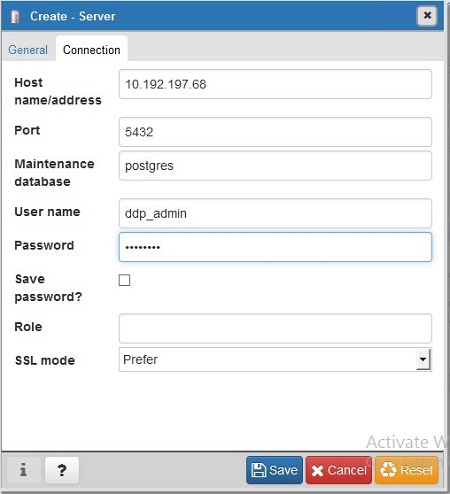
- Open your server and go to the ddp database:

- Right-click the database and select Query Tool…:
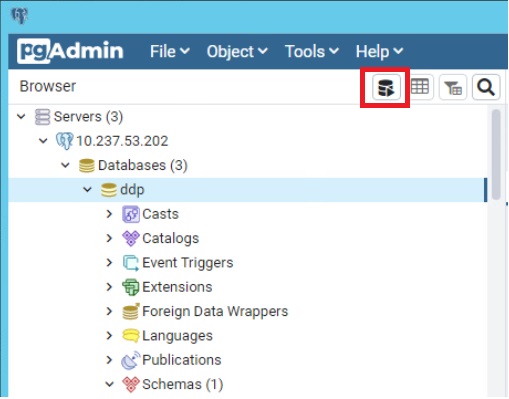
This brings up the query window:

To contact support, reference Dell Data Security International Support Phone Numbers.
Go to TechDirect to generate a technical support request online.
For additional insights and resources, join the Dell Security Community Forum.
受影响的产品
Dell Encryption文章属性
文章编号: 000131368
文章类型: How To
上次修改时间: 19 6月 2026
版本: 13
从其他戴尔用户那里查找问题的答案
支持服务
检查您的设备是否在支持服务涵盖的范围内。